Online Store (Storefront)
Overview
The online store at scottrecycling.com/shop sells general sale items -- non-computer equipment such as vehicles, furniture, office supplies, tools, clothing, and electronics. Products are automatically published from the General Sales module when marked for store listing. The storefront also includes a Request-a-Quote system for high-value and B2B items.
Last Updated: February 2026 Target Audience: Sales Staff, Marketing, Managers
How Auto-Sync Works
When a general sale item has listed_on_store=True in the General Sales module, it automatically syncs to the website shop. The following data is pushed to the storefront:
| Synced Field | Source |
|---|---|
| Title | Item description from General Sales |
| Description | Detailed listing text |
| Photos | All attached images |
| Price | Store price (Store $) |
| Condition | Condition grade from General Sales |
| Category | Item category assignment |
| Brand / Model | Brand and model specifications |
Changes in General Sales are reflected on the website automatically -- there is no manual "publish" step beyond setting listed_on_store.
Product Display
Each product page on the storefront includes:
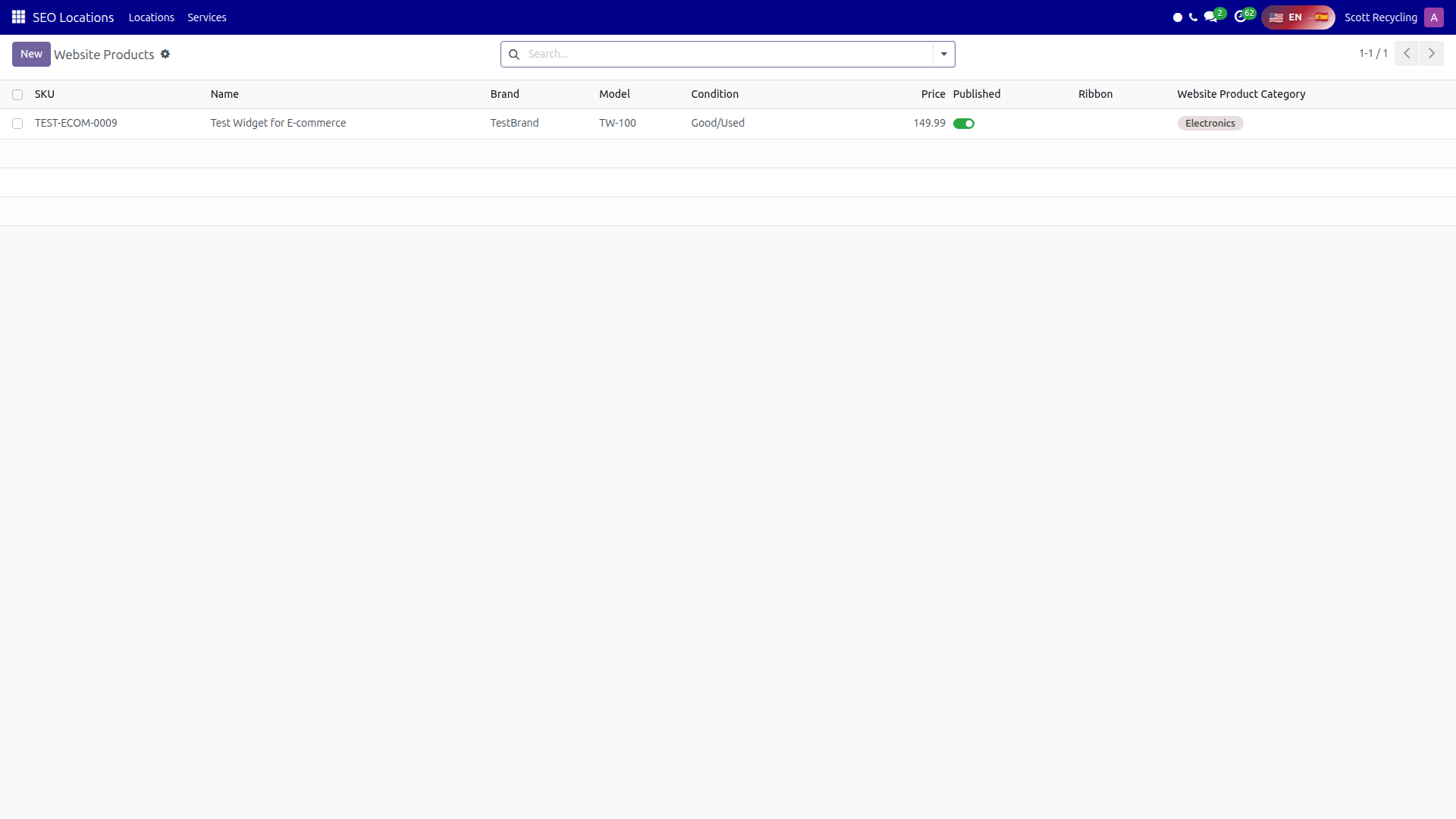 Published Products — items synced from General Sales to the online store
Condition Badges
Products display a colored badge based on their condition grade:
| Badge | Meaning |
|---|---|
| New | Unused, in original packaging |
| Like New | Minimal wear, fully functional |
| Fair | Visible wear but fully functional |
| For Parts | Not fully functional, sold for parts or repair |
Specs Table
A structured table shows brand, model, and other specifications relevant to the product category.
Product Categories
Items are organized into the following categories:
| Category | Examples |
|---|---|
| Vehicles | Trucks, forklifts, trailers |
| Furniture | Desks, chairs, shelving |
| Office Supplies | Filing cabinets, whiteboards, organizers |
| Clothing | PPE, uniforms, safety gear |
| Tools/Equipment | Power tools, hand tools, industrial equipment |
| Electronics | Non-computer electronics, monitors, peripherals |
| Raw Materials | Scrap metal, plastics, bulk commodities |
Request a Quote
For B2B buyers and high-value items, product pages display a Request Quote button instead of (or in addition to) a standard "Add to Cart" option.
Quote Request Form
The form collects:
| Field | Required | Description |
|---|---|---|
| Name | Yes | Buyer's full name |
| Yes | Contact email | |
| Phone | Yes | Contact phone number |
| Company | No | Business name |
| Quantity | Yes | Number of units requested |
| Message | No | Additional details or special requirements |
The form is rate-limited to 5 submissions per 10 minutes per IP address to prevent spam. Each submission creates an ecommerce.quote.request record in Odoo.
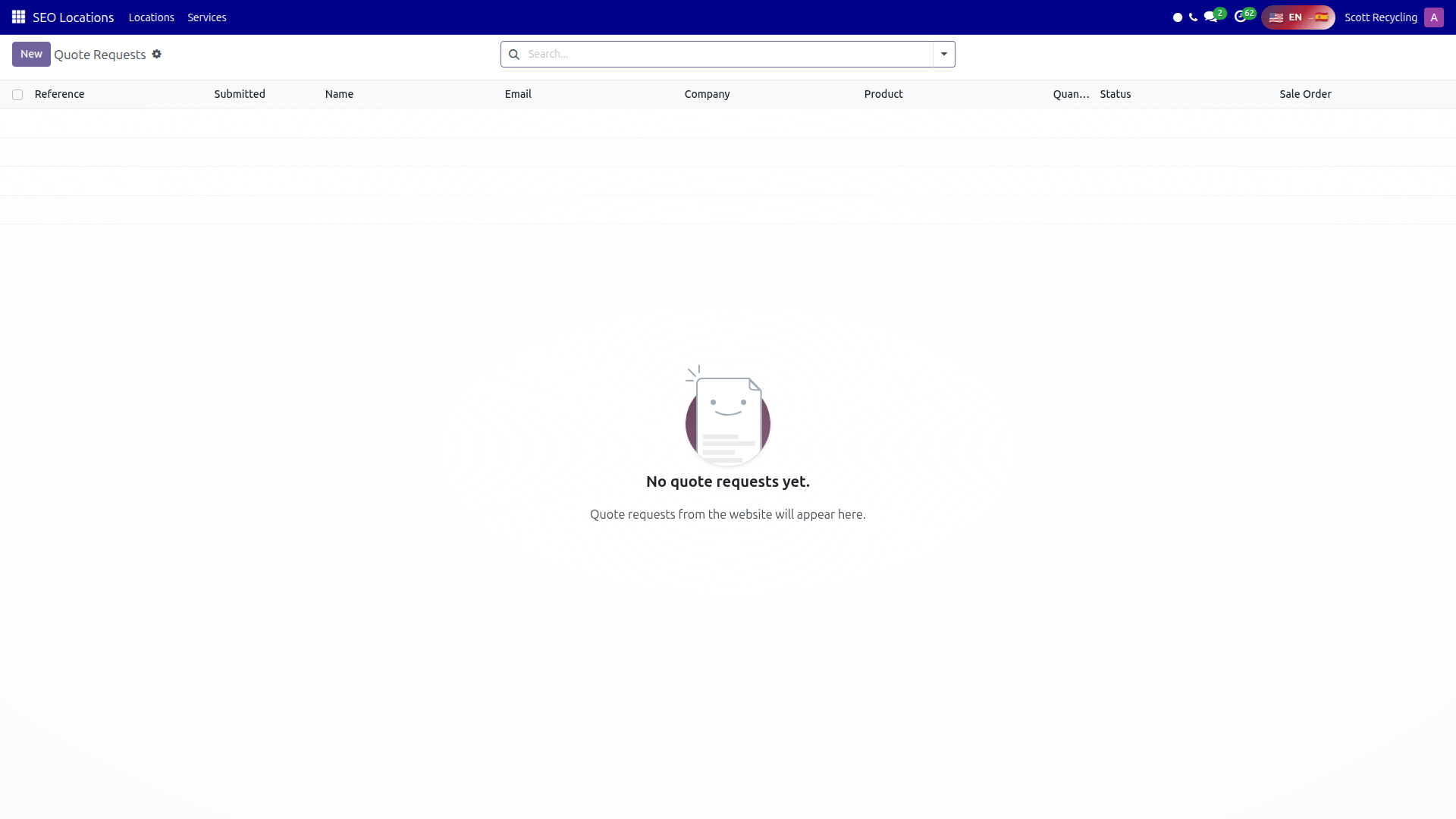 Quote Requests — B2B and high-value item inquiries from the storefront
Quote Request Workflow
Quote requests follow a simple status workflow:
| Status | Meaning |
|---|---|
| New | Request received, awaiting review |
| Quoted | Price quote has been sent to the buyer |
| Accepted | Buyer accepted the quote |
| Declined | Buyer declined or request was closed |
When a quote is accepted, the Create Sale Order button auto-creates a partner record (if the buyer is new) and generates a draft sales order with the quoted items and pricing.
Backend Management
Access the storefront backend from E-commerce Enterprise in the Odoo main menu.
Navigation
| Menu | What It Shows |
|---|---|
| Published Products | All products synced to the store with management controls |
| Website Categories | Category structure for organizing products |
| Quote Requests | All incoming quote requests with status tracking |
Published Products List
| Column | Description |
|---|---|
| SKU | Product identifier |
| Name | Product title |
| Brand | Manufacturer or brand |
| Model | Model name or number |
| Condition | Condition badge (New, Like New, Fair, For Parts) |
| Price | Store listing price |
| Published | Toggle to publish or unpublish from the storefront |
Common Tasks
Publishing an Item to the Store
- Open the item in General Sales
- Set
listed_on_storeto True - Verify the item has photos, a description, pricing, and a condition grade
- The item automatically appears on the storefront within minutes
Viewing a Quote Request
- Open E-commerce Enterprise → Quote Requests
- Quote requests are sorted newest-first by default
- Click a request to see full details -- buyer info, product, quantity, and message
- Update the status as you respond to the buyer
Converting a Quote to a Sale Order
- Open the quote request
- Click Create Sale Order
- The system creates a new partner if the buyer does not already exist in Odoo
- A draft sales order is generated with the product, quantity, and quoted price
- Review the draft SO and confirm when ready
Tips
Items auto-publish from General Sales
You do not need to manually add products to the website. Set listed_on_store in the General Sales module and the product syncs automatically -- title, photos, price, and all.
Check quote requests daily
B2B quote requests represent high-value opportunities. Check the Quote Requests list daily so buyers get a prompt response.
Condition badges matter
Buyers filter and judge products by condition. Make sure every item has an accurate condition grade before it goes live on the store.
Questions? Contact your supervisor or refer to the Getting Started guide.