Manager Guide
Overview
Comprehensive guide for supervisors and managers on using the SR Operations KPI module to monitor team performance, configure settings, and manage training.
Last Updated: February 2026 Duration: 45 minutes Audience: Supervisors, Managers
Lesson 1: Team Performance Monitoring
Learning Objectives
- Monitor team KPIs effectively
- Identify performance trends
- Use reports for decision-making
- Conduct performance discussions
Daily Monitoring Routine
Morning Check (8:00 AM): 1. Review Active Alerts for overnight issues 2. Check WIP Snapshots for backlog levels 3. Note any critical situations for standup
Midday Check (12:00 PM): 1. Review Dashboard for team progress 2. Identify anyone significantly behind 3. Reallocate resources if needed
End of Day (4:30 PM): 1. Final KPI review 2. Acknowledge resolved alerts 3. Note issues for next day
Using the Dashboard Effectively
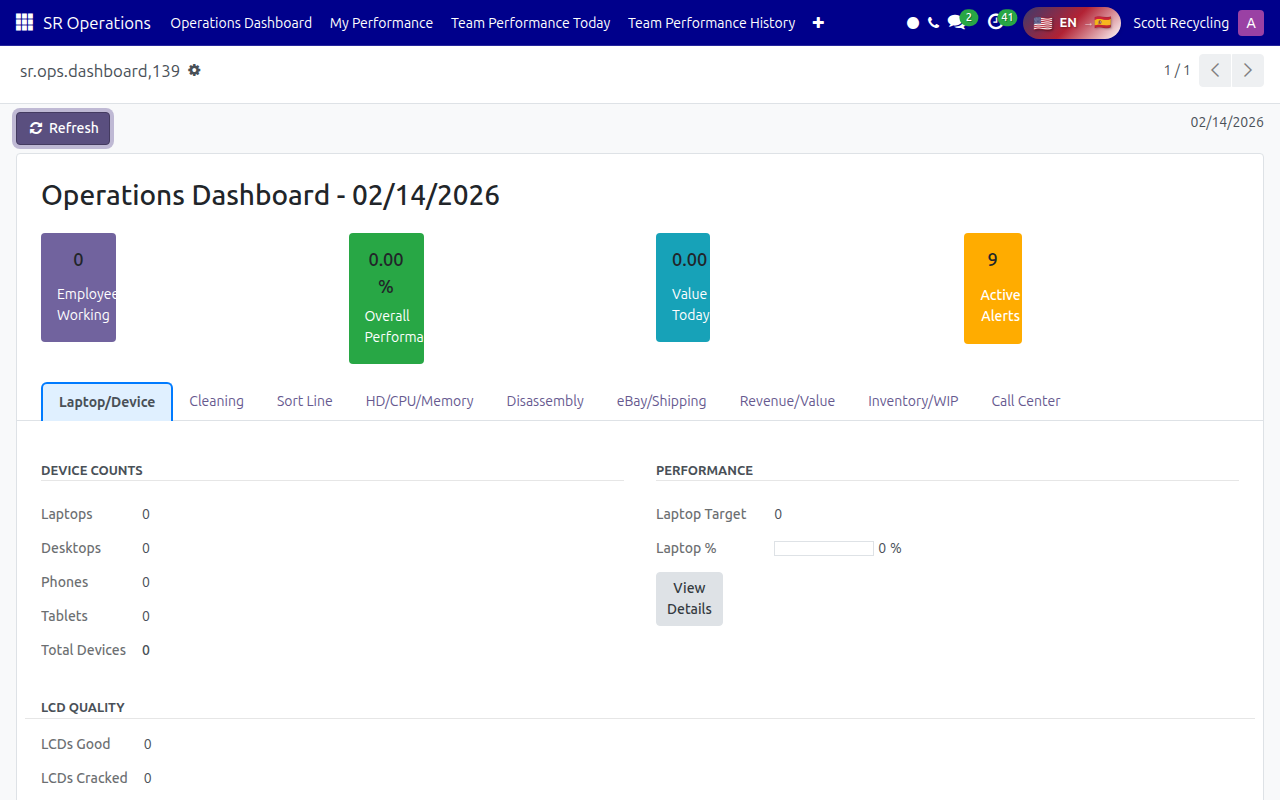
Filter to Your Team: 1. Go to Dashboard 2. Use Group By → Employee 3. Or filter by department
Spot Trends: 1. Remove "Today" filter 2. Select "This Week" or "This Month" 3. Group by Week to see patterns
Export for Meetings: 1. Apply desired filters 2. Click Action → Export 3. Choose Excel or CSV
Lesson 2: KPI Templates
Understanding Templates
KPI Templates define performance expectations for each role. Each template includes: - Primary metric (what they're measured on) - Daily targets - Performance thresholds
Viewing Templates
Navigation: SR Operations → KPI Tracking → KPI Templates
Template Fields
| Field | Description |
|---|---|
| Role Name | Display name (e.g., "Laptop Tech") |
| Role Code | System identifier |
| Department | Category (Call Center, Warehouse, etc.) |
| Primary Metric | Main measurement for this role |
| Target (X)/Day | Daily target for each metric |
| Below Target % | Threshold for "Below Target" status (default 80%) |
Assigning Templates to Employees
Method 1: From Employee Record 1. HR → Employees → Select employee 2. Go to SR Operations tab 3. Set KPI Template field
Method 2: From Template 1. SR Operations → KPI Templates 2. Open template 3. Click Employees smart button 4. Add employees
Creating Custom Templates
Manager Only
Only operations managers can create new templates.
- SR Operations → KPI Templates → Create
- Fill in required fields:
- Role Name
- Role Code (unique, no spaces)
- Department
- Primary Metric
- Relevant targets
- Save
Example: New "Senior Laptop Tech" template:
Role Name: Senior Laptop Tech
Role Code: SENIOR_LAPTOP
Department: Warehouse - Processing
Primary Metric: Laptops Processed
Target Laptops/Day: 25
Below Target %: 80
Lesson 3: WIP Management
Why WIP Matters
WIP levels directly impact: - Customer delivery times - Team workload balance - Resource allocation decisions - Overtime needs
Ideal WIP Levels
| Area | Ideal WIP | Warning | Critical |
|---|---|---|---|
| DA Gaylords | 1-2 days | > 4 days | > 6 days |
| Laptops | 2-3 days | > 5 days | > 7 days |
| Hard Drives | 1-2 days | > 2.5 days | > 3 days |
| Schedule Fill | 80%+ | < 60% | < 40% |
Responding to High WIP
Immediate Actions: 1. Identify the bottleneck area 2. Reassign available staff 3. Consider overtime authorization 4. Communicate with affected teams
Long-term Solutions: - Cross-train employees - Adjust scheduling - Review process efficiency - Request additional headcount
Schedule Fill Management
Understanding Solid Days: - Solid Day: 15+ stops scheduled - Light Day: 5-14 stops scheduled - Empty Day: < 5 stops scheduled
Target: At least 3 solid days scheduled for next week
If Schedule Fill is Low: 1. Alert call center team 2. Focus CSRs on booking 3. Review pending leads 4. Consider proactive outreach
Lesson 4: Alert System
How Alerts Work
The system automatically evaluates Alert Rules against WIP Snapshots every 15 minutes. When a rule triggers: 1. Alert record is created 2. Managers are notified (if configured) 3. SMS sent (if enabled)
Default Alert Rules
| Rule | Metric | Condition | Severity |
|---|---|---|---|
| DA Backlog Critical | DA WIP Days | > 6 | Critical |
| DA Backlog Warning | DA WIP Days | > 4 | Warning |
| Routes Critical | Solid Days | < 3 | Critical |
| HD Queue Critical | HD Queue | > 250 | Critical |
| Laptop Queue High | Laptop Queue | > 100 | Warning |
| Schedule Fill Low | Fill % | < 60% | Warning |
Managing Alerts
Acknowledging: 1. Open alert 2. Review the issue 3. Take appropriate action 4. Click Acknowledge 5. Add resolution notes
Alert Lifecycle:
Cooldown Period: Alerts have a cooldown (default 1-4 hours) to prevent spam. The same rule won't trigger again until cooldown expires.
Lesson 5: Alert Rules Configuration
Accessing Alert Rules
Navigation: SR Operations → WIP and Alerts → Alert Rules
Manager Only
Only managers can modify alert rules.
Rule Components
| Field | Description |
|---|---|
| Rule Name | Descriptive name |
| Metric | What to monitor (e.g., da_wip_days) |
| Condition | Comparison (>, <, =, etc.) |
| Threshold | Value that triggers alert |
| Severity | Critical/Warning/Info |
| Area | Department category |
| Alert Title | Short title for alerts |
| Alert Message | Detailed message (use {value} and {threshold}) |
| Suggested Action | What to do when triggered |
| Cooldown | Hours between repeat alerts |
Creating a New Rule
Example: Alert when laptops processed today is too low
- Create new Alert Rule
- Configure:
- Name: "Low Laptop Production"
- Metric: devices_processed_today
- Condition: Less Than
- Threshold: 50
- Severity: Warning
- Area: Laptops
- Alert Title: "Laptop Production Behind"
- Message: "Only {value} devices processed today (expected {threshold}+)"
- Suggested Action: "Check for staffing issues or equipment problems"
- Cooldown: 4 hours
Available Metrics
| Metric | Description |
|---|---|
| da_wip_days | Days of DA work in queue |
| laptop_wip_days | Days of laptop work |
| hd_wip_days | Days of HD work |
| schedule_fill_pct | Next week schedule fill |
| next_week_solid_days | Solid route days next week |
| today_stops | Pickup stops today |
| laptop_queue | Laptops waiting |
| hd_queue_drives | Drives waiting |
| devices_processed_today | Devices done today |
Disabling Rules
To temporarily disable a rule: 1. Open the rule 2. Click Archive (or uncheck Active) 3. Rule won't trigger until reactivated
Lesson 6: Training Management
Assigning Training
Create Assignment: 1. SR Operations → Training → Training Modules 2. Select a module 3. Click Assign Employees 4. Select employees 5. Set due date 6. Save
Monitoring Progress
View All Assignments: 1. SR Operations → Training → My Training (as manager, you see all) 2. Filter by status or employee
From Employee Record: 1. Open employee 2. Go to SR Operations tab 3. View Training Assignments section
Training Statuses
| Status | Meaning | Action |
|---|---|---|
| Not Started | Assigned, not begun | Follow up if overdue |
| In Progress | Working on it | Check progress |
| Completed | Finished all steps | Verify sign-offs |
| Overdue | Past due date | Escalate |
Sign-Off Requirements
Some training steps require supervisor sign-off: 1. Employee completes the step 2. You verify their work 3. Open their step result 4. Check Supervisor Approved 5. Add any notes 6. Save
Lesson 7: SMS Notifications
How SMS Works
The system can send SMS notifications for: - Daily KPI summaries (end of day) - Alert notifications (when triggered)
Employee SMS Preferences
Set in employee record (SR Operations tab): - Notify Role: Who gets alerts (Employee, Lead, Manager, Executive) - Notify SMS KPI: Enable daily KPI text - Mobile Phone SMS: Phone number for texts
SMS for Alerts
Configure on Alert Rules: - Send SMS: Enable SMS for this alert - Managers to Notify: Select who receives texts
Viewing SMS Log
Navigation: SR Operations → Configuration → SMS Log
Shows all sent/pending/failed messages with status and error details.
Quick Reference
Daily Checklist
- Check Active Alerts (morning)
- Review WIP levels
- Monitor Dashboard at midday
- Address any Below Target employees
- Acknowledge resolved alerts
- End-of-day KPI review
Weekly Checklist
- Review weekly trends
- Check training progress
- Evaluate alert rule effectiveness
- Team performance discussion
- Adjust targets if needed
Monthly Checklist
- Performance reviews using KPI data
- Training completion audit
- Alert rule review and tuning
- WIP trend analysis
- Template adjustments
Key Metrics to Watch
| Metric | Good | Concerning | Action Needed |
|---|---|---|---|
| Team Avg Performance | > 90% | 80-90% | < 80% |
| Active Critical Alerts | 0 | 1-2 | 3+ |
| WIP Days (any area) | < 2 | 2-4 | 5+ |
| Schedule Fill | > 80% | 60-80% | < 60% |
| Training Completion | > 95% | 80-95% | < 80% |
Questions? Contact your manager or IT support for assistance.