Sales
Overview
The Sales module handles quotations and sales orders from creation through invoicing. It manages the full order lifecycle: draft a quote, send it to the customer, confirm it as a sales order, deliver the products or services, and generate an invoice. It integrates with Inventory for delivery, Accounting for invoicing, and the Website for online sales.
Last Updated: February 2026 Target Audience: Sales, Accounting, Managers
How We Use It at Scott Recycling
At Scott Recycling, sales orders are created from several sources. The weighted sales lists system generates orders for bulk recycling materials sold by weight. Ecommerce quote requests come through the website when customers browse refurbished equipment or request pricing. General sale items — non-computer items like furniture, scrap metal, or office equipment — are listed and sold through the Sales module directly.
Sales orders connect downstream to shipping manifests for outbound logistics and to invoicing for billing. When a sales order is confirmed, warehouse staff can see the delivery order in the Inventory module. The shipping team uses our custom shipping container system to group items, verify weights, and track reusable packaging. Once shipped, the sales order can be invoiced — either manually or based on delivered quantities.
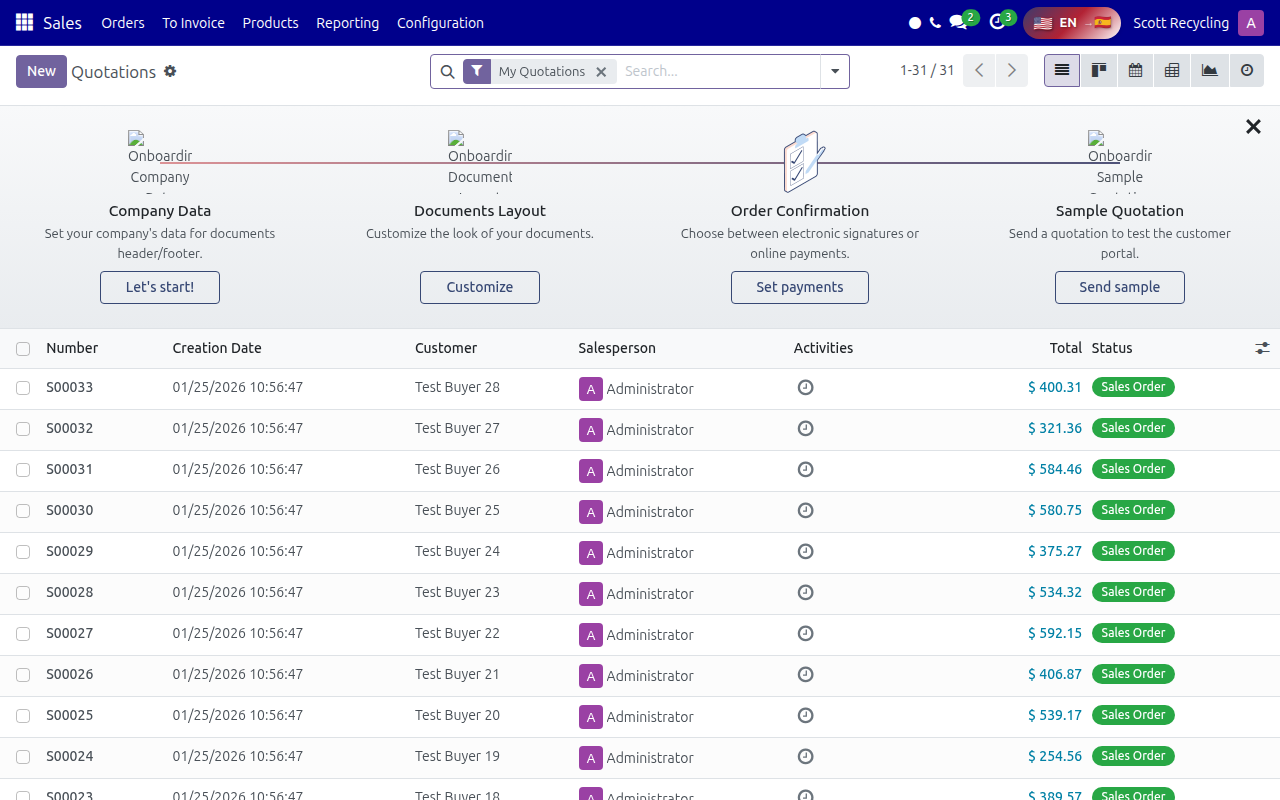 The sales orders list view showing orders from various channels with status and amounts.
Our custom modules extend the sales workflow in several ways. The sr_management module adds recycling-specific fields to products and sale order lines. The ecommerce system provides a storefront on scottrecycling.com where buyers can browse listed inventory, request quotes, and complete purchases. If you're working with sales orders, pay attention to whether the order originated from a weighted sale, an ecommerce request, or a manual entry, as the workflow differs slightly for each.
Learning Resources
Official Training
| Resource | Type | Duration | Link |
|---|---|---|---|
| Odoo 17 Sales Module Tutorial | Video | ~25 min | YouTube Search |
| Odoo 17 Quotation to Invoice | Video | ~20 min | YouTube Search |
| Odoo 17 Sales Workflow | Video | ~15 min | YouTube Search |
Recommended Reading
Quick Reference
| Task | Where to Find It |
|---|---|
| Create a new quotation | Sales > Orders > Quotations > New |
| Send a quotation to a customer | Open the quotation > Send by Email |
| Confirm a quotation as a sales order | Open the quotation > Confirm |
| View all sales orders | Sales > Orders > Orders |
| Create an invoice from a sales order | Open the sales order > Create Invoice |
| Check delivery status | Open the sales order > Delivery smart button |
| Add a discount to a line | Edit the sales order line > Discount column |
| View sales reports | Sales > Reporting > Sales |
| Set up a pricelist | Sales > Configuration > Pricelists |
| Cancel a sales order | Open the sales order > Cancel |
Tips
Quotation vs. Sales Order
A quotation is a draft — it's a proposal you can edit freely. Once you click Confirm, it becomes a sales order and triggers downstream processes (delivery orders, stock reservations). Don't confirm until the order details are finalized.
Check the origin of the order
Sales orders at SR come from different channels. Look at the Source Document field to understand where the order came from — this tells you whether it's a weighted sale, an ecommerce request, or a manual entry, and that affects the expected workflow.
Use the chatter for communication
The message thread at the bottom of every sales order (the "chatter") is the best place to communicate about an order. Notes and emails are logged automatically, so there's a full history anyone can review.
Need more help? Check the FAQ & Troubleshooting page or contact your supervisor.