Understanding Your KPIs
Overview
Learn how the SR Operations KPI system tracks your daily performance and what metrics matter for your role.
Last Updated: February 2026 Duration: 30 minutes Audience: All Employees
Lesson 1: What Are KPIs?
Learning Objectives
- Understand what KPIs measure
- Know your role's primary metric
- Read your daily performance status
- Access your KPI history
What is a KPI?
KPI stands for Key Performance Indicator - a measurable value that shows how effectively you're achieving your daily targets.
Why KPIs Matter: - Fair, consistent measurement for everyone - No guessing about expectations - Track your own progress - Identify areas for improvement
Lesson 2: KPI Templates by Role
Each role at Scott Recycling has a KPI Template that defines: - Your primary metric (what you're measured on) - Your daily target - Performance thresholds
Call Center Roles
| Role | Primary Metric | Daily Target |
|---|---|---|
| CSR Existing | Calls Made | 125 calls |
| Prospector | Calls Made | 125 calls |
What Gets Tracked: - Calls made - Conversations (decision-maker contacts) - Pickups booked - Queue items completed - Average call time
Warehouse - Processing Roles
| Role | Primary Metric | Daily Target |
|---|---|---|
| Laptop Tech | Laptops Processed | 20 laptops |
| Desktop Tech | Devices Processed | 15 devices |
| HD Operator | Drives Processed | 100 drives |
What Gets Tracked: - Laptops processed - Desktops processed - Phones/tablets processed - Total devices - Drives shredded
Warehouse - Sort & DA Roles
| Role | Primary Metric | Daily Target |
|---|---|---|
| Head Sorter | Boxes Sorted | 40 boxes |
| Disassembly Tech | DA Gaylords | 3 gaylords |
What Gets Tracked: - Boxes sorted - DA gaylords processed - Scrap pounds
Driver Roles
| Role | Primary Metric | Daily Target |
|---|---|---|
| Driver | Routes Completed | 1 route |
What Gets Tracked: - Routes completed - Stops completed - Boxes picked up
Lesson 3: Understanding Performance Status
Status Colors
Your KPI record shows one of three statuses:
| Status | Color | Meaning |
|---|---|---|
| Above Target | 🟢 Green | 100%+ of target - Excellent work! |
| On Track | 🟡 Yellow | 80-99% of target - Good progress |
| Below Target | 🔴 Red | Under 80% of target - Needs attention |
Performance Percentage
Your performance percentage is calculated as:
Example: - Target: 20 laptops/day - Actual: 18 laptops processed - Performance: (18 ÷ 20) × 100 = 90% (On Track)
Important Notes
- Part-time adjustments - If you work partial days, discuss target adjustments with your supervisor
- Data refresh - KPIs update automatically every 15 minutes
- Historical tracking - All daily records are saved for review
Lesson 4: Viewing Your KPIs
Accessing the Dashboard
Navigation: Click SR Operations in the app menu, then Operations Dashboard.
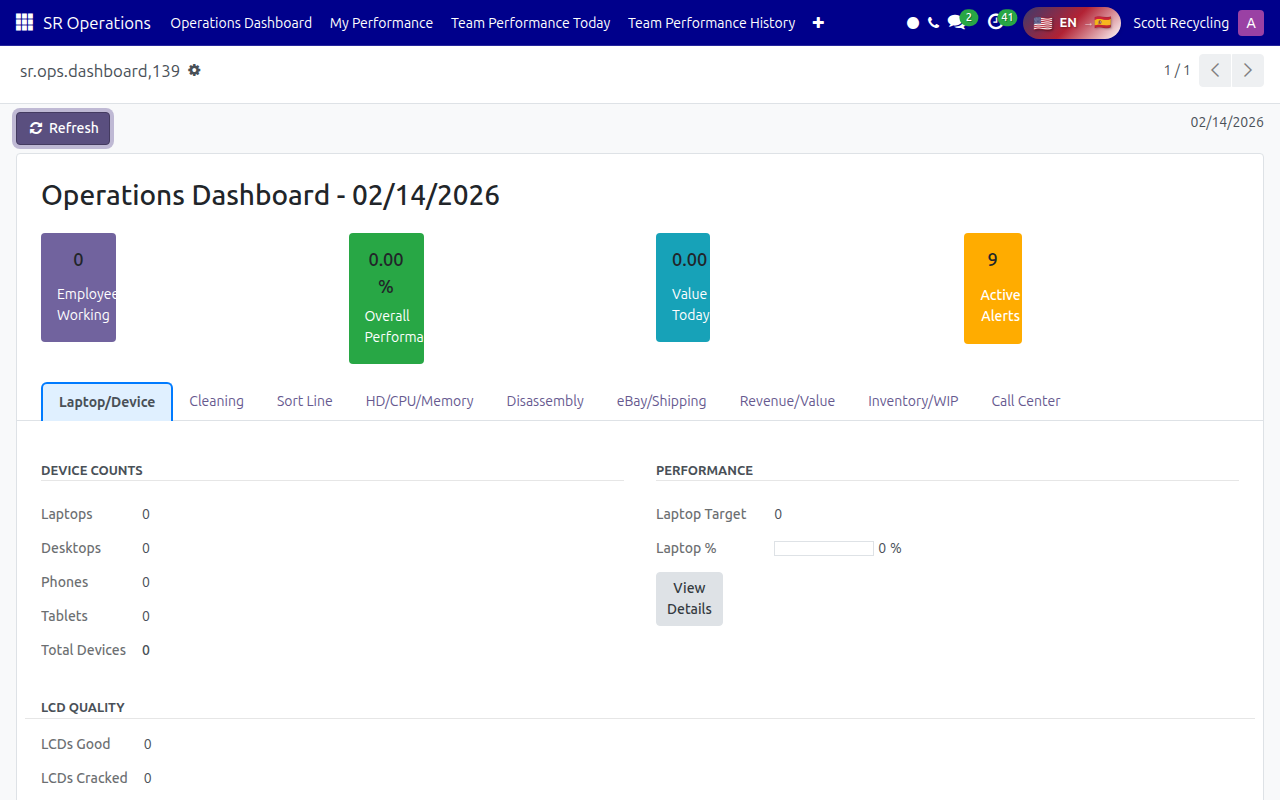
The dashboard shows today's performance with summary cards at the top and department tabs below. Click My Performance in the top menu bar to see just your own KPI records.
Understanding the KPI List
| Column | Description |
|---|---|
| Date | The date of the record |
| Employee | Your name |
| Role Template | Your assigned KPI template |
| Devices/Calls/etc. | Actual counts for the day |
| Performance % | Visual progress bar |
| Status | Above/On Track/Below |
Viewing Details
Click any KPI record to see the full breakdown:
Device Processing Tab: - Laptops, desktops, phones, tablets processed - Total devices vs target
Call Center Tab: - Calls made, conversations - Pickups booked, queue items done - Average call time
Routes Tab: - Routes completed - Stops completed - Boxes picked up
Lesson 5: Improving Your Performance
Tips by Role
Call Center: - Use the communication queue efficiently - Log all calls immediately - Focus on quality conversations, not just volume - Book pickups during calls when possible
Laptop/Device Processing: - Process items completely before moving to next - Use keyboard shortcuts in the system - Keep workstation organized - Flag issues immediately, don't skip items
Sorting: - Stay organized with incoming boxes - Sort similar items together - Call for help with heavy items - Don't rush and miss items
Drivers: - Plan route efficiently - Confirm appointments before leaving - Log boxes accurately at each stop - Report issues immediately
If You're Consistently Below Target
- Talk to your supervisor - There may be factors affecting your work
- Review your process - Look for inefficiencies
- Ask for training - You may benefit from additional coaching
- Check equipment - Slow systems affect everyone
Quick Reference
Checking Your Status
- Go to SR Operations → Dashboard
- Find your name in the list
- Check the Performance % column
- Green = Great, Yellow = Good, Red = Talk to supervisor
Understanding Your Target
- Go to SR Operations → KPI Tracking → Daily KPIs
- Click on your record
- Look at the Targets column in each section
Reporting Issues
If you believe your KPI data is incorrect: 1. Note the specific date and metric 2. Explain what you actually did 3. Tell your supervisor 4. They can investigate and correct if needed
Assessment Questions
1. What does KPI stand for? - [ ] Key Personal Indicator - [x] Key Performance Indicator - [ ] Known Production Index - [ ] Kept Progress Information
2. What status means you're at 85% of target? - [ ] Above Target - [x] On Track - [ ] Below Target
3. How often do KPIs update? - [ ] Once a day - [ ] Once an hour - [x] Every 15 minutes - [ ] In real-time
4. If your target is 100 drives and you process 110, what's your performance? - [ ] 90% - [ ] 100% - [x] 110% - [ ] 10%
Questions? Contact your supervisor or refer to the detailed system documentation.