Employee Evaluations
Overview
The SR Evaluations module provides a structured performance evaluation system with role-specific criteria, multiple evaluation types, weighted ratings, and employee feedback. Managers create evaluations from templates, rate employees on defined criteria, and employees can review and comment on their completed evaluations.
Last Updated: February 2026 Target Audience: Managers, HR, All Employees
Navigation
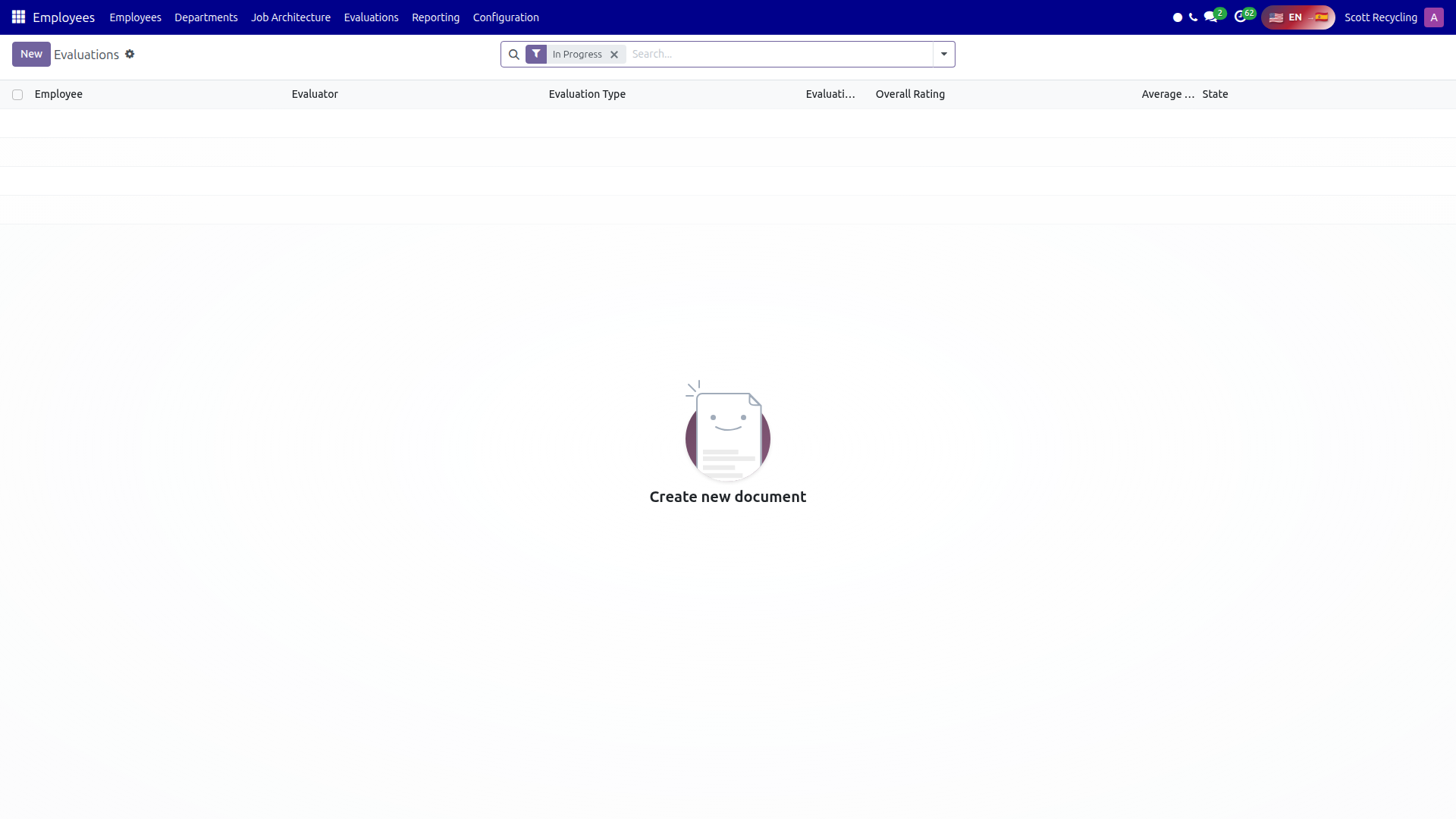 All Evaluations — view and manage performance evaluations across the organization
Evaluation Templates
Templates define the criteria used in an evaluation. Each template has a name, evaluation type, optional role link, and a list of criteria lines.
Template Fields
| Field | Description |
|---|---|
| Name | Template title (e.g., "CSR 30-Day Review") |
| Evaluation Type | 30-Day Review, 90-Day Review, Annual Review, or Custom |
| Role | Optional link to an onboarding role -- use to create role-specific templates |
| Criteria | List of criteria lines with names, descriptions, sequence, and weight |
| Active | Whether this template is available for use |
Criteria Line Fields
| Field | Description |
|---|---|
| Criterion | Name of the criterion (e.g., "Communication Skills") |
| Description | Guidance for the evaluator on how to assess this criterion |
| Sequence | Display order |
| Weight | Standard or Critical -- critical criteria are weighted 2x in the overall score |
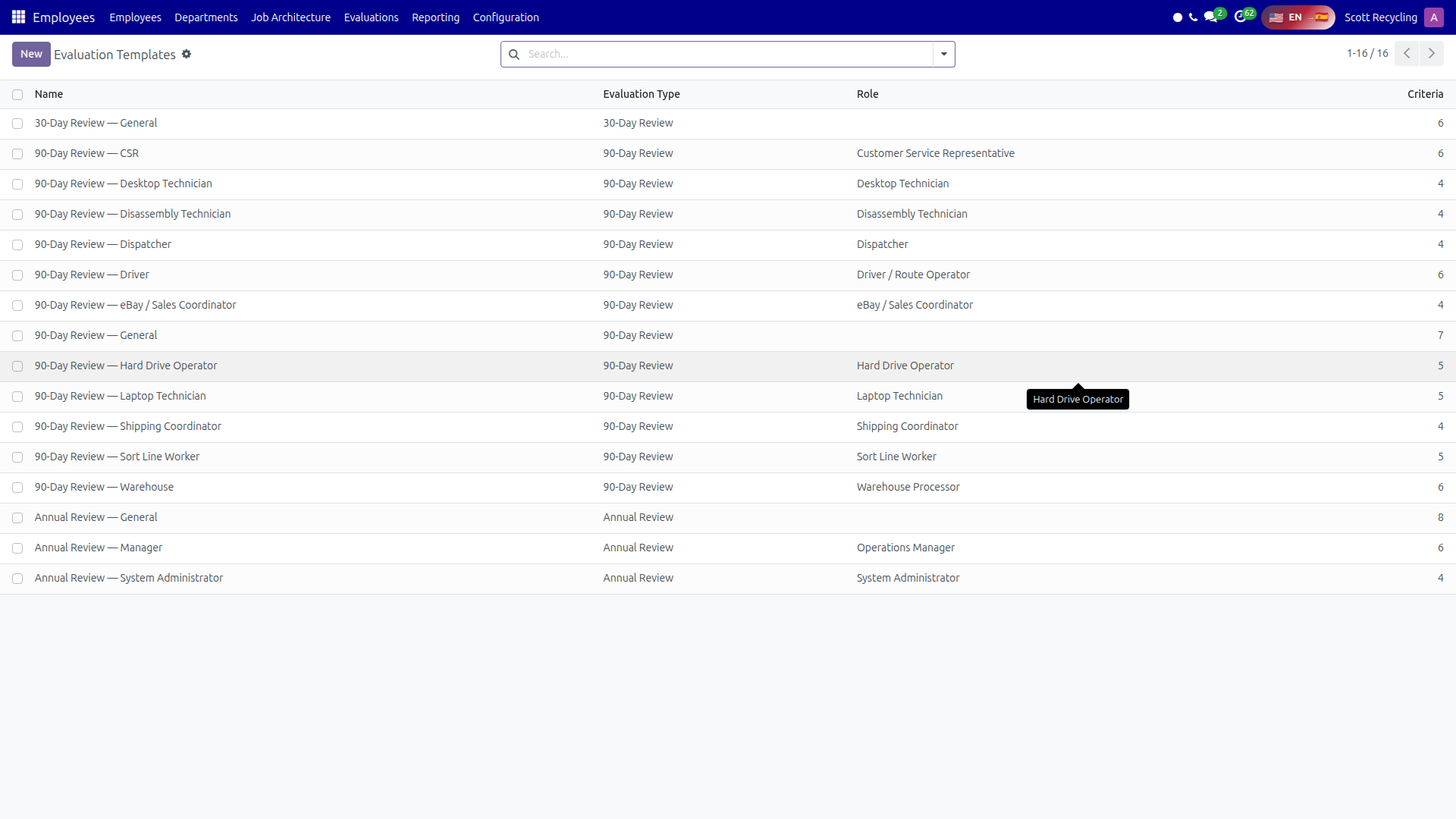 Evaluation Templates — define criteria, weights, and role-specific assessment standards
Use Critical weight sparingly
Mark a criterion as Critical only when it represents a core competency essential to the role. Critical criteria count double in the overall score calculation, so overusing them dilutes their impact.
Creating an Evaluation
Step-by-Step
- Navigate to Evaluations > All Evaluations
- Click New
- Select the Employee -- the evaluator auto-fills from the employee's manager
- Select the Evaluation Type (30-Day, 90-Day, Annual, or Custom)
- Select a Template -- the criteria auto-populate from the template
- Set the Period Start and Period End dates
- Click Start to move the evaluation to In Progress
- Rate each criterion on the 1-5 scale
- Fill in the Strengths, Areas for Improvement, and Goals fields on the Summary tab
- Set the Overall Rating
- Click Complete to finalize the evaluation
Evaluation Fields
| Field | Description |
|---|---|
| Employee | The employee being evaluated |
| Evaluator | The manager conducting the evaluation (auto-filled from employee's manager) |
| Department | Auto-populated from the employee record |
| Job Position | Auto-populated from the employee record |
| Evaluation Type | 30-Day Review, 90-Day Review, Annual Review, or Custom |
| Template | Source template for criteria |
| Evaluation Date | Date of the evaluation (defaults to today) |
| Period Start / End | The time period being evaluated |
| Overall Rating | Required before completing -- 1 to 5 scale |
| Average Score | Computed weighted average of all criteria ratings |
Status Workflow
Evaluations follow a four-stage workflow:
| Status | Description |
|---|---|
| Draft | Evaluation created but not started. Criteria and settings can be changed freely. |
| In Progress | Active evaluation. The evaluator rates criteria and adds comments. |
| Completed | Finalized. Requires at least one criterion and an overall rating. |
| Cancelled | Evaluation was cancelled. Can be reset to Draft if needed. |
Rating Scale
All criteria and the overall rating use the same 1-5 scale:
| Rating | Meaning |
|---|---|
| 1 | Does Not Meet Expectations |
| 2 | Needs Improvement |
| 3 | Meets Expectations |
| 4 | Exceeds Expectations |
| 5 | Outstanding |
Overall Score Calculation
The Average Score is a weighted average of all rated criteria:
- Standard criteria have a weight of 1
- Critical criteria have a weight of 2
Formula: Sum of (rating x weight) / Sum of weights
Example: An evaluation with three criteria:
| Criterion | Weight | Rating |
|---|---|---|
| Communication | Standard (1x) | 4 |
| Safety Compliance | Critical (2x) | 3 |
| Teamwork | Standard (1x) | 5 |
Average Score = (4x1 + 3x2 + 5x1) / (1 + 2 + 1) = 15 / 4 = 3.75
Rating Criteria
Each criterion on an active evaluation has:
| Field | Description |
|---|---|
| Criterion | Name of what is being rated |
| Description | Guidance for the evaluator |
| Sequence | Display order |
| Weight | Standard or Critical |
| Rating | 1-5 selection |
| Evaluator Comments | Free-text comments explaining the rating |
Employee Feedback
After an evaluation is completed, the employee can view it and add comments.
Adding Employee Feedback
- Navigate to Evaluations > My Evaluations
- Open a completed evaluation
- Go to the Employee Comments tab
- Add your comments or feedback
- Save
Read and respond to your evaluations
Evaluations are a two-way conversation. Take time to read the feedback carefully and add your own comments -- this shows engagement and helps your manager understand your perspective.
My Evaluations
The My Evaluations view shows all evaluations where you are the employee. You can see your evaluation history, ratings, and add comments to completed evaluations.
Employee Integration
The evaluation system adds these fields to the employee record:
| Field | Description |
|---|---|
| Evaluation Count | Number of completed evaluations |
| Last Evaluation Date | Date of the most recent completed evaluation |
| View Evaluations | Button to see all evaluations for this employee |
Onboarding Quiz Integration
Evaluations include computed fields for onboarding quiz status:
| Field | Description |
|---|---|
| Onboarding Quiz Passed | Whether the employee passed their role's knowledge quiz |
| Onboarding Role | The employee's assigned onboarding role |
These fields give the evaluator context about the employee's onboarding completion when conducting early reviews (30-day, 90-day).
Security
| Group | Access |
|---|---|
| Employee (View Own) | View own evaluations. Add employee comments. |
| Evaluator (Create/Edit) | Everything Employee can do, plus create and edit evaluations for their reports. |
| Administrator | Full access -- manage templates, view all evaluations, create evaluations for any employee. |
Common Tasks Summary
| Task | Steps |
|---|---|
| Create a 30-day evaluation | Evaluations > All Evaluations > New > Select employee and 30-Day template |
| Rate criteria | Open In Progress evaluation > Rate each criterion 1-5 with comments |
| Add employee feedback | My Evaluations > Open completed evaluation > Employee Comments tab |
| Review evaluation history | Employee form > View Evaluations button |
| Create a template | Configuration > Templates > New |
Questions? Contact your supervisor or HR administrator.