Getting Started with Odoo at Scott Recycling
Last Updated: February 2026
This guide walks you through logging in, navigating the system, and finding the tools you need for your role.
Logging In
- Open your web browser and go to your Odoo URL (provided by your manager or IT).
- Enter your Email and Password, then click Log in.
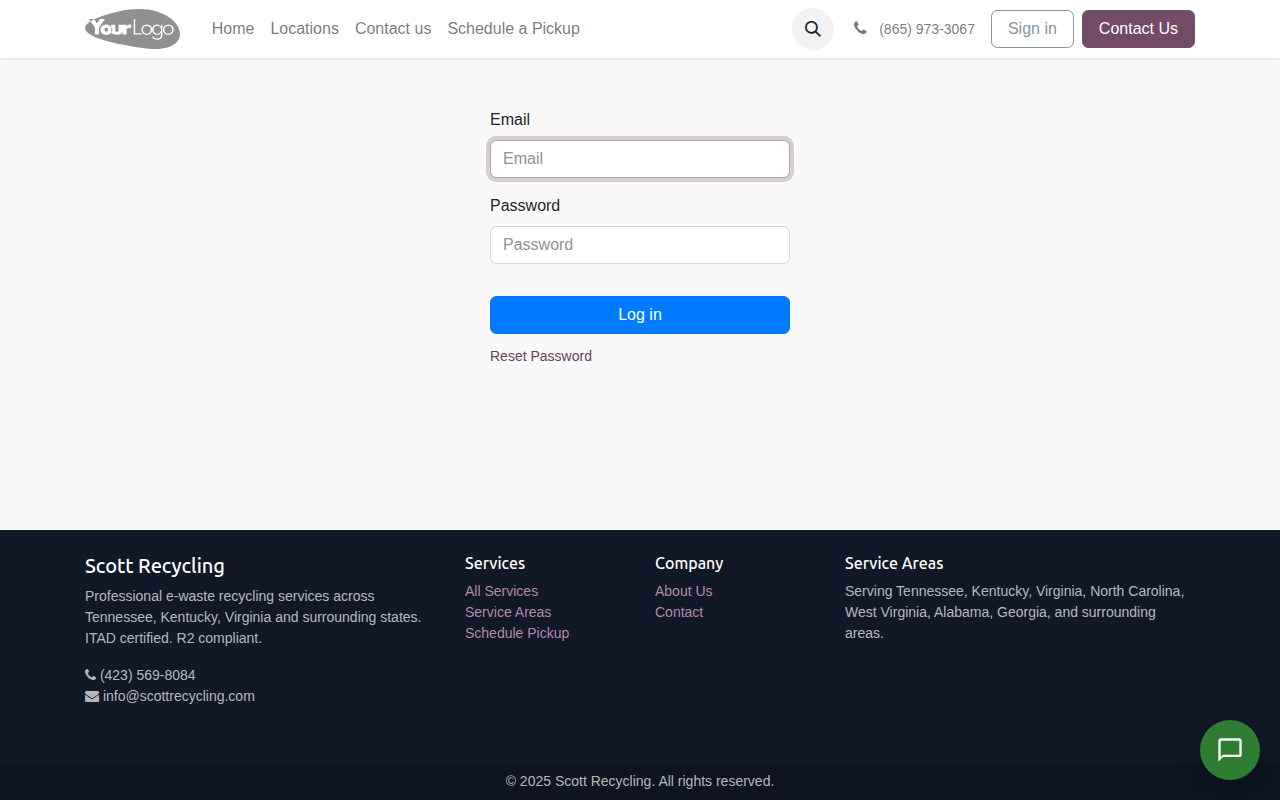
Forgot your password?
Click Reset Password on the login page. If that doesn't work, contact your supervisor or IT.
The Home Screen
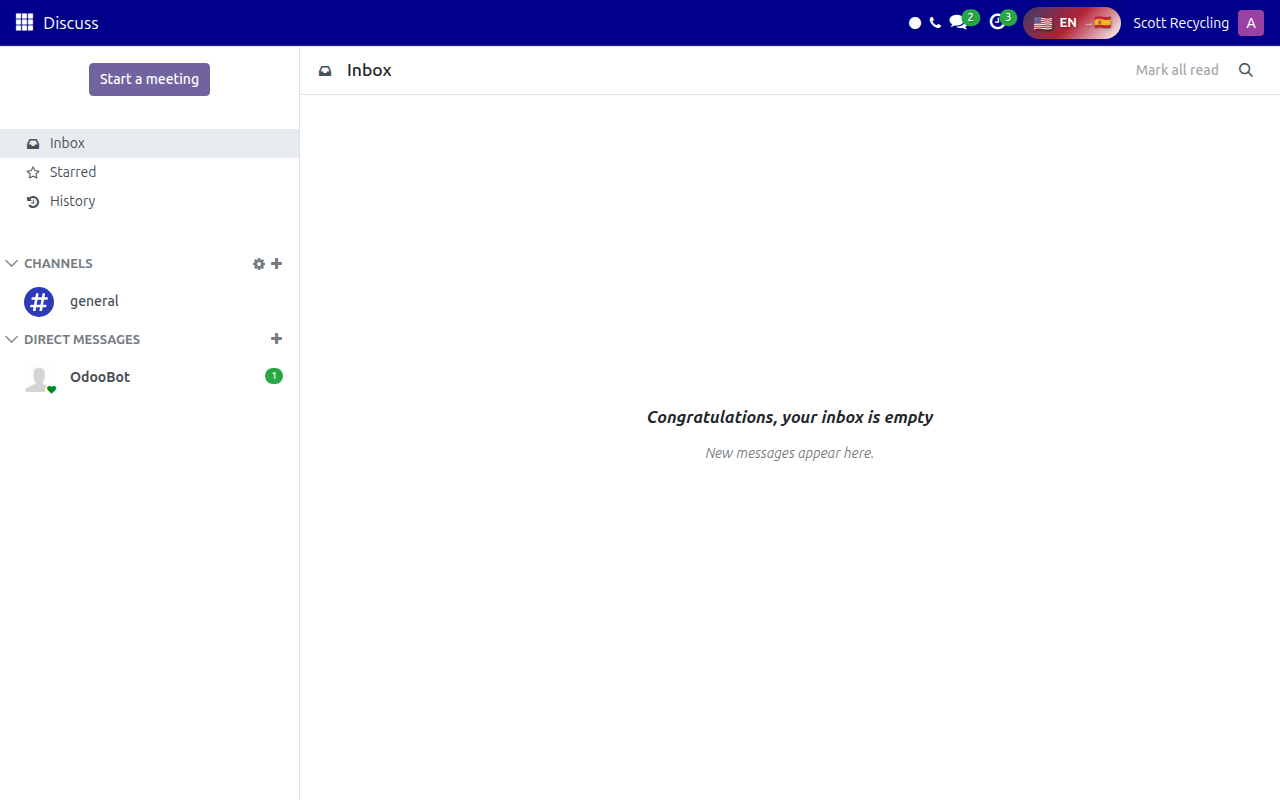
After logging in, you'll land on the Discuss inbox. This is where you'll see internal messages and notifications from the system.
Navigating Between Apps
Everything in Odoo is organized into Apps. To switch between them, click the grid icon in the top-left corner of the screen.
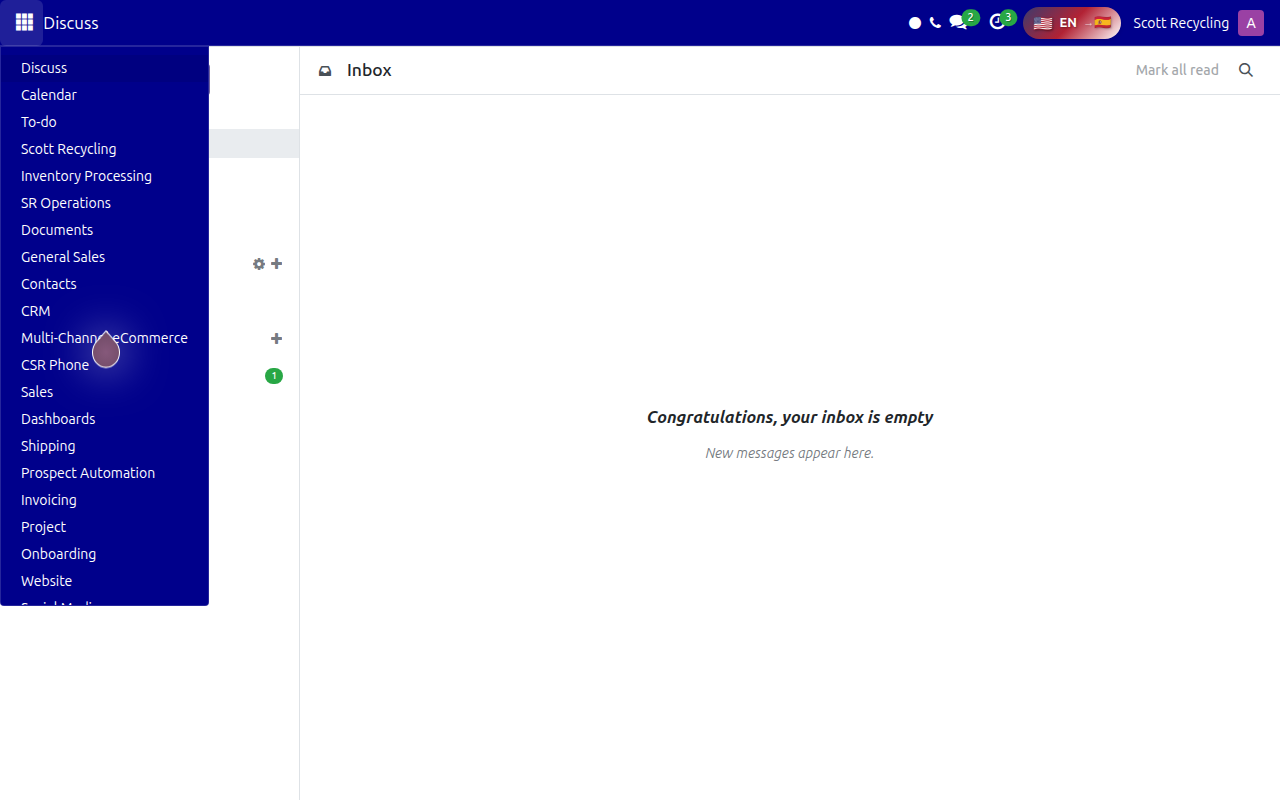
The apps you'll use most often depend on your role:
| If you are a... | You'll mainly use |
|---|---|
| CSR (Customer Service Rep) | Scott Recycling (Call Queues, Prospects, Scheduling Pickups), Contacts, Email Marketing |
| Warehouse / Processing | Inventory Processing, Shipping |
| Sales | General Sales, Multi-Channel eCommerce, Scott Recycling |
| Driver / Dispatch | Scott Recycling (Fleet Overview), Calendar |
| Manager | SR Operations (KPIs), Dashboards, all of the above |
Click any app name in the menu to open it.
Understanding the Top Navigation Bar
Once you open an app, the top navigation bar changes to show that app's menu sections. For example, when you open Scott Recycling, you'll see:
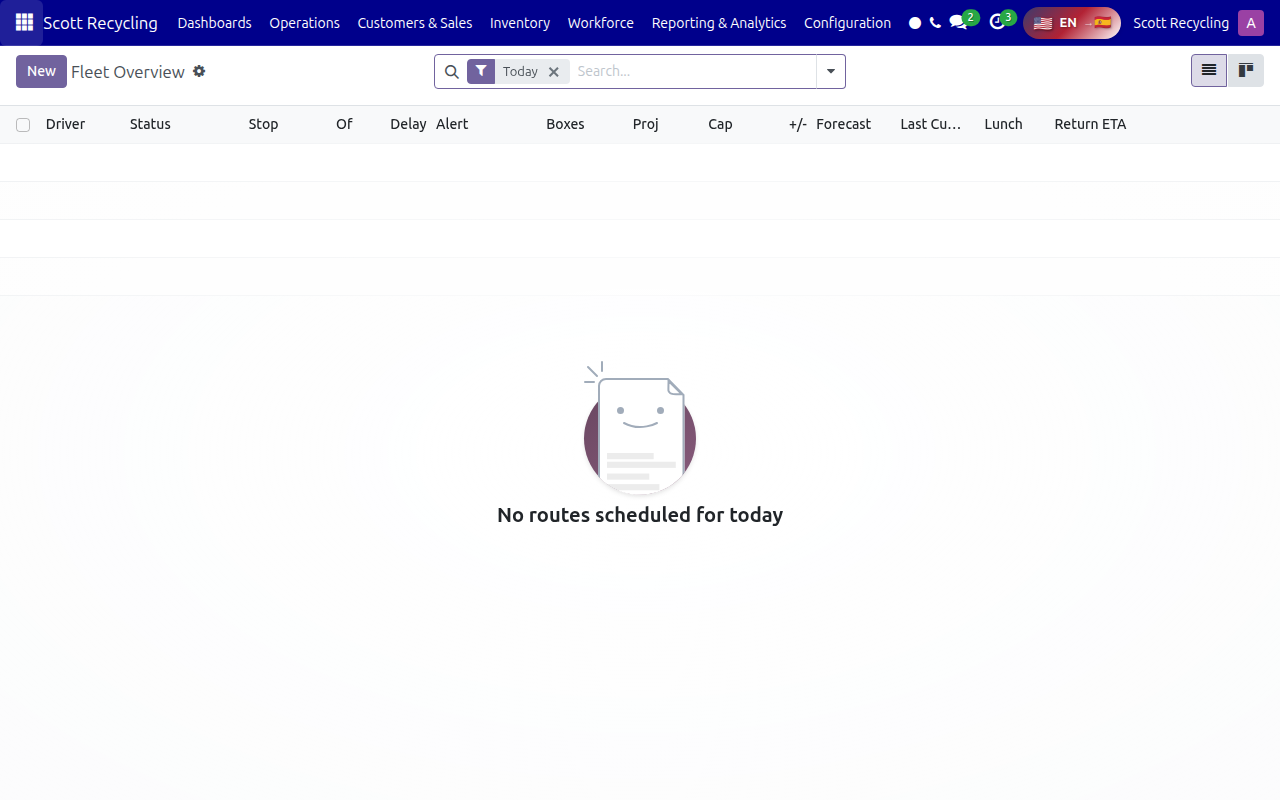
The top bar shows menu categories like Dashboards, Operations, Customers & Sales, Inventory, Workforce, Reporting & Analytics, and Configuration. Click any of these to access the features within that section.
Key Areas of the Screen
Every Odoo screen follows the same layout:
| Area | Location | What It Does |
|---|---|---|
| App Menu | Top-left grid icon | Switch between apps |
| Current App Name | Top-left (next to grid icon) | Shows which app you're in |
| Menu Bar | Top row | Navigate within the current app |
| Action Bar | Below menu bar | New button, search, filters, view toggles |
| Main Content | Center | Lists, forms, kanban boards, dashboards |
| System Tray | Top-right icons | Messages, activities, phone, profile |
Your Profile and Preferences
Click your name/avatar in the top-right corner to access your profile menu:
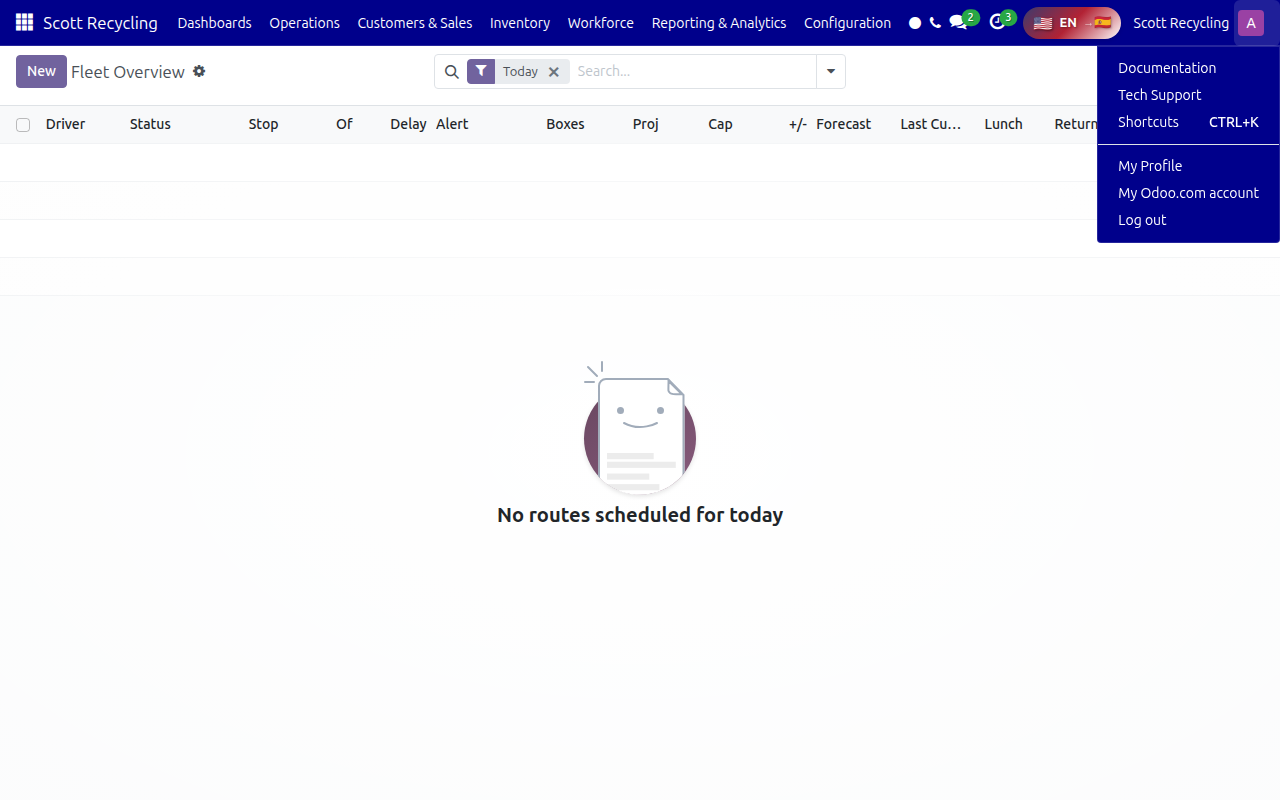
From here you can:
- My Profile - Update your name, email, photo, and password
- Shortcuts (Ctrl+K) - Quick search for any page, record, or action
- Log out - Sign out of the system
Keyboard shortcut
Press Ctrl+K from anywhere in Odoo to open the command palette. Type what you're looking for (e.g., "Scott Recycling" or "Contacts") and press Enter to jump there instantly.
Common Actions
Creating a New Record
Most screens have a New button in the top-left. Click it to create a new record (lead, contact, inventory item, etc.).
Searching and Filtering
Use the search bar at the top of any list to find records. You can:
- Type a keyword to search
- Click the filter icon to apply pre-built filters
- Click Group By to organize records by category
Switching Views
Many screens offer multiple views. Look for the view toggle icons on the right side of the action bar:
- List view - Rows and columns (spreadsheet-style)
- Kanban view - Cards organized in columns (like a board)
- Calendar view - Records shown on a calendar
- Graph/Pivot view - Charts and data analysis
Quick Reference: Apps You'll Use
Scott Recycling (Main Hub)
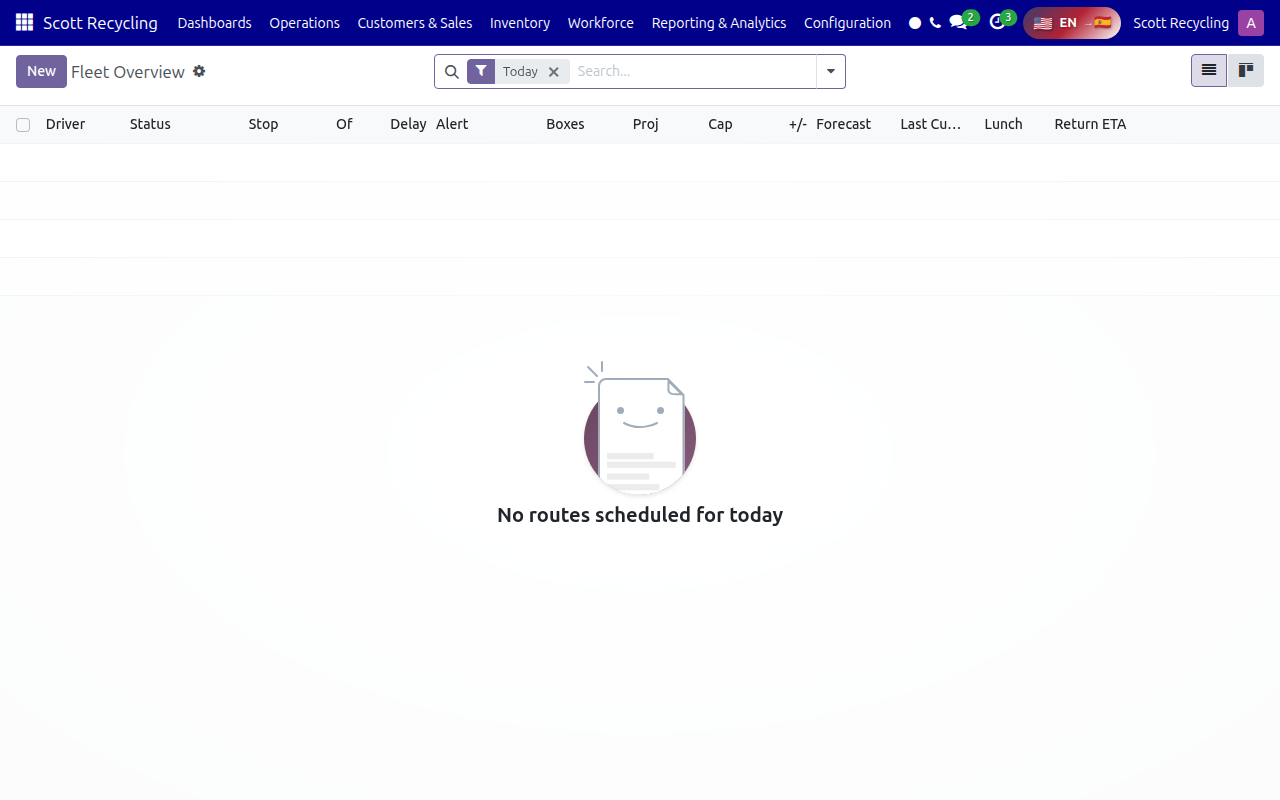
The central app for fleet overview, routes, customers, and daily operations.
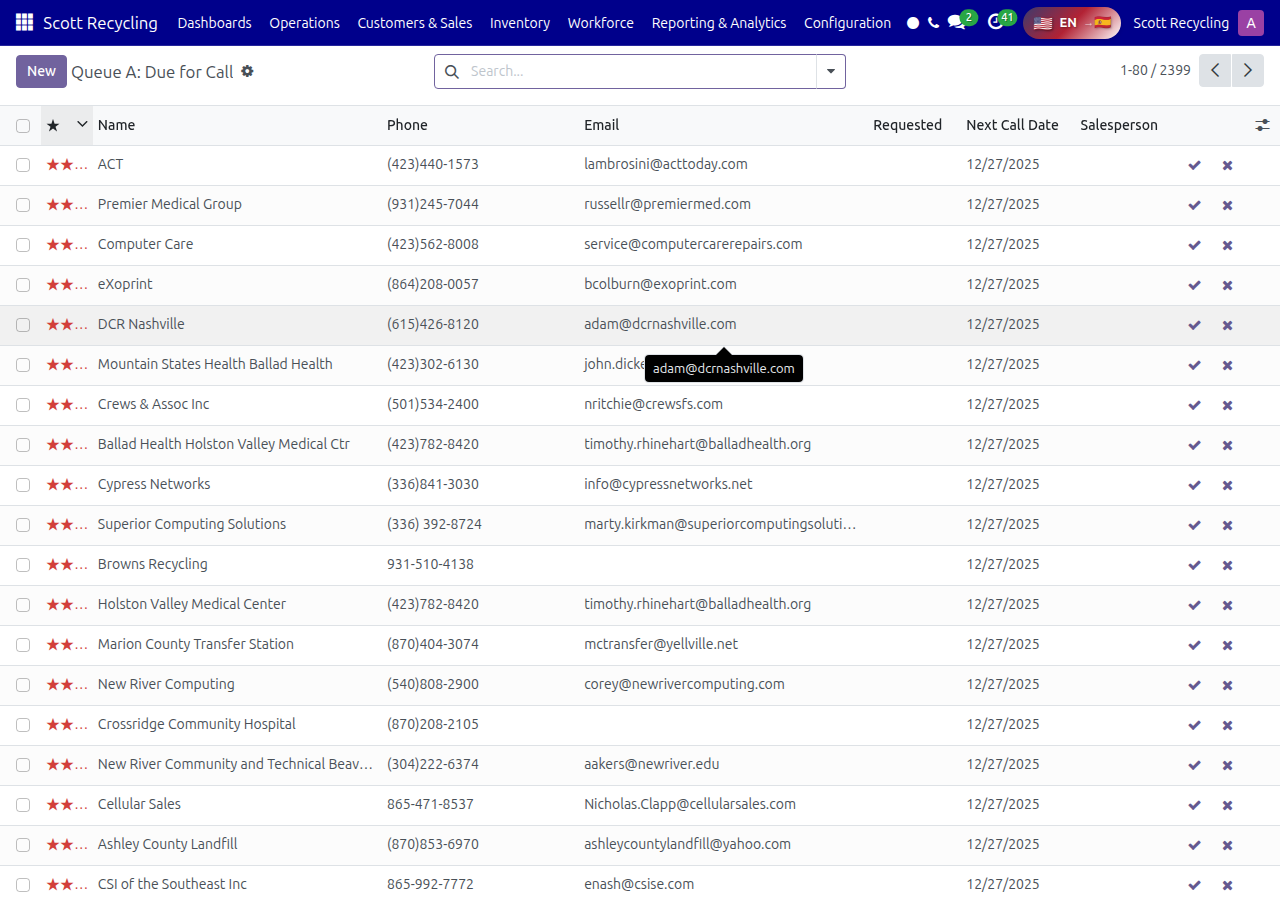
Customer Call Queues
Work through prioritized call queues (A/B/C/D) for existing customers — due for call, escalation, pickup overdue, and pickup requested.
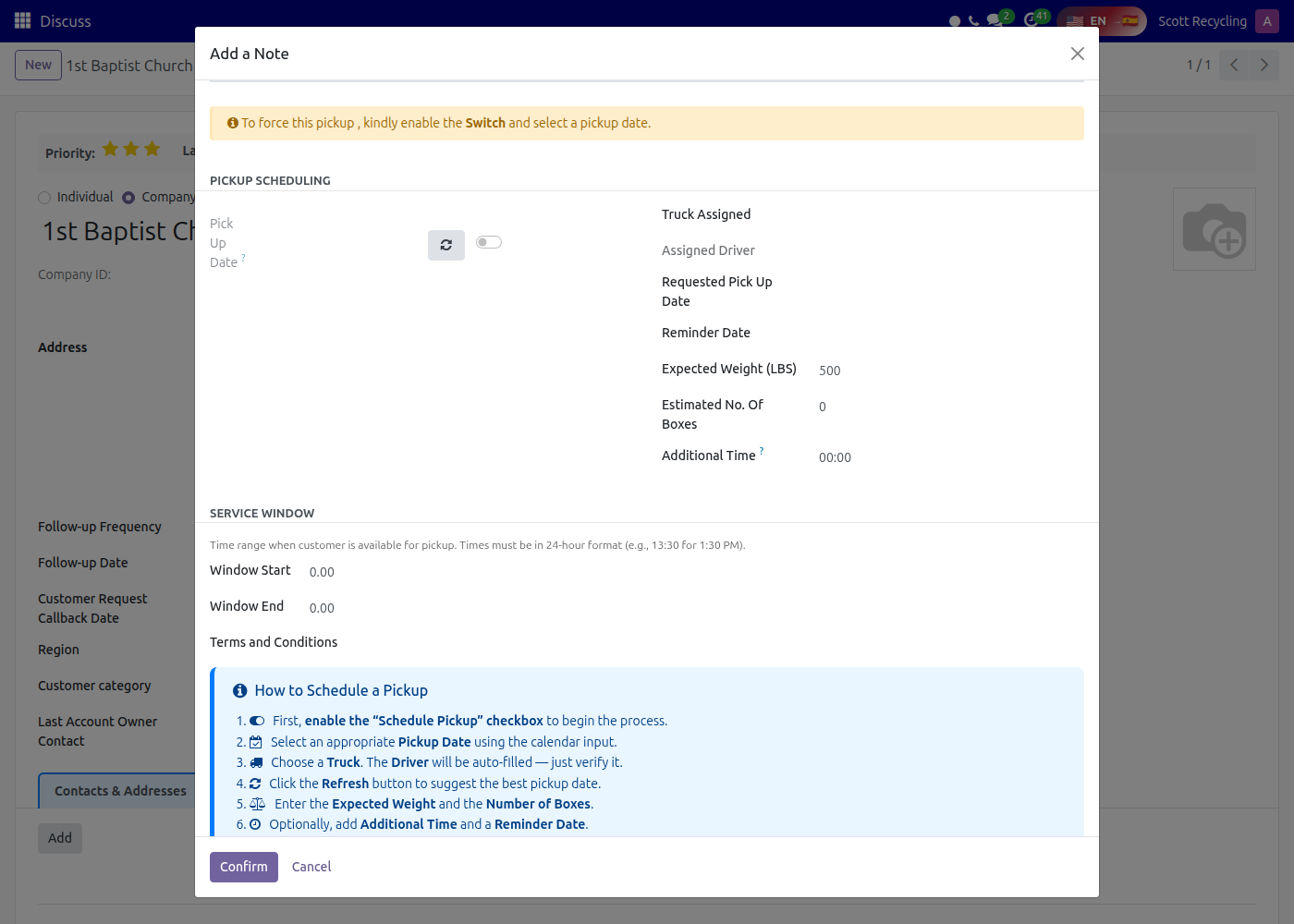
Scheduling a Pickup
Schedule pickups directly from the Add a Note wizard on any customer record. Log the contact and create the pickup in one step.
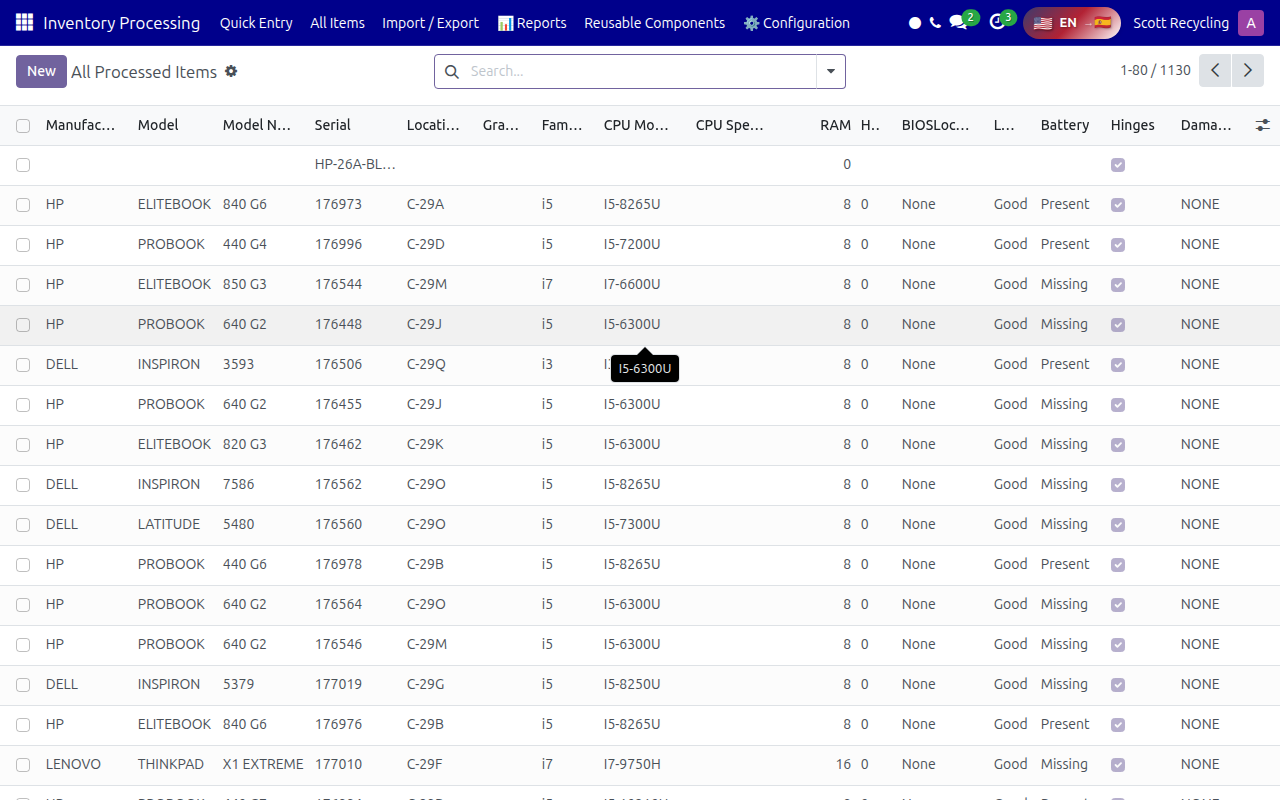
Inventory Processing
View and manage all processed devices with model details, grades, specs, and locations.
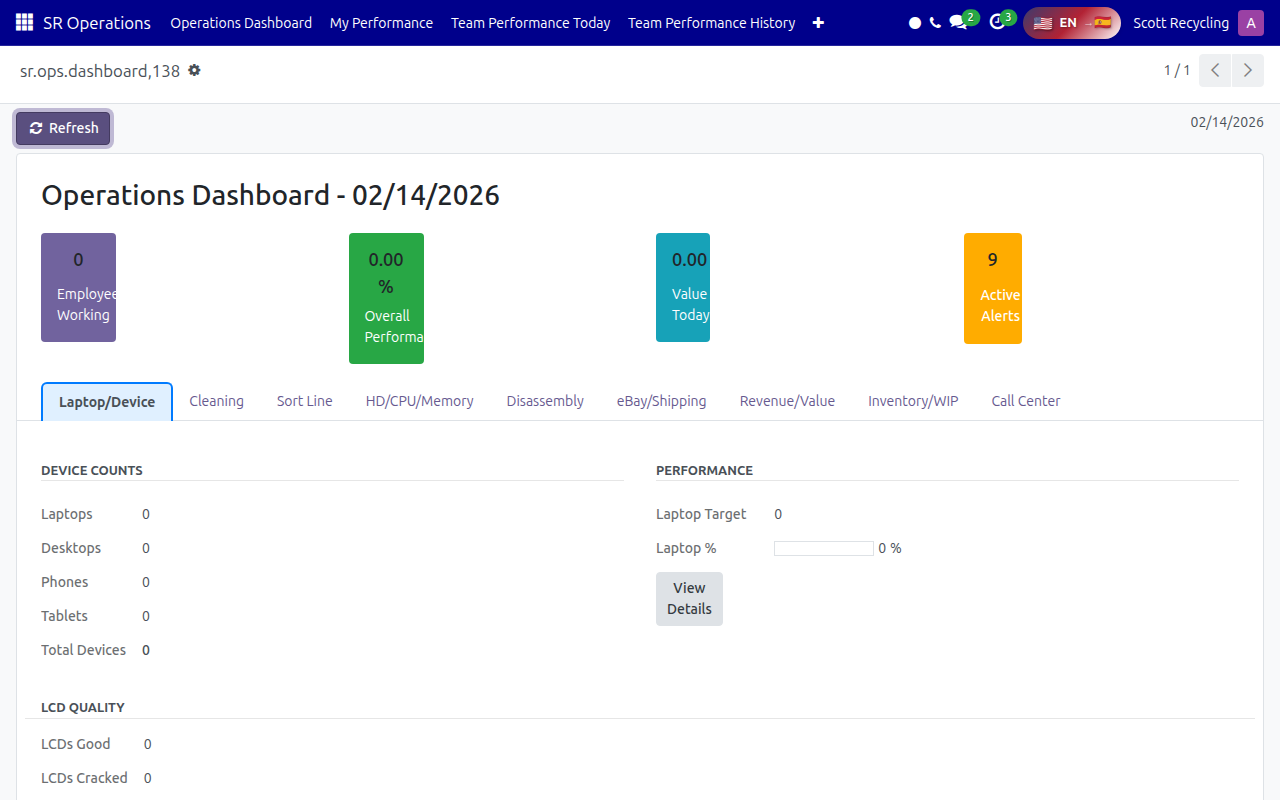
SR Operations (KPI Dashboard)
Monitor daily performance metrics across departments: Laptop/Device, Cleaning, Sort Line, HD/CPU/Memory, Disassembly, eBay/Shipping, Revenue/Value, Inventory/WIP, and Call Center.
Next Steps
Now that you know how to navigate, check out the resources for your role:
- CSRs: Start with Customer Management Mastery training
- All Employees: Learn about your KPIs
- Need help with email blasts? See the Email Pickup Response User Guide