Customer Call Queues
Overview
The Customer Call Queue system manages outbound calling for existing recycling customers. Instead of a traditional CRM pipeline, Scott Recycling uses four automated queues (A, B, C, D) that prioritize customers based on call frequency, pickup history, and email responses.
All queue work lives in Scott Recycling → Customers & Sales.
Last Updated: February 2026 Target Audience: CSRs, Managers
How the Queue System Works
Customers are automatically placed into one of four queues based on their status. CSRs work the queues in priority order: D → C → B → A (D is highest priority).
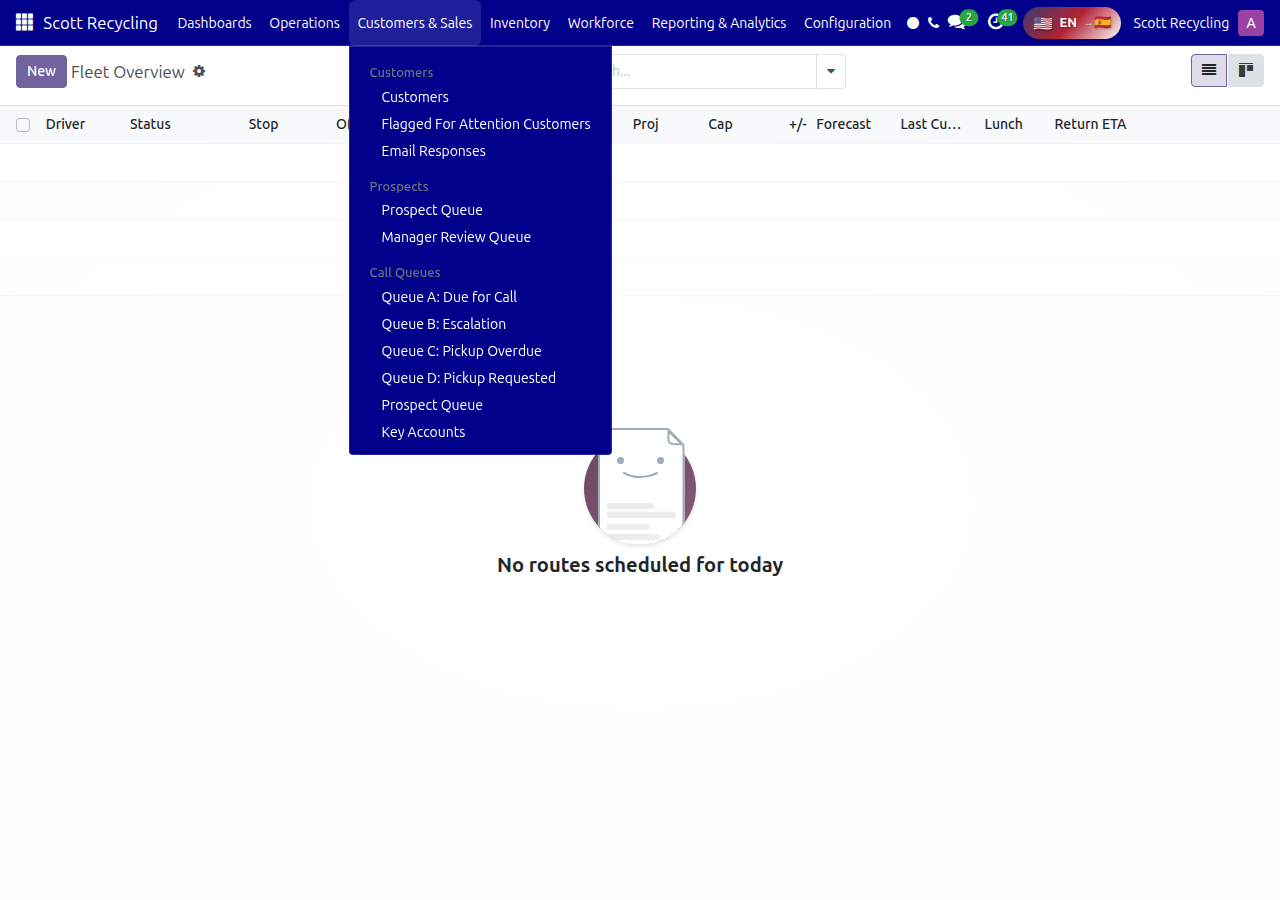
The Four Queues
Queue A — Due for Call
Customers whose scheduled follow-up date has arrived. These are routine check-in calls based on each customer's call cycle.
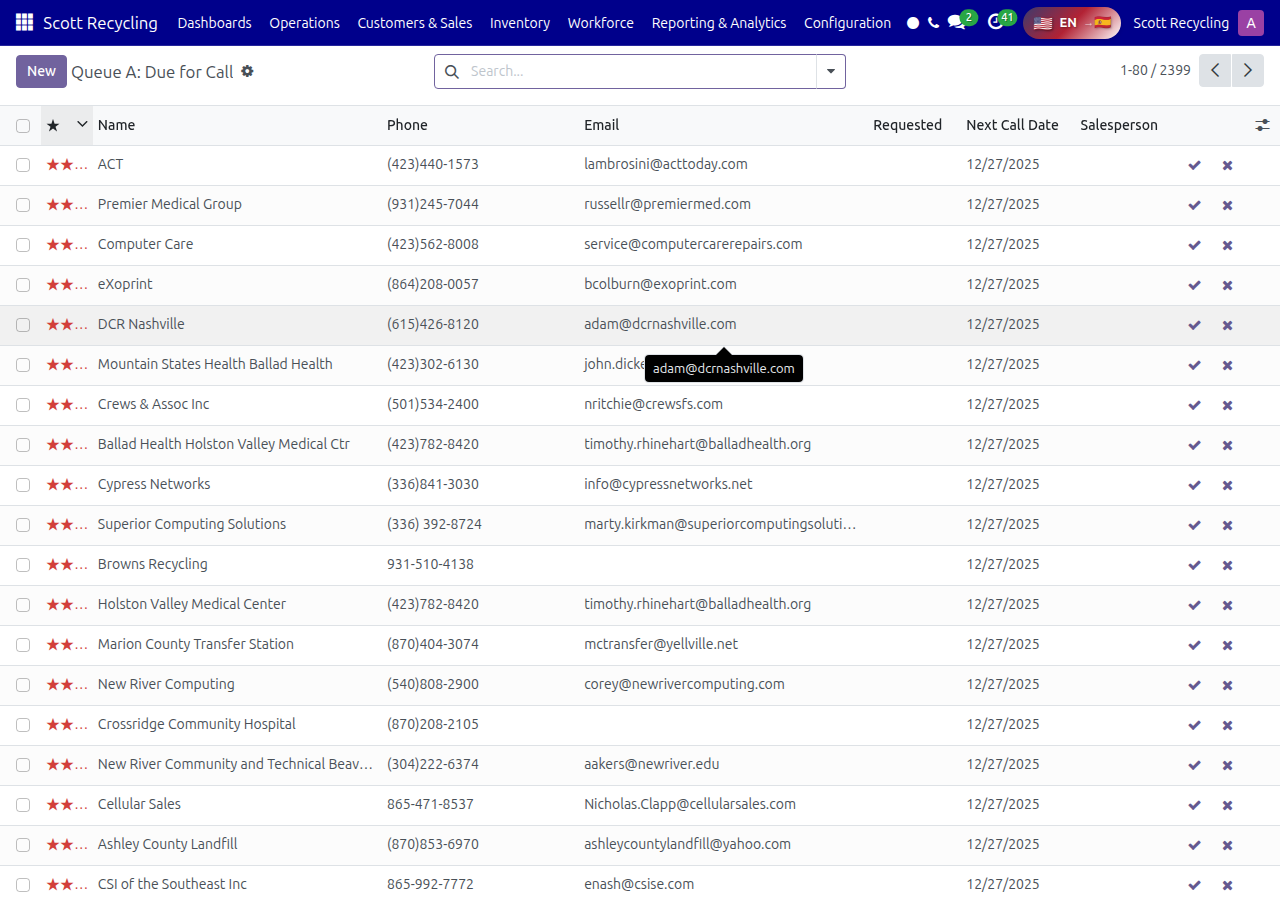
Why they're here: Their next scheduled call date is today or past due.
Your goal: Make contact, confirm pickup needs, update their record.
Queue B — Escalation
Customers who have missed 2 or more call cycles without successful contact. These need extra attention.
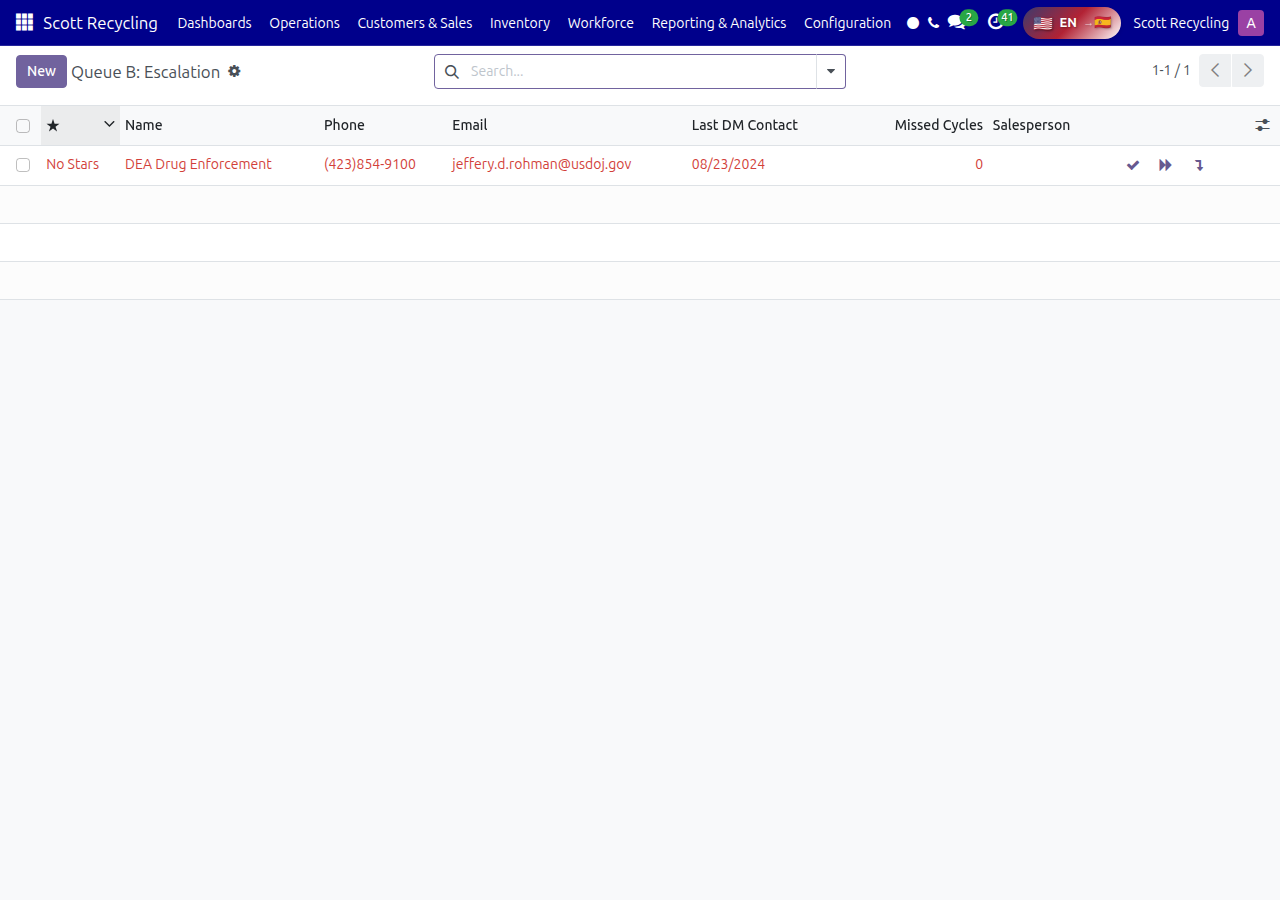
Why they're here: Multiple call attempts across multiple cycles with no successful contact.
Your goal: Reach the customer by any means, or escalate to your manager if still unreachable.
Queue C — Pickup Overdue
Customers whose time since last pickup has exceeded their historical average. The system calculates this automatically.
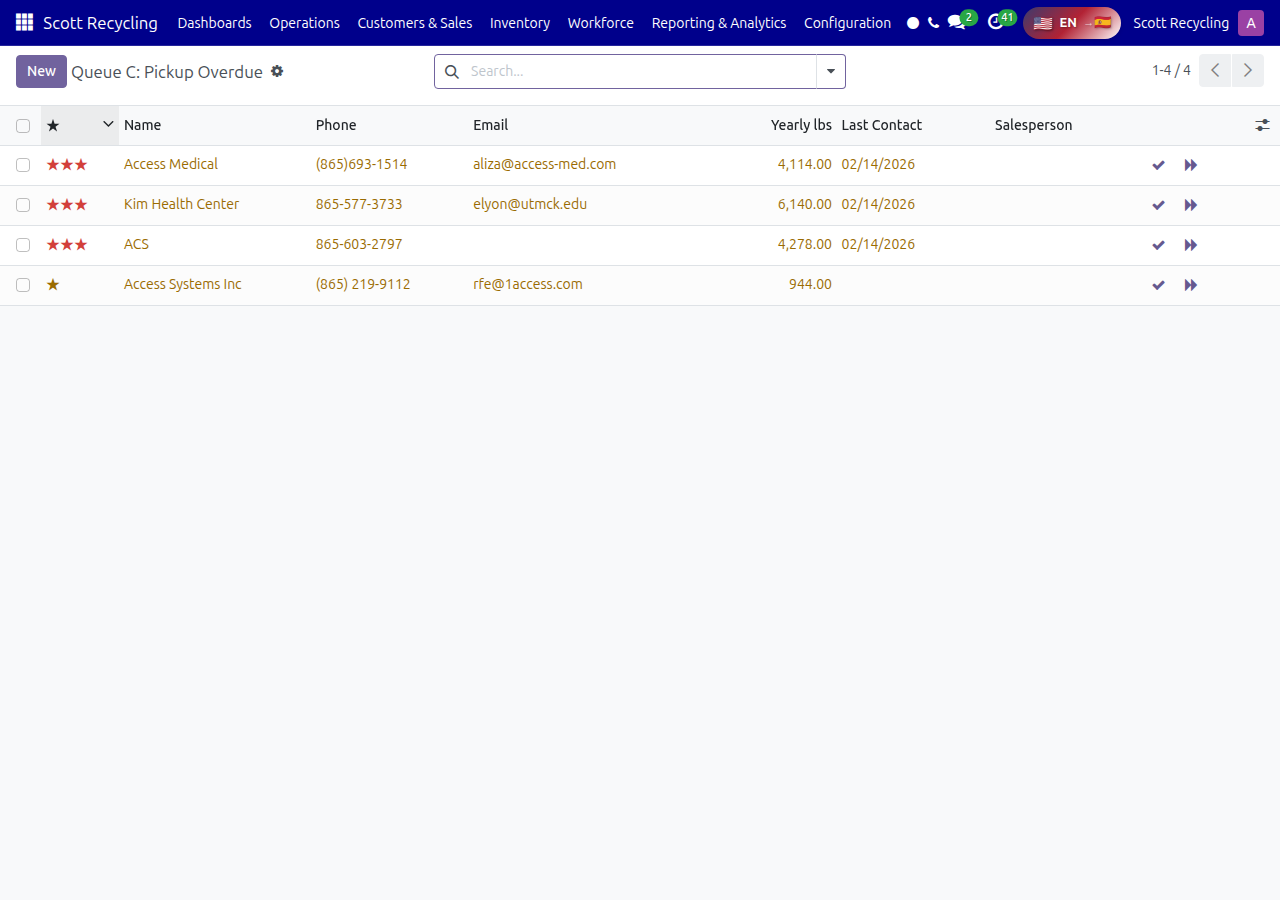
Why they're here: They normally get pickups every X days, and they're past that window.
Your goal: Check if they need a pickup, find out why the gap, and schedule if needed.
Queue D — Pickup Requested
Customers who responded to an email blast requesting a pickup. This is the highest priority queue because the customer has actively asked for service.
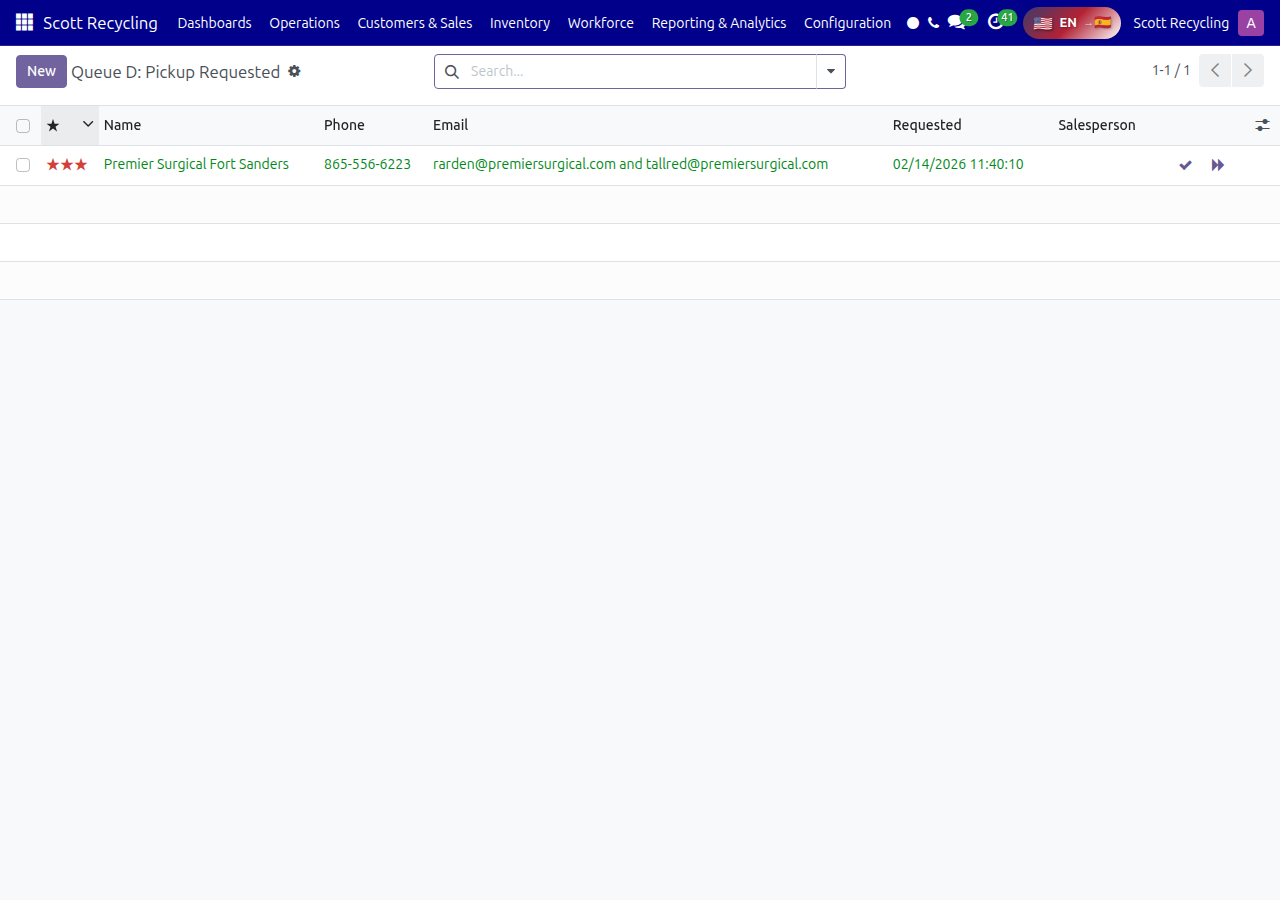
Why they're here: They clicked a pickup request link in a marketing email.
Your goal: Call promptly, confirm details, and schedule the pickup.
Priority Stars
Each customer in the queue shows 0–3 priority stars based on their yearly pickup weight:
| Stars | Meaning |
|---|---|
| No stars | Low volume customer |
| 1 star | Moderate volume |
| 2 stars | High volume |
| 3 stars | Top-tier / highest volume |
Higher-star customers should generally be called first within a queue.
Call Cycle Mechanics
Each call cycle allows 3 contact attempts:
- Attempt 1 — First call attempt
- Attempt 2 — Second attempt (if first was unsuccessful)
- Attempt 3 — Final attempt for this cycle
If all 3 attempts fail (no successful contact), the customer moves to Queue B (Escalation) in the next cycle.
A successful contact at any point resets the cycle and schedules the next call based on the customer's call frequency.
CSR Actions
These are the actions you'll use daily when working the queues:
| Action | What It Does | When to Use |
|---|---|---|
| Log Successful Contact | Records a completed call, resets the call cycle, schedules next call | You reached the customer and had a conversation |
| Log Failed Contact | Records a missed attempt, increments the attempt counter | No answer, voicemail, wrong number |
| Request Earlier Callback | Moves the customer's next call date closer | Customer asked to be called back sooner |
Logging a Successful Contact
- Open the customer record from your queue
- Click Log Successful Contact
- Add notes about the call (pickup scheduled, no pickup needed, etc.)
- The system automatically schedules the next call and removes the customer from the current queue
Logging a Failed Contact
- Open the customer record from your queue
- Click Log Failed Contact
- Select the reason (no answer, voicemail, wrong number, etc.)
- The system increments the attempt counter — after 3 failures, the customer escalates to Queue B
Manager Actions
Managers have additional controls:
| Action | What It Does | When to Use |
|---|---|---|
| Move to Next Cycle | Skips remaining attempts, starts a fresh call cycle | Customer situation resolved outside normal flow |
| Remove from Queue | Takes customer out of all queues | Customer no longer active, account closed, etc. |
| Clear Escalation | Moves customer from Queue B back to Queue A | After successful manager intervention or special handling |
Key Accounts
The Key Accounts view shows your highest-value customers with their current queue status, last contact date, and pickup history at a glance.
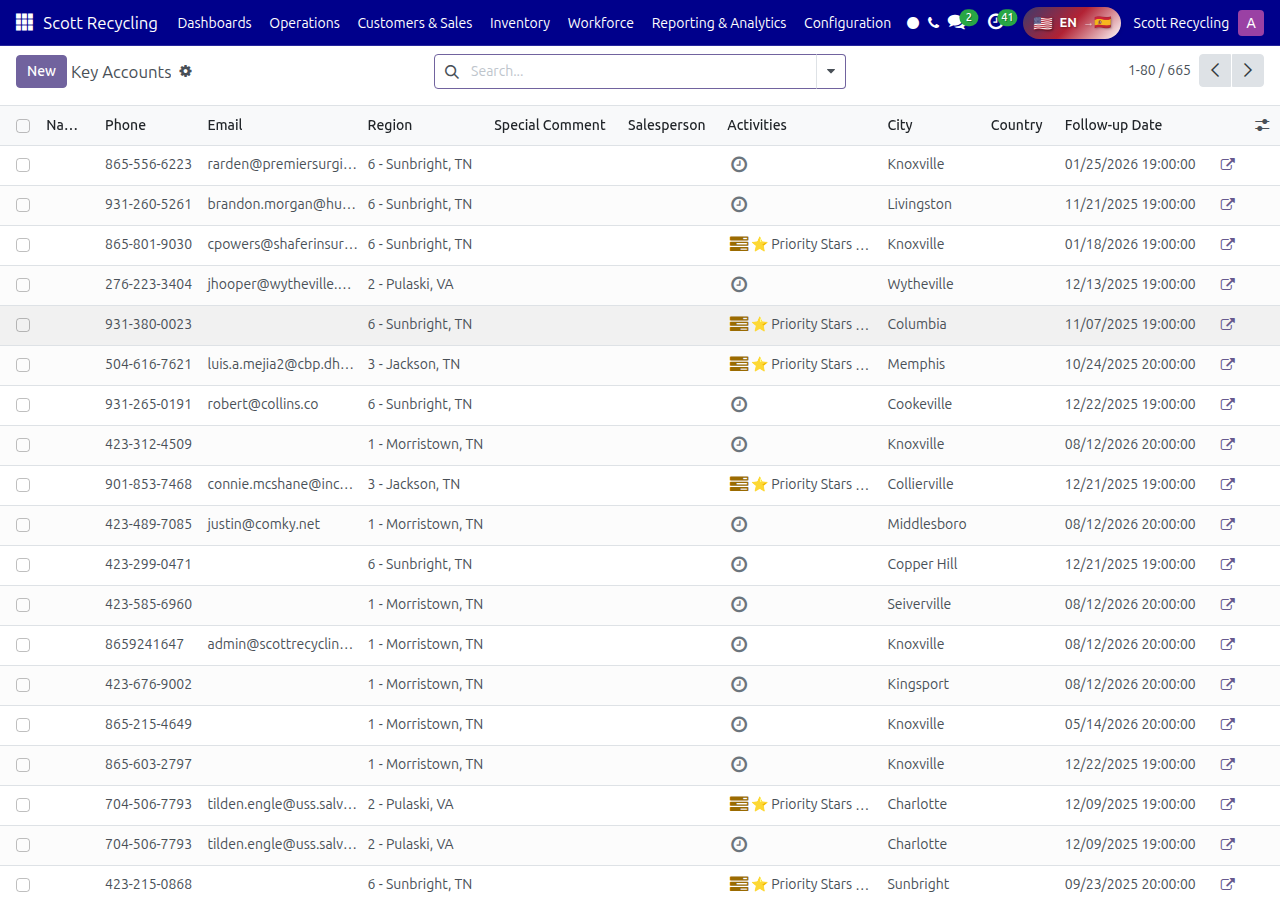
Use this view to quickly check on your most important accounts and ensure none have fallen behind on call cycles.
Tips
Work queues in priority order
Always work D → C → B → A. Queue D customers actively requested service — they're the hottest leads. Queue B customers are at risk of being lost.
Use Ctrl+K to jump to your queue
Press Ctrl+K and type the queue name to navigate quickly.
Check your queue first thing every morning
New items may have appeared overnight from email responses (Queue D) or automated schedule calculations (Queues A and C).
Troubleshooting
Issue: Customer appears in multiple queues simultaneously
Symptom: The same customer shows up in Queue A and Queue C (or another combination) at the same time.
Cause: Customers can qualify for multiple queues based on different criteria -- Queue A is triggered by call date, Queue C by pickup interval, and Queue D by email response. The system uses separate boolean flags (in_queue_a, in_queue_b, in_queue_c, in_queue_d) for each queue, so a customer can technically be in more than one.
Fix:
1. Work the customer through the highest-priority queue first (D before C before B before A)
2. When you log a successful contact or schedule a pickup, the system clears ALL queue booleans at once, removing the customer from every queue simultaneously
3. If the customer remains in a queue after you logged a successful contact, wait a few moments and refresh the page -- the queue recalculation may take a moment
4. If the customer is still showing after a refresh, contact your manager to manually clear the queue flags
Issue: Customer does not appear in any queue even though they are due for a call
Symptom: You know a customer should be in Queue A (their follow-up date has passed), but they do not appear in the queue list. Cause: The customer record may have been removed from queues by a manager, the customer may be marked inactive, the queue assignment cron job may not have run yet, or the customer may be marked as escalated (which routes them to Queue B instead of A). Fix: 1. Open the customer record directly from Contacts and check the Next Call Date field -- is it actually today or in the past? 2. Check if the customer is marked as Active -- inactive customers are excluded from all queues 3. Check if the customer has the Escalated flag set -- escalated customers go to Queue B, not Queue A 4. If everything looks correct, the queue assignment job may not have run yet. Queue assignments are recalculated periodically. Wait for the next recalculation cycle or contact your manager.
Issue: Logged a successful contact but customer is still in the queue
Symptom: You completed a call, clicked Log Successful Contact, saved the record, but the customer still appears in your queue. Cause: The page may be showing cached data, or the contact log did not save properly. Fix: 1. Refresh the browser page (Ctrl+R or F5) -- the queue list should update 2. Open the customer record and check the Last Contact Date -- it should show today's date. If it does not, the contact was not saved properly. 3. If the last contact date is old, re-open the customer record and log the contact again through the Add a Note wizard 4. After successfully logging, the customer's next call date should advance and they should leave the current queue
Issue: Queue shows zero customers but there should be items to work
Symptom: You open Queue A (or any queue) and the list is empty, but you know there should be customers due for calls. Cause: A filter may be active that is hiding records, the queue recalculation has not run, or there may be a system issue. Fix: 1. Check the filter bar below the search box -- clear any active filters by clicking the X on each filter tag 2. Verify you are looking at the correct queue (the menus can look similar) 3. If the queue is genuinely empty after clearing filters, it may mean all customers in that queue have been contacted for this cycle 4. If you believe the queue should have customers, contact your manager -- the automated queue assignment may need to be triggered manually
Issue: Call attempt counter seems wrong (shows 1 when it should be 2, etc.)
Symptom: You log a failed contact but the attempt counter does not increment, or it shows a number you do not expect. Cause: The failed contact may not have saved properly, or a successful contact was logged between attempts (which resets the counter). Fix: 1. Open the customer record and check the contact history -- look for the most recent entries to see what was actually recorded 2. If your failed contact is not in the history, it did not save. Log it again. 3. If another CSR logged a successful contact for this customer (perhaps they called in), the counter was correctly reset to zero 4. The attempt counter resets on any successful contact. Three consecutive failed contacts in the same cycle trigger escalation to Queue B.
Questions? Contact your supervisor or refer to the Getting Started guide.