Certificate Reports
Last Updated: February 2026 Target Audience: Sales, Compliance
Certificate Reports lets you generate and email compliance certificates to customers. It supports five certificate types and includes validation for weight requirements, email addresses, and batch sending.
Navigation: Scott Recycling > Reporting & Analytics > Operations > Certificate Reports
Certificate Types
| Code | Full Name | Weight Required | Description |
|---|---|---|---|
| COR | Certificate of Recycling | Yes (>0 lbs) | Confirms materials were recycled |
| COD | Certificate of Destruction | Yes (>0 lbs) | Confirms materials were securely destroyed |
| EIR | Environmental Impact Report | Yes (>0 lbs) | Shows environmental metrics (CO2 saved, landfill diverted, etc.) |
| QP | Quote Packet | No | Quote documentation for the customer |
| CDS | Certificate of Data Sanitization | No | Confirms data-bearing devices were sanitized |
Warning
COR, COD, and EIR certificates cannot be sent for pickups with zero actual weight. The system will skip these automatically.
Workflow
Step 1: Search or Set Date Range
You can load customers two ways:
- Search by name: Type a customer name in the search field. A dropdown shows matching customers — click one to load their data.
- Date range: Set From and To dates, select certificate types, and click Load to find all customers with pickups in that range.
Step 2: Select Certificate Types
Check the boxes for the certificate types you want to send: COR, COD, EIR, Quote, CDS. You can select multiple types to send all at once.
Step 3: Review the Customer Table
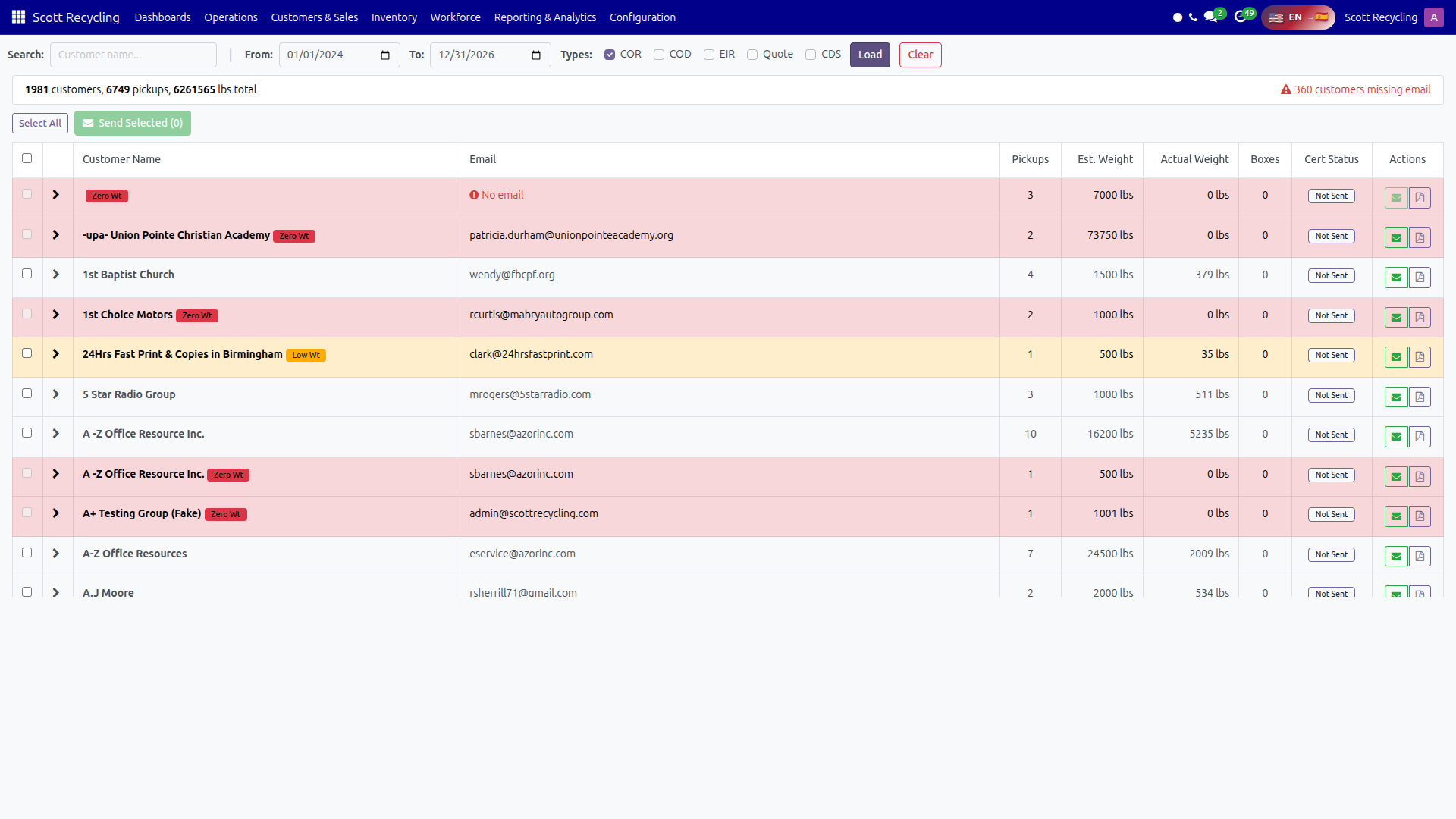
After loading, a summary bar shows the total number of customers, pickups, and weight. The customer table shows:
| Column | Description |
|---|---|
| Checkbox | Select customer for batch sending |
| Expand arrow | Click to show pickup-level details |
| Customer Name | Customer name with weight badges (see below) |
| Customer email (or "No email" warning) | |
| Pickups | Number of pickups in the date range |
| Est. Weight | Total estimated weight (lbs) |
| Actual Weight | Total actual weight (lbs) |
| Boxes | Total actual box count |
| Cert Status | "Sent" (green) or "Not Sent" (gray) |
| Actions | Send and Preview buttons |
Weight badges on customer names:
| Badge | Meaning |
|---|---|
| Zero Wt (red) | One or more pickups have zero actual weight |
| Low Wt (orange) | Total weight is under 100 lbs |
Step 4: Expand for Pickup Details
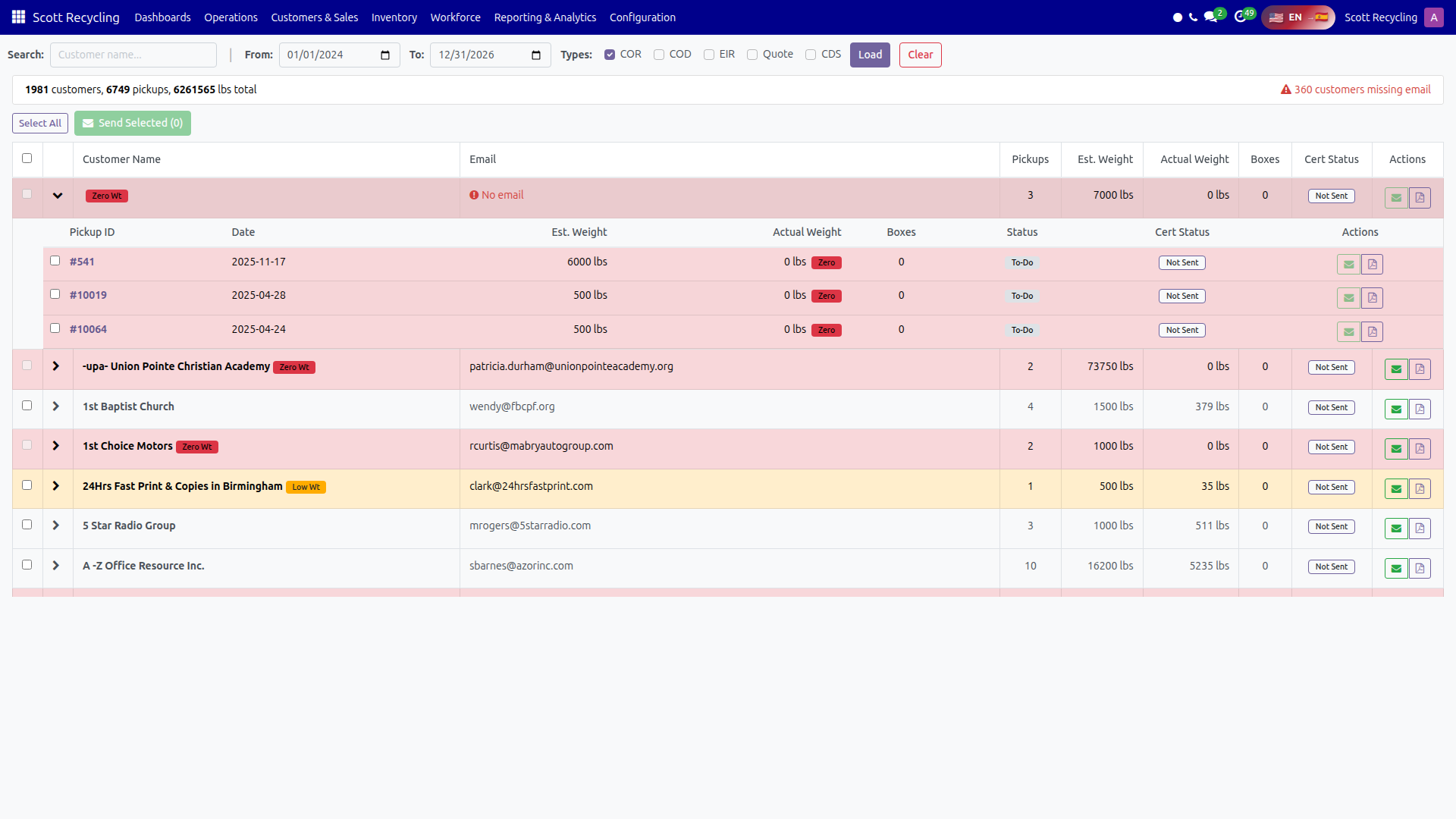
Click the expand arrow to see each pickup:
| Column | Description |
|---|---|
| Checkbox | Select specific pickups to send (instead of all) |
| Pickup ID | Links to the pickup form |
| Date | Pickup date |
| Est. Weight / Actual Weight | Individual pickup weights |
| Boxes | Actual box count |
| Status | Pickup status badge |
| Cert Status | Per-pickup certificate sent status |
| Actions | Send and Preview buttons for individual pickups |
Step 5: Send Certificates
You can send certificates three ways:
- Individual customer: Click the envelope icon in the customer's Actions column.
- Individual pickup: Expand a customer, click the envelope icon next to a specific pickup.
- Batch send: Check multiple customers, then click Send Selected (N) in the batch action bar.
Validation Rules
The system validates before sending:
| Check | Behavior |
|---|---|
| No email | Customer is skipped with "No Email" in results |
| Zero weight | Customer is skipped for COR/COD/EIR (allowed for QP/CDS) |
| Low weight (<100 lbs) | A confirmation modal appears listing the low-weight customers. Click Send Anyway to proceed or Cancel to abort. |
Results Modal
After sending, a results modal shows the outcome:
| Section | Color | Meaning |
|---|---|---|
| Sent Successfully | Green | Certificates were emailed |
| Skipped (No Email) | Gray | Customer has no email address |
| Skipped (Zero Weight) | Red | Pickup weight is zero (COR/COD/EIR only) |
| Skipped (Low Weight - Not Confirmed) | Orange | Weight under 100 lbs and user did not confirm |
| Errors | Red | System error during sending (shows error message) |
After sending, the pickup's cor_status is updated to "sent" and the status badge changes to green.
Preview
Click the PDF icon (Preview button) in the Actions column to preview the certificate before sending. This opens a PDF in a new tab without sending any email.
Common Tasks
Send monthly certificates to all customers
- Set the From date to the first of the month and To to the last day.
- Check COR (and any other types needed).
- Click Load.
- Click Select All to select all customers.
- Click Send Selected.
- If low-weight customers are found, review the confirmation modal.
- Review the results modal for any skipped or errored customers.
Send a certificate for a specific pickup
- Search for the customer by name.
- Expand the customer row.
- Check the specific pickup(s) you want to include.
- Click the envelope icon on the customer row — it will send only the selected pickups.
Preview before sending
- Load the customer data.
- Click the PDF icon (Preview) on either the customer or pickup row.
- The certificate opens in a new browser tab.
- If it looks correct, use the envelope button to send.
Troubleshooting
| Issue | Solution |
|---|---|
| "No email" shows for a customer | Add an email address on the customer's contact form in Odoo. |
| Customer was skipped for zero weight | Verify the pickup has actual weight recorded. Open the pickup form and check the weight fields. |
| Certificate not received by customer | Check the customer's email address is correct. Check the server email logs for delivery errors. |
| "Sent" badge shows but customer says they didn't get it | The email was sent by the system. Check spam folders and email delivery logs. |
| Low-weight confirmation keeps appearing | Customers with under 100 lbs total will always trigger this. Click Send Anyway if the weight is correct. |