Prospect Automation
Module Not Currently Installed
As of the 2026-04-12 module audit, sr_prospect_automation is NOT installed in production (sr_live_jan19_backup on EXP). The module exists on disk at /opt/odoo/custom_addons/Dan-Odoo/sr_prospect_automation/ and is ready to install, but it has never been turned on.
The prospect workflow that IS live in production runs through sr_management_fixes (the installed module that owns prospect stages, queues, and CSR workflow via the prospect_* fields on res.partner). That's the page you want if you're working with prospects today.
This page describes sr_prospect_automation — a dormant scraper module for automated multi-source prospect discovery. The features below are accurate for what the code does; they're just not running yet. Do not rely on this page as operational documentation until Dan makes a decision about installing the module.
See the developer changelog 2026-04-12 entry for full context.
Overview
The Prospect Automation module (sr_prospect_automation) provides automated multi-source prospect scraping from four APIs: Google Places, OpenStreetMap, Azure Maps, and Foursquare. It discovers business prospects by city, state, and industry keywords. The system automatically deduplicates across sources, merges data from multiple APIs, calculates confidence scores, and imports verified prospects as contacts.
All scraping can be run manually or on a schedule (daily, weekly, monthly). Each execution is logged with detailed statistics on found, new, duplicate, and imported counts.
Last Updated: February 2026 (content) / April 2026 (status banner added) Target Audience: Sales Managers, Admins Status: NOT INSTALLED — documentation retained for reference
Navigation
All Prospect Automation features are under the Prospect Automation menu:
| Menu | What It Opens |
|---|---|
| Sources | Define what to scrape — city, state, industry, and frequency |
| Scraping Logs | Execution history with detailed results |
| Configuration → Data Sources | Manage API connections (Google, OSM, Azure, Foursquare) |
Data Sources Configuration
Data sources are the API connections used for scraping. Navigate to Prospect Automation → Configuration → Data Sources.
 The Data Sources configuration view showing API connections with usage tracking and status indicators.
Pre-Configured APIs
| Source | API Key Required | Free Tier | Notes |
|---|---|---|---|
| Google Places | Yes | ~6,000 queries/month | Most comprehensive data, highest accuracy |
| OpenStreetMap (Overpass) | No | Unlimited | Free and open, but data can be sparse |
| Azure Maps | Yes | ~10,000 queries/month | Good coverage, Microsoft integration |
| Foursquare Places | Yes | ~10,000 queries/month | Strong for restaurants and retail |
Data Source Fields
| Field | Description |
|---|---|
| Source Name | Display name for this API source |
| Source Type | The API to use (Google, OSM, Azure, or Foursquare) |
| Enabled | Toggle this source on or off |
| API Key | API key for authentication (not required for OpenStreetMap) |
| API Endpoint | Custom endpoint URL (optional, uses default if blank) |
| Monthly Limit | Maximum queries per month (0 = unlimited) |
| Usage This Month | Queries used this month (read-only, auto-tracked) |
| Last Reset Date | When the usage counter was last reset |
| Priority | Query priority from 1-100 (higher = queried first) |
| Usage % | Percentage of monthly limit used (computed) |
| Status | Active, Limit Reached, Disabled, or Error (computed) |
Recommended Priority Settings
| Source | Priority |
|---|---|
| Google Places | 90 |
| Azure Maps | 70 |
| Foursquare | 60 |
| OpenStreetMap | 50 |
Monthly usage counters reset automatically on the first of each month via a scheduled cron job.
Prospect Sources
Prospect sources define what to scrape. Navigate to Prospect Automation → Sources.
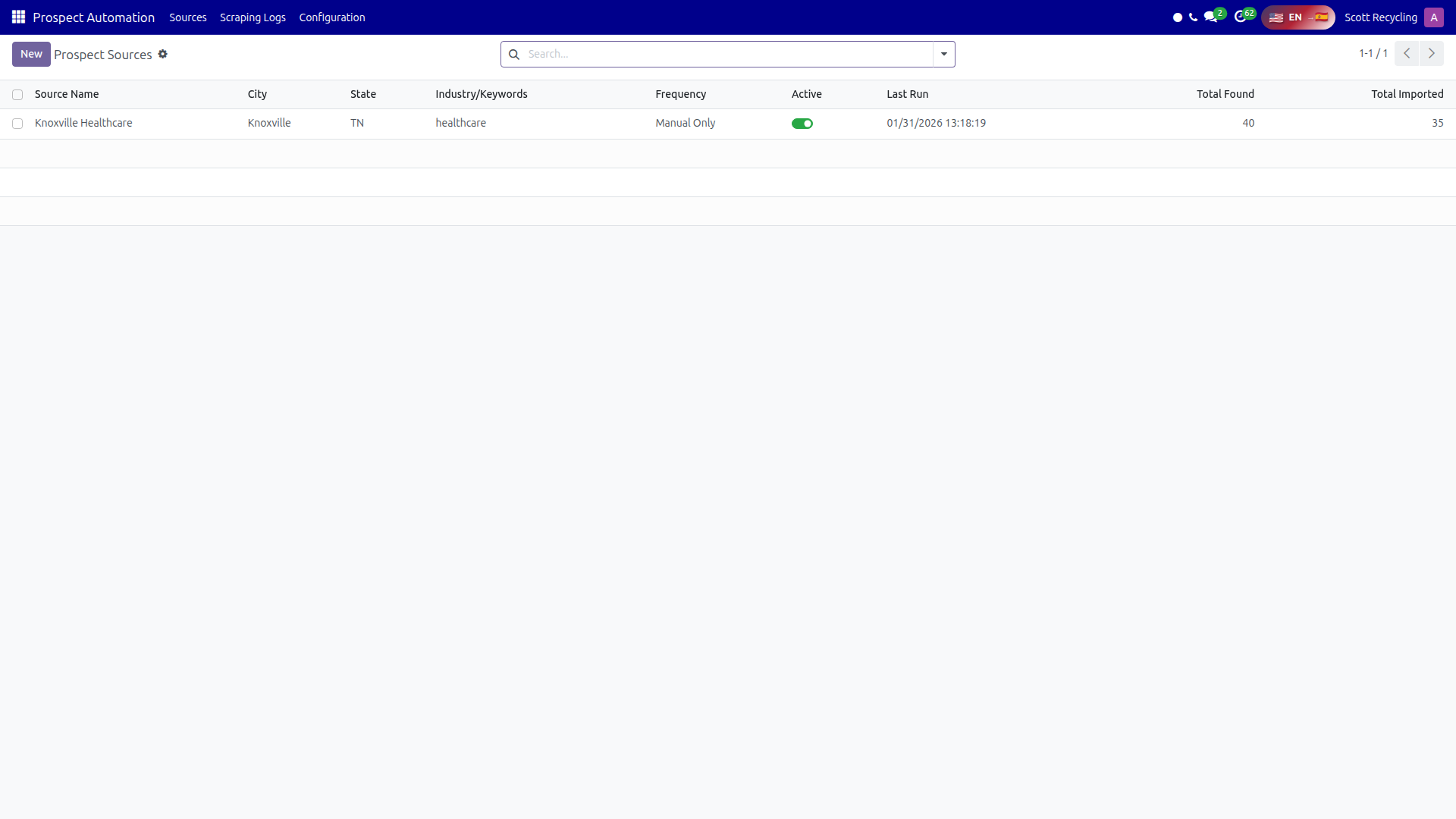 The Prospect Sources list showing configured scraping targets with city, industry, frequency, and run statistics.
Source Fields
| Field | Description |
|---|---|
| Source Name | Descriptive name (e.g., "Knoxville Healthcare", "Nashville Manufacturing") |
| Active | Enable or disable this source |
| City | City to search in |
| State | Two-letter state code (e.g., TN, VA) |
| Industry/Keywords | Search terms (e.g., "healthcare", "hospital", "manufacturing") |
| Frequency | How often to scrape: Manual Only, Daily, Weekly, or Monthly |
| Contact Tag | Automatically tag imported contacts with this tag |
| Last Run | When this source was last scraped (read-only) |
| Last Result | Summary of the most recent scraping run (read-only) |
| Total Found | Lifetime count of prospects found (read-only) |
| Total Imported | Lifetime count of prospects imported as contacts (read-only) |
Each source also has a Scrape Now button to trigger an immediate scrape and a View Logs button to see execution history.
Scraping Logs
Navigate to Prospect Automation → Scraping Logs to see execution history, sorted by most recent first.
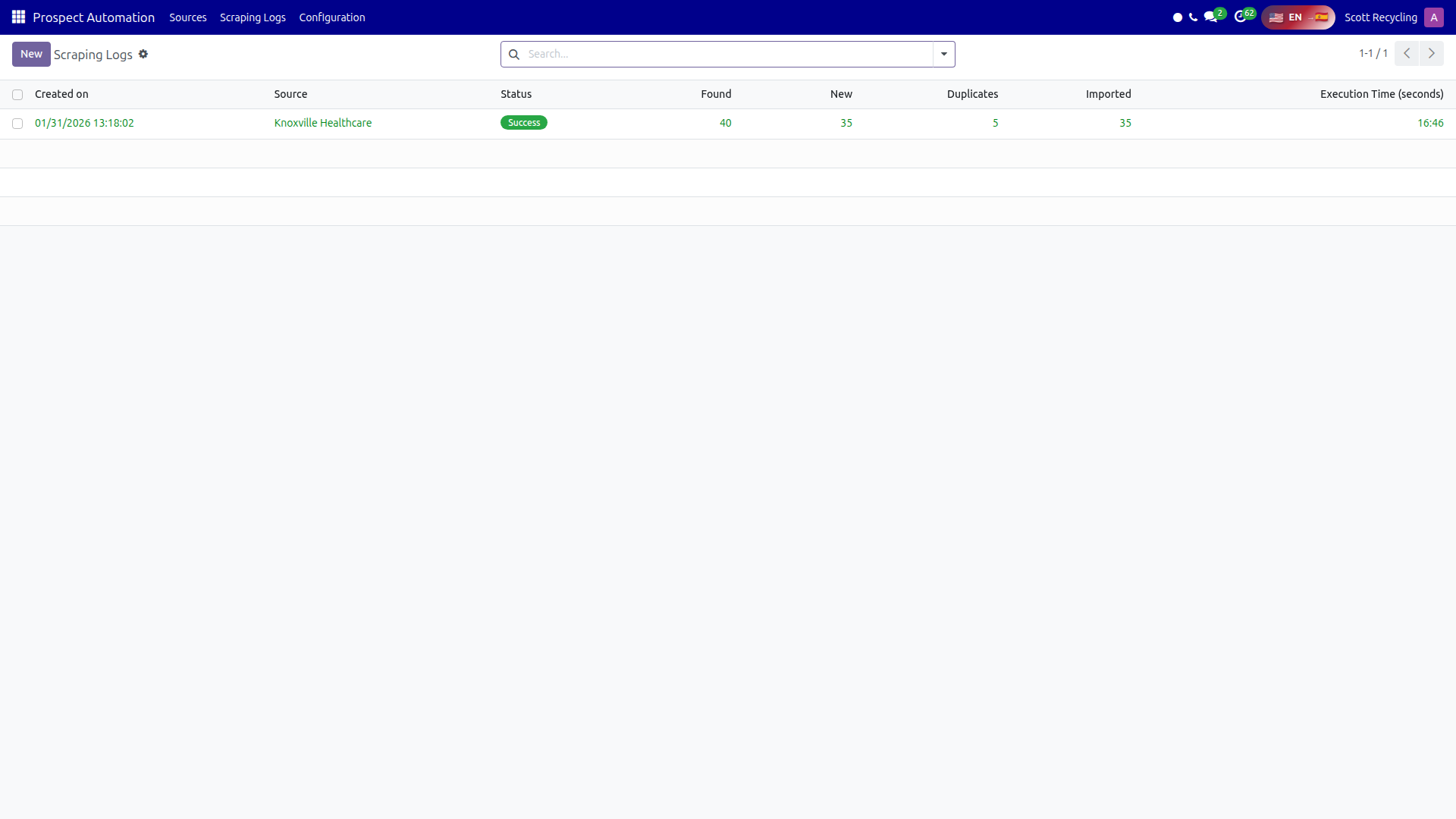 The Scraping Logs view showing execution history with found, new, duplicate, and imported counts per run.
Log Fields
| Field | Description |
|---|---|
| Source | The prospect source that was executed |
| Found | Total number of prospects found across all APIs |
| New | Number of prospects not already in the database |
| Duplicates | Number of prospects skipped as duplicates |
| Imported | Number of prospects actually created as contacts |
| Status | Success, Partial Success, or Failed |
| Execution Time | How long the scraping took (in seconds) |
| Error Message | Error details if the execution failed |
| Details | Full execution log with per-source breakdown |
Logs older than 90 days are automatically cleaned up by a scheduled action.
How Multi-Source Scraping Works
When you click Scrape Now or a scheduled scrape runs, the system follows this process:
- Queries all enabled APIs simultaneously using parallel execution (up to 4 workers)
- Collects raw prospects from each API with per-source counts
- Deduplicates across sources by matching on phone number, email, or name+city
- Merges data from multiple sources into single records (fills in missing fields)
- Calculates confidence scores based on data completeness and number of confirming sources
- Filters low-quality prospects that lack minimum required data (score below 50)
- Checks for existing duplicates against the entire contact database
- Imports new prospects as res.partner records with source tracking
- Creates a log entry with full statistics and source breakdown
Cross-Source Deduplication
The system matches prospects across sources using three criteria:
| Match Type | How It Works |
|---|---|
| Phone | Normalized phone numbers are compared (handles formatting differences) |
| Email addresses are compared case-insensitively | |
| Name + City | Business name and city are compared (catches matches when phone/email differ) |
When duplicates are found across sources, the system merges data by keeping the most complete fields and increases the confidence score.
Confidence Scoring
Each prospect receives a quality score from 0-100:
| Data Present | Score Contribution |
|---|---|
| Phone number | +40 points |
| City | +30 points |
| Email address | +20 points |
| Street address | +10 points |
| Each additional confirming source | +10-15 points |
Prospects with a score below 50 are filtered out and not imported. Prospects confirmed by multiple sources receive bonus points (up to 100 maximum).
Phone Number Normalization
Phone numbers are normalized using the phonenumbers library for proper international handling:
- US 10-digit numbers are formatted as
+1XXXXXXXXXX - 11-digit numbers starting with 1 are formatted as
+1XXXXXXXXXX - International numbers are validated and formatted to E.164 standard
- If the library is unavailable, a digit-extraction fallback is used
Common Tasks
Setting Up a Data Source
- Navigate to Prospect Automation → Configuration → Data Sources
- Click New
- Select the Source Type (Google, OSM, Azure, or Foursquare)
- Enter a Source Name
- Enter the API Key (not needed for OpenStreetMap)
- Set the Monthly Limit based on your API plan's free tier
- Set the Priority (see recommended settings above)
- Click Test Connection to verify the API works
- Save
Creating a Prospect Source
- Navigate to Prospect Automation → Sources
- Click New
- Enter a descriptive Source Name (e.g., "Knoxville Healthcare")
- Enter the City and State (two-letter code)
- Enter Industry/Keywords (e.g., "hospital", "clinic", "medical center")
- Set the Frequency (Manual, Daily, Weekly, or Monthly)
- Optionally select a Contact Tag to auto-tag imported contacts
- Save
Running a Manual Scrape
- Open the prospect source you want to scrape
- Click Scrape Now
- Wait for the process to complete (typically 10-30 seconds)
- A notification displays the results summary
- Review the scraping log for detailed per-source breakdown
Reviewing Logs
- Navigate to Prospect Automation → Scraping Logs
- View the most recent executions at the top
- Click any log to see full details including:
- Per-source prospect counts
- Duplicate and new prospect counts
- Execution time
- Any error messages
- Click View Source to jump to the source configuration
Setting Up Scheduled Scraping
- Create or edit a prospect source
- Set Frequency to Daily, Weekly, or Monthly
- The scheduled cron job automatically checks all sources and runs those that are due
- Daily sources run once per day, weekly once per week, monthly once per month
- Monitor results via the Scraping Logs
Tips
Start with OpenStreetMap — it's free and needs no API key
OpenStreetMap requires no API key and has no usage limits. Enable it first to validate your scraping sources, then add paid APIs for better coverage.
Monitor monthly limits on paid APIs
Check the Usage % column on Data Sources regularly. When a source reaches its monthly limit, its status changes to "Limit Reached" and it is skipped during scraping. Usage resets on the first of each month.
Use specific industry keywords for better results
Instead of broad terms like "business", use specific keywords like "hospital", "manufacturing plant", or "electronics recycler". More specific queries return more relevant prospects.
Check scraping logs after each run
Review the Details field in scraping logs to see how many prospects each API found. If one source consistently returns zero results, its API key may be invalid or the query terms may need adjustment.
Tag imports for easy filtering
Set a Contact Tag on each prospect source (e.g., "Scraped - Healthcare"). This makes it easy to filter and review imported prospects in the Contacts list.
Questions? Contact your supervisor or refer to the Getting Started guide.