SEO Location Pages
Overview
The SEO Locations module creates optimized landing pages for every service area Scott Recycling covers. Each location page has unique content, business hours, services offered, a pickup scheduling form, and Google-friendly JSON-LD schema markup. The module also includes service detail pages that explain the 7-step recycling process.
These pages drive organic search traffic by targeting "[city] electronic recycling" searches and converting visitors into pickup requests.
Last Updated: February 2026 Target Audience: Marketing, Admins
Navigation
Access the module from SEO Locations in the Odoo main menu:
| Menu | What It Shows |
|---|---|
| Locations | All location pages with content status and publication state |
| Services | Service detail pages (recycling process, materials, data security) |
Location Pages
Each location page lives at a URL like /locations/knoxville-tn-electronic-recycling and includes the following sections:
| Section | Description |
|---|---|
| Hero Image | Full-width banner image for the location |
| Intro Text | Opening paragraph with local context |
| Main Content | Detailed information about services in this area |
| Why Choose Us | Differentiators and value propositions |
| Services Offered | List of recycling services available at this location |
| Business Hours | Operating hours for the location |
| Pickup Scheduling Form | Embedded form for requesting a pickup |
| FAQ Section | Location-specific frequently asked questions |
| Nearby Cities | Links to neighboring location pages for internal linking |
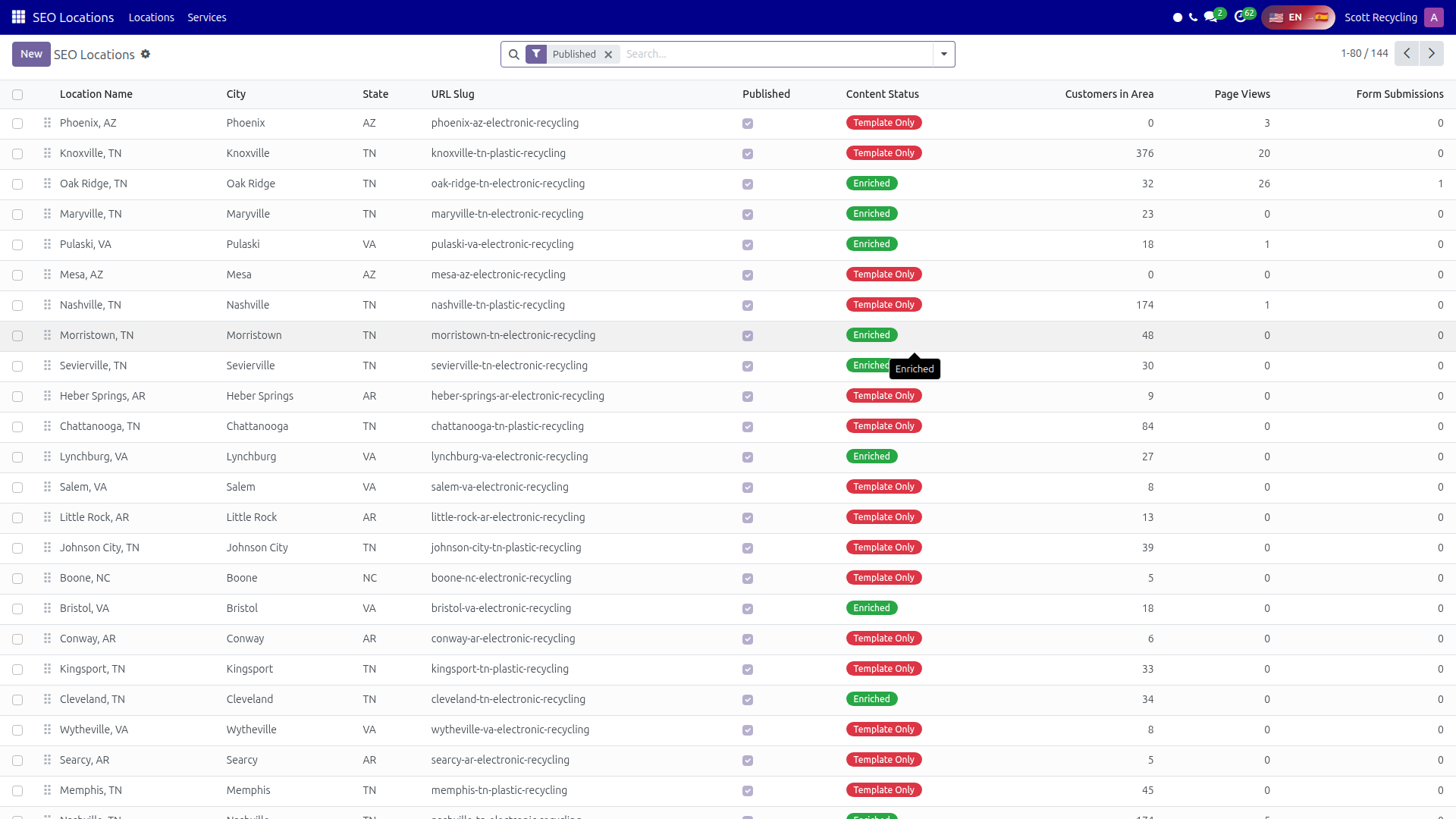 SEO Locations — manage location pages with content status and publication controls
Location Management Form
Open any location record to see the full management form. Fields are organized into tabs:
Location Info Tab
| Field | Description | Example |
|---|---|---|
| City | City name | "Knoxville" |
| State | State abbreviation | "TN" |
| County | County name | "Knox" |
| Zip Codes | Served zip codes | "37901, 37902, 37909" |
| Phone | Local phone number | "(865) 555-0100" |
| Location contact email | "knoxville@scottrecycling.com" | |
| Business Hours | Operating hours | "Mon-Fri 8am-5pm" |
| GPS Coordinates | Latitude/longitude | "35.9606, -83.9207" |
| Service Radius | Miles from center | "25 miles" |
SEO Settings Tab
| Field | Description | Example |
|---|---|---|
| Meta Title | Browser tab and search result title | "Electronic Recycling in Knoxville TN" |
| Meta Description | Search result snippet (keep under 160 chars) | "Free electronic recycling pickup..." |
| Meta Keywords | Target keywords | "electronic recycling, Knoxville, e-waste" |
| H1 | Main page heading | "Electronic Recycling in Knoxville, Tennessee" |
| URL Slug | Auto-generated URL path | "knoxville-tn-electronic-recycling" |
Page Content Tab
| Field | Description |
|---|---|
| Intro Content | HTML editor for the introductory paragraph |
| Main Content | HTML editor for the body content |
| Why Choose Us | HTML editor for the differentiators section |
| Service Area | HTML editor describing the geographic coverage |
Additional Tabs
- Services Offered -- checkboxes for which recycling services are available
- Images -- hero image upload
- Schema Markup -- auto-generated JSON-LD structured data (LocalBusiness schema)
Content Status Workflow
Location pages progress through four content stages:
| Status | Meaning |
|---|---|
| Template | Page created from template with placeholder content |
| Draft | Initial content written (manually or via AI wizard) |
| Enriched | Content reviewed and enhanced with local details |
| Approved | Content approved and ready for publication |
A location can be published or unpublished independently of its content status, but pages should only be published once they reach Approved status.
AI Content Generation Wizard
The AI wizard helps draft initial content for new location pages.
Using the Wizard
- Open a location page
- Click the AI Content button
- The wizard displays a pre-filled prompt that includes:
- City and state name
- Local statistics (customer count in the area)
- Service details and company information
- Copy the prompt to your AI tool of choice
- Paste the generated content back into the wizard fields:
- Intro Content
- Main Content
- Why Choose Us
- Click Apply to populate the page content tabs
- Review and customize the content before publishing
AI content is a starting point
Always review and customize AI-generated content. Add local details, adjust tone, and verify accuracy before moving the page to Enriched status.
Service Detail Pages
Service pages live at URLs like /recycling/service-slug and provide detailed information about each recycling service offered.
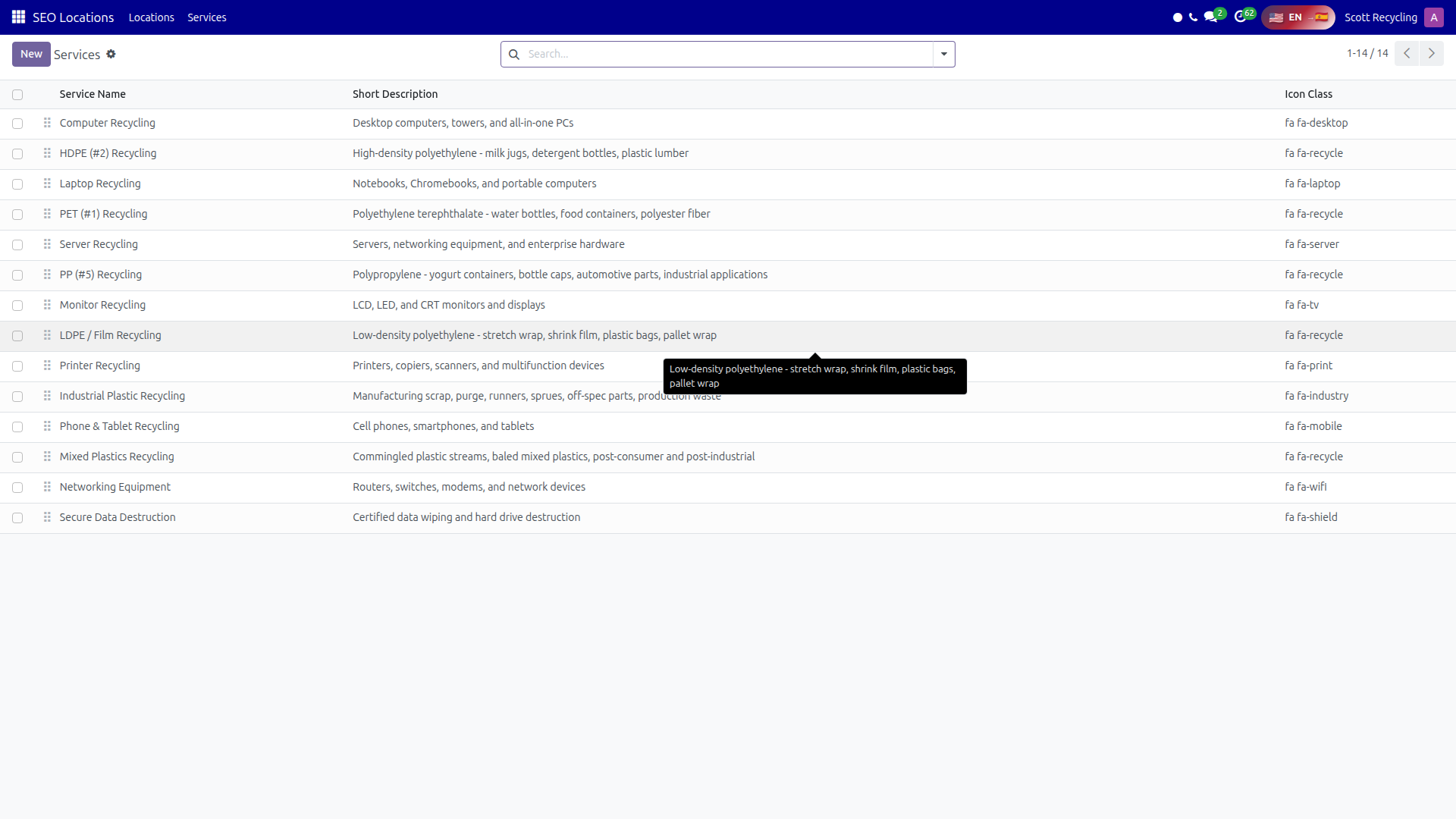 Service Detail Pages — the 7-step recycling process and materials information
Each service page includes:
| Section | Description |
|---|---|
| 7-Step Recycling Process | Visual walkthrough of how materials are processed |
| Materials Recovered | List of materials extracted and recycled |
| Environmental Benefits | Impact statistics and environmental data |
| Data Security Info | Data destruction certifications and procedures |
| Statistics | Volume and impact numbers |
| FAQs | Service-specific frequently asked questions |
Analytics
The module tracks engagement metrics for each location page:
| Metric | Description |
|---|---|
| Page Views | Total views of the location page |
| Form Submissions | Number of pickup requests submitted from this page |
Use these metrics to identify high-performing locations and locations that may need content improvements.
Remote Stats Sync
The module can SSH to the production server to count customers per city. This provides accurate local customer counts for use in location page content and the AI content generation wizard.
Pickup Scheduling Form
Each location page includes an integrated pickup scheduling form. When a visitor submits the form:
- The system calculates a suggested pickup date based on truck capacity and existing routes in the area
- The request is captured and routed to the scheduling team
- The submission is counted in the location's analytics
Common Tasks
Creating a Location Page
- Open SEO Locations → Locations
- Click New
- Enter the city, state, county, and zip codes
- Fill in the phone number, email, and business hours
- Set the GPS coordinates and service radius
- Save -- the URL slug is auto-generated
- The page starts in Template status
Generating Content with AI
- Open the location page
- Click AI Content
- Review the pre-filled prompt (includes local customer count)
- Copy the prompt, generate content with your AI tool
- Paste the results into the Intro, Main Content, and Why Choose Us fields
- Click Apply
- Update the content status to Draft
Publishing a Location
- Open the location page
- Verify content status is Approved
- Check that all required fields are filled (meta title, meta description, H1, content sections)
- Toggle the Published switch to on
- The page goes live at its URL slug
Adding a Service Detail Page
- Open SEO Locations → Services
- Click New
- Enter the service name, URL slug, and content
- Add the 7-step process, materials, and FAQs
- Save and publish
Tips
Keep meta descriptions under 160 characters
Google truncates meta descriptions longer than 160 characters in search results. Write concise, compelling descriptions that include the city name and primary service.
Publish only when content is complete
Publishing a page with placeholder or incomplete content hurts SEO rankings. Wait until the content status reaches Approved before toggling Published.
Use nearby cities for internal linking
Linking to neighboring location pages improves SEO by creating a strong internal link structure. Add 3-5 nearby cities to each location page.
Monitor form submissions
Location pages with high views but low form submissions may need better calls-to-action or a more prominent scheduling form.
Questions? Contact your supervisor or refer to the Getting Started guide.