Onboarding & Training
Overview
The SR Onboarding module is an AI-driven, role-based onboarding system. Instead of teaching new hires where to click in the software, it creates durable playbooks that explain how work flows and why things are done. Playbooks survive UI changes because they focus on business logic, not button locations.
The system includes playbooks, role paths, tasks with nested steps, per-user progress tracking, version history, and AI-powered content regeneration.
Last Updated: February 2026 Target Audience: All New Employees, Managers, HR
Navigation
The Onboarding module has the following menu structure:
Onboarding
├── My Onboarding
├── Team Onboarding (managers)
├── Playbooks
├── Role Paths
├── Progress Tracking
├── Versions
└── Configuration
    └── Prompt Templates
My Onboarding
Your personal onboarding view shows all tasks and steps assigned to you based on your role path. Each step has a completion toggle you can mark as you work through the material.
- Kanban view: Steps grouped by task for a visual overview of your progress
- Progress percentage: Calculated automatically as (completed steps / total steps) x 100
- Notes: Add notes to any step for your own reference
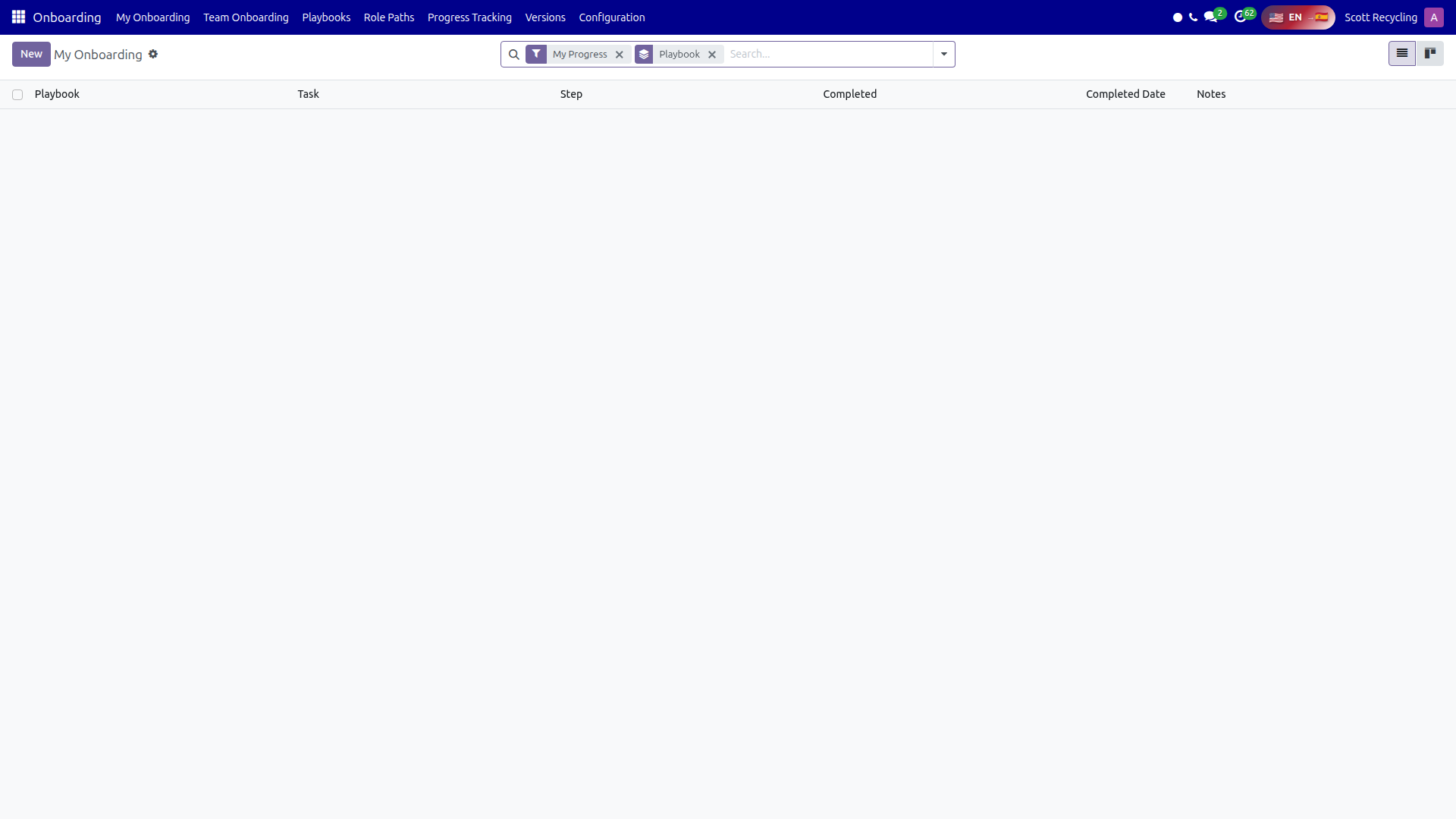 My Onboarding — your personal progress view showing tasks and completion status
Checking Your Onboarding Progress
- Navigate to Onboarding > My Onboarding
- Your assigned tasks and steps appear grouped by playbook
- The progress bar at the top shows your overall completion percentage
- Incomplete steps appear first; completed steps show a checkmark
Marking a Step Complete
- Open the step from your My Onboarding view
- Click Mark Complete
- The system records the completion date and updates your progress percentage
- To undo, click Mark Incomplete
Playbooks
Playbooks are the core content unit. Each playbook (sr.onboarding.module) maps to an Odoo module by technical name and describes what that module does from a business perspective.
Playbook Fields
| Field | Description |
|---|---|
| Name | Human-readable playbook title |
| Technical Name | Must match the Odoo module's technical name (e.g., sr_scheduling) |
| Purpose | What this module does and why it exists |
| Primary Users | Who uses this module and when |
| Inputs | What data or actions feed into this module |
| Outputs | What this module produces |
| Workflow | Step-by-step business process (not UI steps) |
| Common Mistakes | What people commonly get wrong |
| Upstream Playbooks | Playbooks whose processes feed into this one |
| Downstream Playbooks | Playbooks that depend on this one's output |
Playbook Metrics
Each playbook displays:
- Task Count -- Number of tasks in the playbook
- Version Count -- Number of saved versions
- My Progress % -- Your personal completion percentage for this playbook
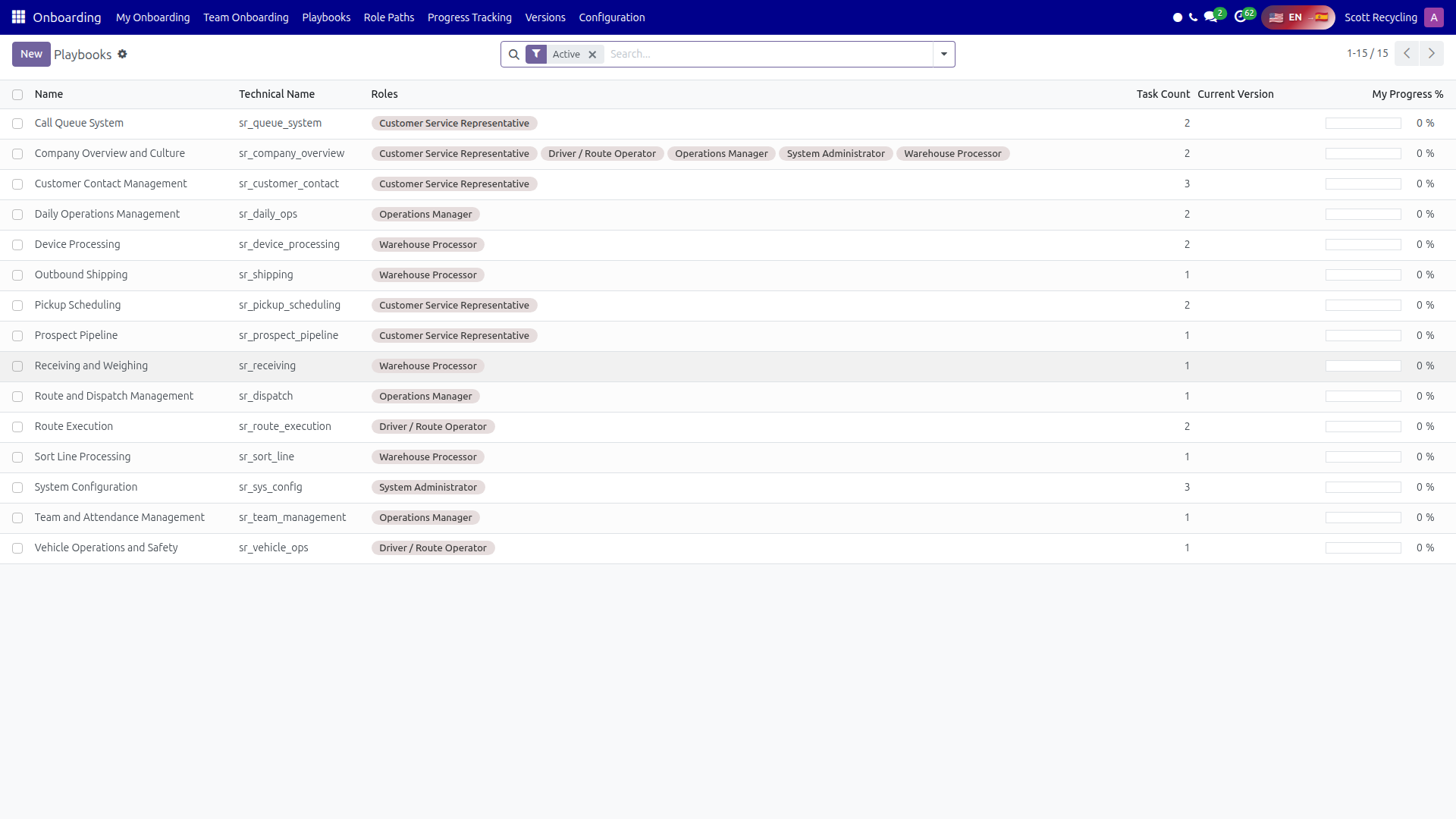 Playbooks list — each playbook maps to an Odoo module and describes its business purpose
Creating a Playbook
- Navigate to Onboarding > Playbooks
- Click New
- Enter the Name and Technical Name (must match the Odoo module)
- Fill in the purpose, users, inputs, outputs, workflow, and common mistakes
- Add tasks and steps (see below)
- Link upstream and downstream playbooks if applicable
- Save the playbook
Tasks
Tasks are the major learning objectives within a playbook, ordered by sequence.
| Field | Description |
|---|---|
| Name | Task title |
| Sequence | Display order within the playbook |
| When Used | When and why this task is performed |
| Done Definition | How to verify this task was completed correctly |
| Critical | If checked, this task must be completed during onboarding |
| Steps | Ordered list of individual actions within this task |
Complete critical tasks first
Tasks marked as Critical must be finished during your onboarding period. Focus on these before moving to non-critical tasks.
Steps
Steps are individual actions within a task.
| Field | Description |
|---|---|
| Name | Step title |
| Sequence | Display order within the task |
| Detail | Expanded explanation of this step |
| Verification | How to verify this step was done correctly |
Role Paths
Role paths (sr.onboarding.role) group playbooks together for a specific position. When an employee is assigned a role path, they receive all the playbooks linked to that role.
| Field | Description |
|---|---|
| Name | Role path title (e.g., "Customer Service Representative") |
| Role Code | Machine-readable identifier (e.g., csr, warehouse, driver) |
| Playbooks | Many-to-many link to required playbooks for this role |
| Knowledge Quiz | Optional scored assessment (survey.survey) that tests onboarding knowledge |
| Description | What this role does in the organization |
| Playbook Count | Number of linked playbooks |
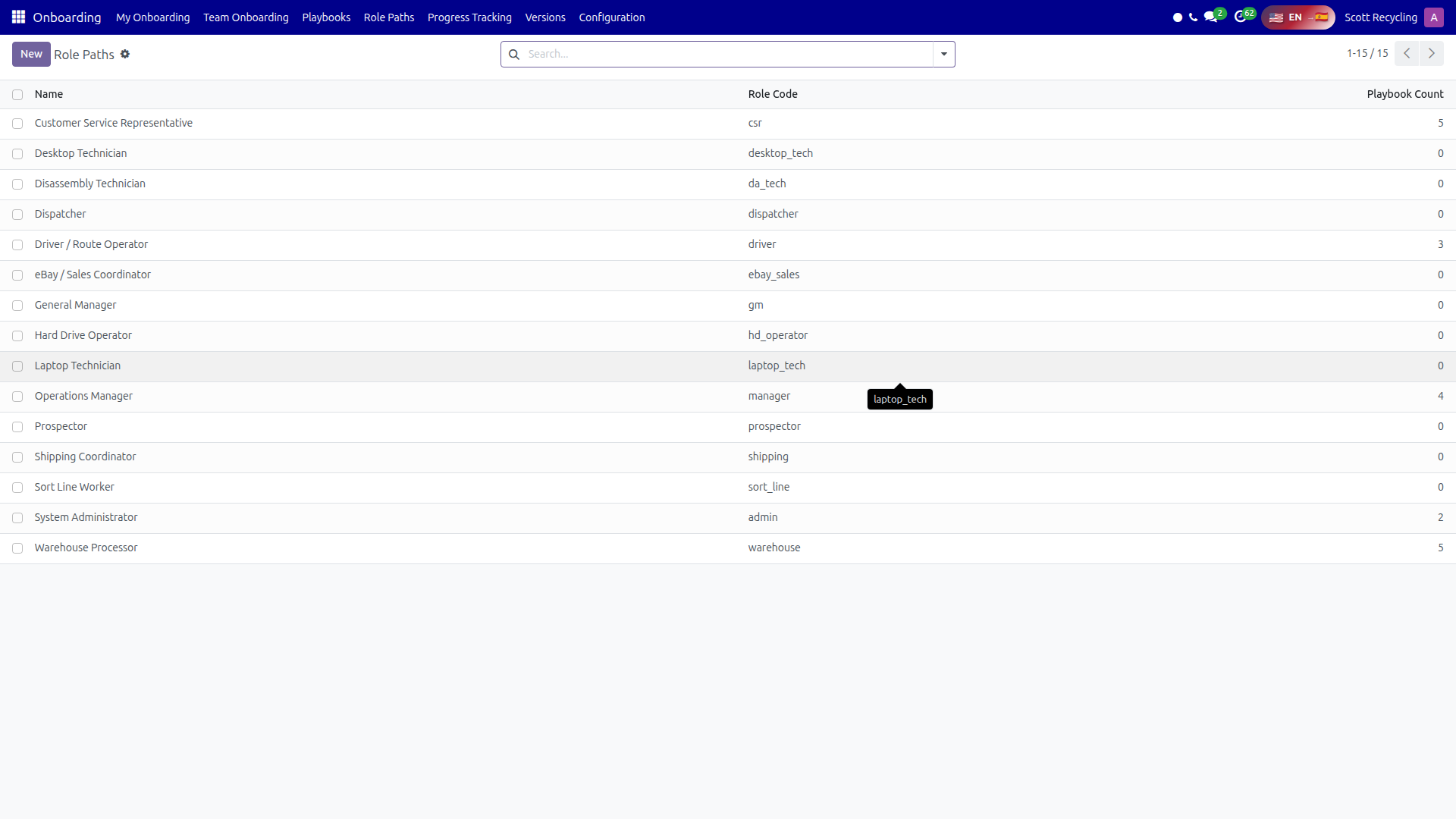 Role Paths — group playbooks together for each position with optional knowledge quizzes
Progress Tracking
Progress is tracked per user, per task, and per step. Each progress record stores:
| Field | Description |
|---|---|
| User | The employee working through onboarding |
| Employee | Linked employee record (auto-populated) |
| Task | The task being tracked |
| Step | The specific step (if step-level tracking) |
| Playbook | Auto-populated from the task |
| Completed | Toggle for completion |
| Completed Date | Timestamp of when the step was marked complete |
| Notes | Free-text notes from the employee |
Progress records are unique per user/task/step combination -- no duplicates are possible.
Team Onboarding (Managers)
Managers can view all employees' onboarding progress through the Team Onboarding menu. This view shows progress records grouped by employee, making it easy to see who is on track and who needs attention.
Reviewing Team Progress
- Navigate to Onboarding > Team Onboarding
- Records are grouped by employee
- Each row shows the task, step, completion status, and date
- Use filters to show only incomplete items or specific playbooks
Check team progress weekly
Set a recurring reminder to review your team's onboarding progress at least once per week. Address blockers early before they compound.
Employee Integration
The onboarding system extends the employee record with these fields:
| Field | Description |
|---|---|
| Onboarding Role | The assigned role path |
| Onboarding Progress % | Computed percentage of completed steps |
| Onboarding Status | Not Started, In Progress, or Completed |
| Onboarding Started | Date when progress records were first generated |
| Onboarding Completed | Date when all steps were marked complete |
Assigning Onboarding to an Employee (Manager)
- Open the employee's record in Employees
- Set the Onboarding Role field to the appropriate role path
- Click Generate Onboarding
- The system creates progress records for every step in every playbook linked to the role
- The employee can now see their tasks in My Onboarding
Auto-linking from position profiles
If you use the Job Architecture module, assigning an employee to a job position automatically populates the onboarding role from the position profile. You still need to click Generate Onboarding to create the progress records.
Version History
Playbooks support full version tracking. Each version stores:
| Field | Description |
|---|---|
| Name | Version label (e.g., "v1.0", "v2.0") |
| Playbook | The playbook this version belongs to |
| Date | When this version was created |
| Change Summary | What changed and why |
| Content Snapshot | JSON snapshot of all playbook content at that point in time |
| Regenerated by AI | Whether this version was created by the AI wizard |
| Approved By | User who approved the version |
| State | Draft, Approved, or Archived |
Version Approval Workflow
Versions follow a three-stage workflow:
- Draft -- Version is created (manually or by AI). Content can still be edited.
- Approved -- An administrator approves the version. It becomes the current version for the playbook.
- Archived -- The version is retired. If it was the current version, the playbook's current version is cleared.
AI Regeneration
The AI Regeneration wizard uses the Claude API to regenerate playbook content based on the existing content and module context.
Regenerating Content with AI
- Open a playbook from Onboarding > Playbooks
- Click Regenerate with AI
- Optionally select a Prompt Template (or use the default)
- Choose whether to include tasks and a changelog
- Click Generate -- the system calls the AI API
- Review the preview output (JSON format)
- Click Apply to update the playbook, or Retry to generate again
What happens when you apply:
- The current playbook content is snapshotted as a new version (Draft state)
- The playbook's text fields are overwritten with the AI-generated content
- If tasks were included, existing tasks are replaced with the new ones
- A new version record is created with
regenerated_by_ai = True
Always review before applying
AI-generated content is a starting point. Review the preview carefully and edit it before applying. The AI is instructed to never reference UI elements -- it focuses on business logic and process flow only.
Security
| Group | Access |
|---|---|
| Viewer | Read all onboarding content. Track own progress (create/edit own progress records). |
| Editor | Everything Viewer can do, plus create and edit playbooks, tasks, and steps. Read/write all progress records. |
| Administrator | Everything Editor can do, plus manage role paths, approve/archive versions, run AI regeneration, and manage prompt templates. |
Common Tasks Summary
| Task | Steps |
|---|---|
| Check your onboarding progress | Onboarding > My Onboarding |
| Mark a step complete | Open step > Mark Complete |
| Assign onboarding to employee | Employee form > Set Onboarding Role > Generate Onboarding |
| Create a playbook | Onboarding > Playbooks > New |
| Regenerate content with AI | Playbook form > Regenerate with AI > Generate > Review > Apply |
| Approve a version | Onboarding > Versions > Open version > Approve |
| View team progress | Onboarding > Team Onboarding |
Questions? Contact your supervisor or HR administrator.