Helpdesk
Overview
The Helpdesk module is Scott Recycling's centralized ticket tracking system. Use it to report issues, request support, assign work to teams, and track resolution from submission through completion. Every request — whether it's an IT problem, a customer complaint, or an equipment issue — gets a ticket number, a stage, and an owner.
Last Updated: February 2026 Target Audience: All Employees, Helpdesk Team Members, Managers
Getting to the Helpdesk App
- From the main Odoo dashboard, click the Helpdesk app icon
- You'll land on the Dashboard — a summary of all helpdesk teams and their workloads
Top Menu Navigation
| Menu | What It Shows |
|---|---|
| Dashboard | Team cards with ticket counts (To Do, Unassigned, Unattended, High Priority) |
| Tickets | My Tickets (assigned to you) and All Tickets |
| Reporting | Pivot and graph analysis of ticket data (Managers only) |
| Configuration | Settings, Channels, Categories, Stages, Teams, Tags (Managers only) |
Dashboard
The Dashboard is the first screen you see when you open the Helpdesk app. It shows one card per helpdesk team with quick-glance statistics:
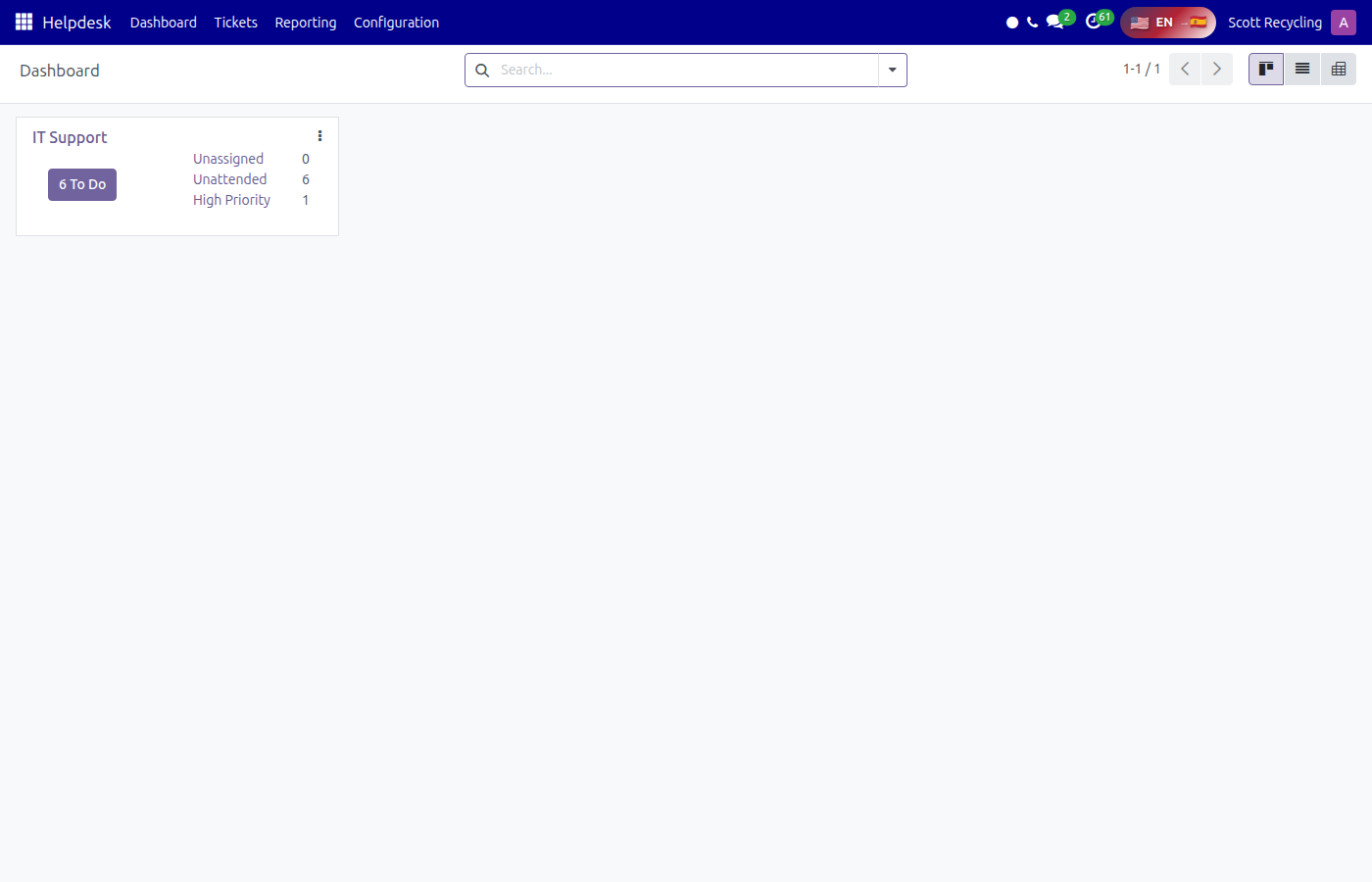
| Stat | What It Means |
|---|---|
| To Do | Total open (non-closed) tickets for this team |
| Unassigned | Open tickets with no assigned user — someone needs to pick these up |
| Unattended | Tickets still in the "New" stage — nobody has started work yet |
| High Priority | Open tickets marked as "Very High" priority |
Click any stat to jump directly to a filtered list of those tickets.
Creating a Ticket
- Go to Helpdesk → Tickets → All Tickets (or My Tickets)
- Click New
- Fill in the ticket form:
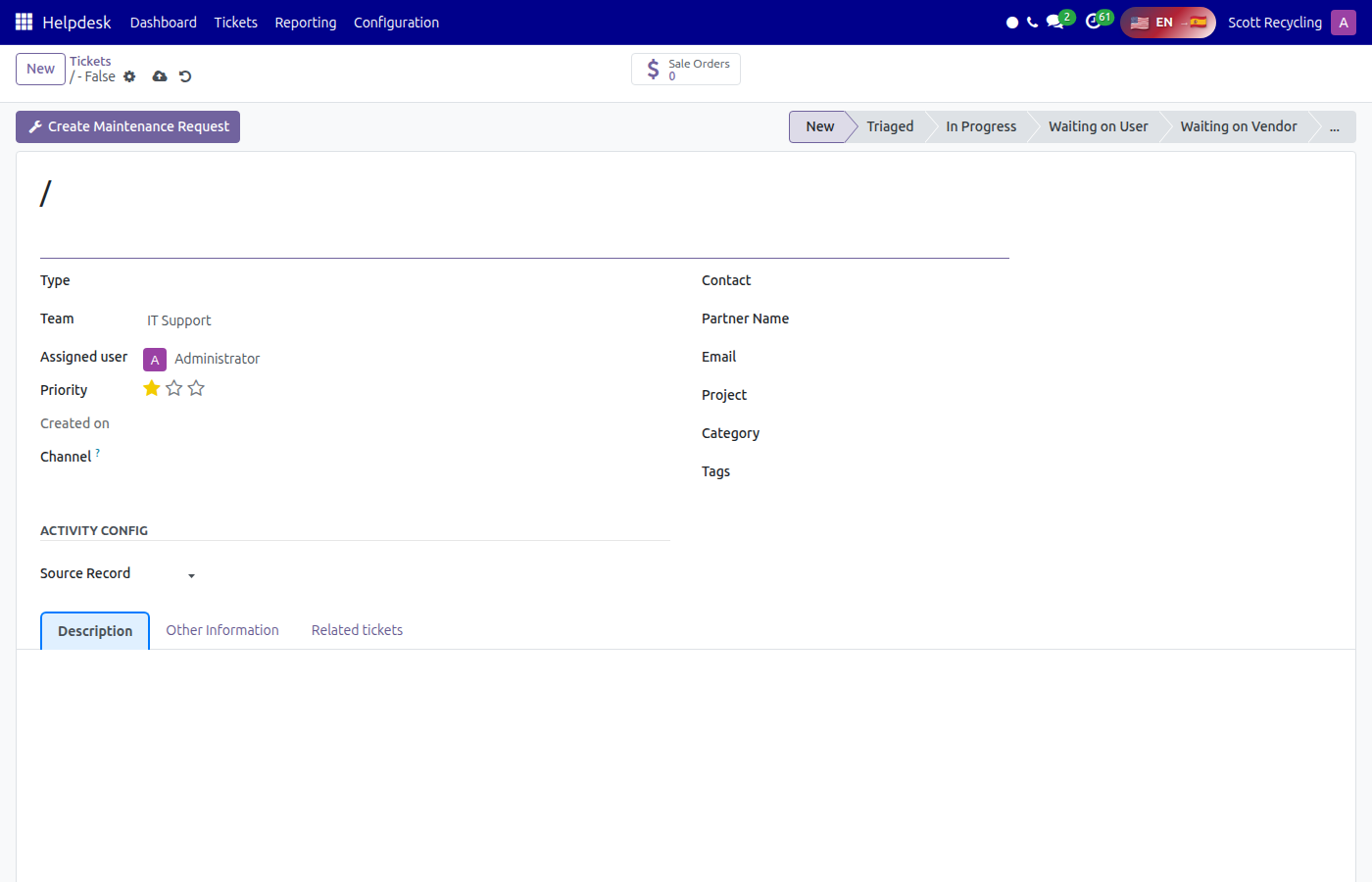
| Field | Description | Required? |
|---|---|---|
| Title | Short description of the issue or request | Yes |
| Description | Detailed HTML description — include steps to reproduce, screenshots, context | Yes |
| Team | Which helpdesk team handles this (auto-sets available stages and users) | No |
| Assigned User | Person responsible for resolving the ticket | No |
| Contact | The customer or employee who reported the issue | No |
| Priority | Low, Medium (default), High, or Very High | No |
| Category | Organizational grouping (e.g., IT, Billing, Equipment) | No |
| Channel | How the request came in — Web, Email, Phone, or Other | No |
| Tags | Color-coded labels for quick identification | No |
- Click Save — a ticket number (e.g., HT00042) is automatically assigned
Good Ticket Titles
Write titles that tell the story at a glance:
- Good: "Baler conveyor belt jammed — warehouse south wall"
- Bad: "Equipment problem"
- Good: "Customer #4521 double-billed for January pickup"
- Bad: "Billing issue"
Ticket Views
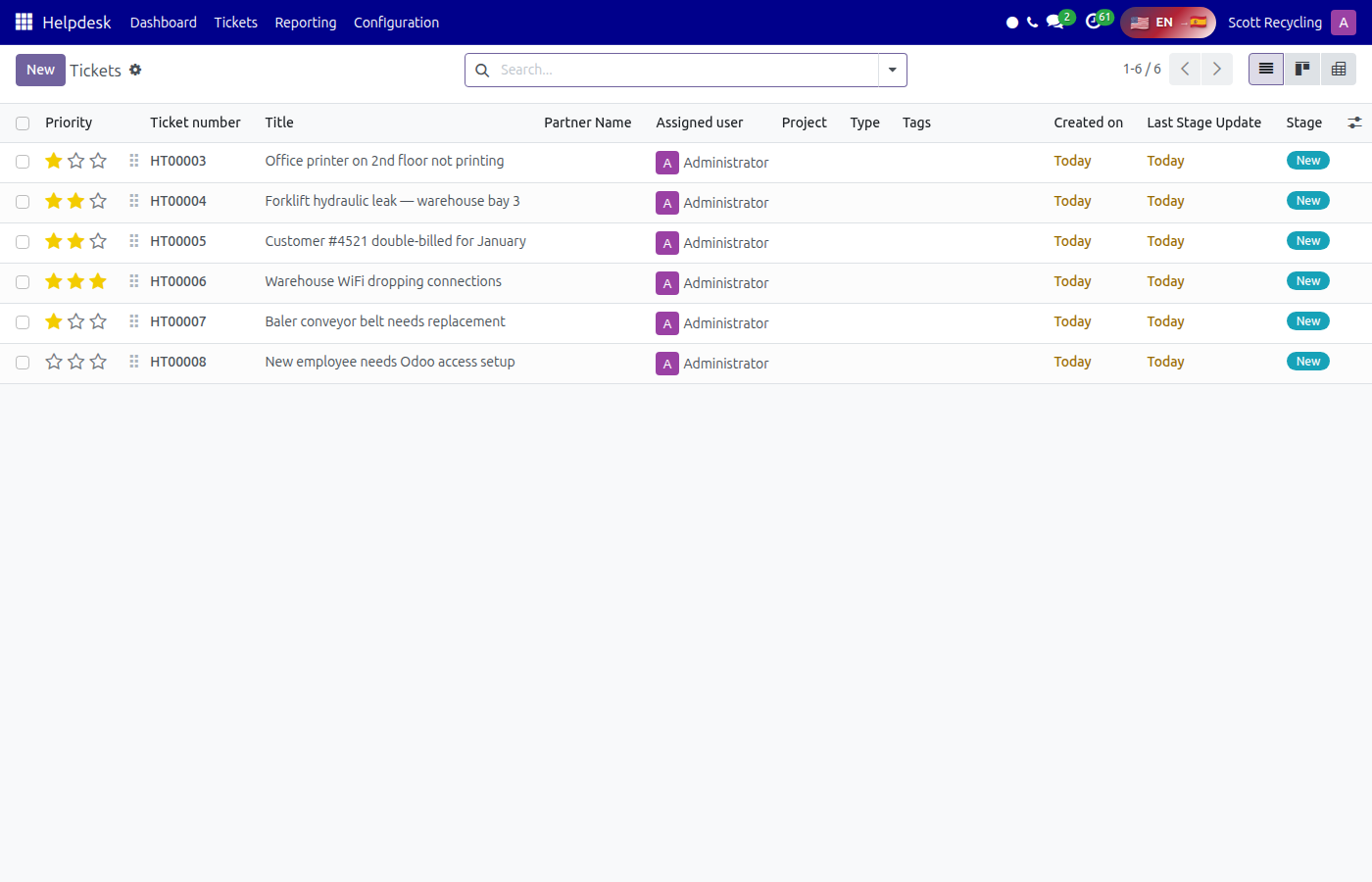
Switch between views using the icons in the top-right corner of the ticket list:
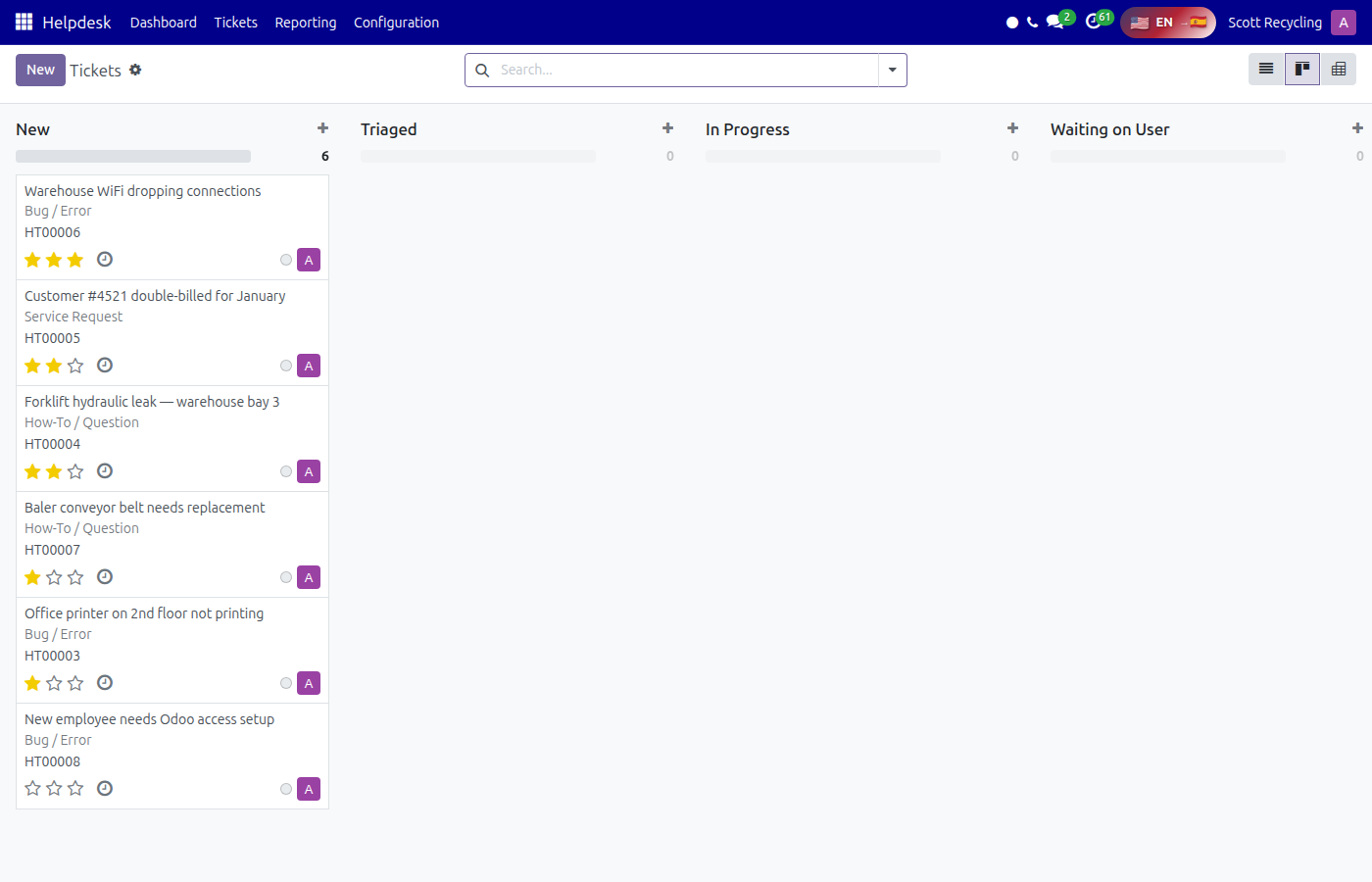
| View | Best For |
|---|---|
| List | Sorting, filtering, and bulk operations on tickets |
| Kanban | Visual pipeline — tickets grouped by stage as draggable cards |
| Form | Full ticket detail — all fields, description, chatter, attachments |
| Pivot | Data analysis — group and measure ticket data in a spreadsheet-like table |
List View
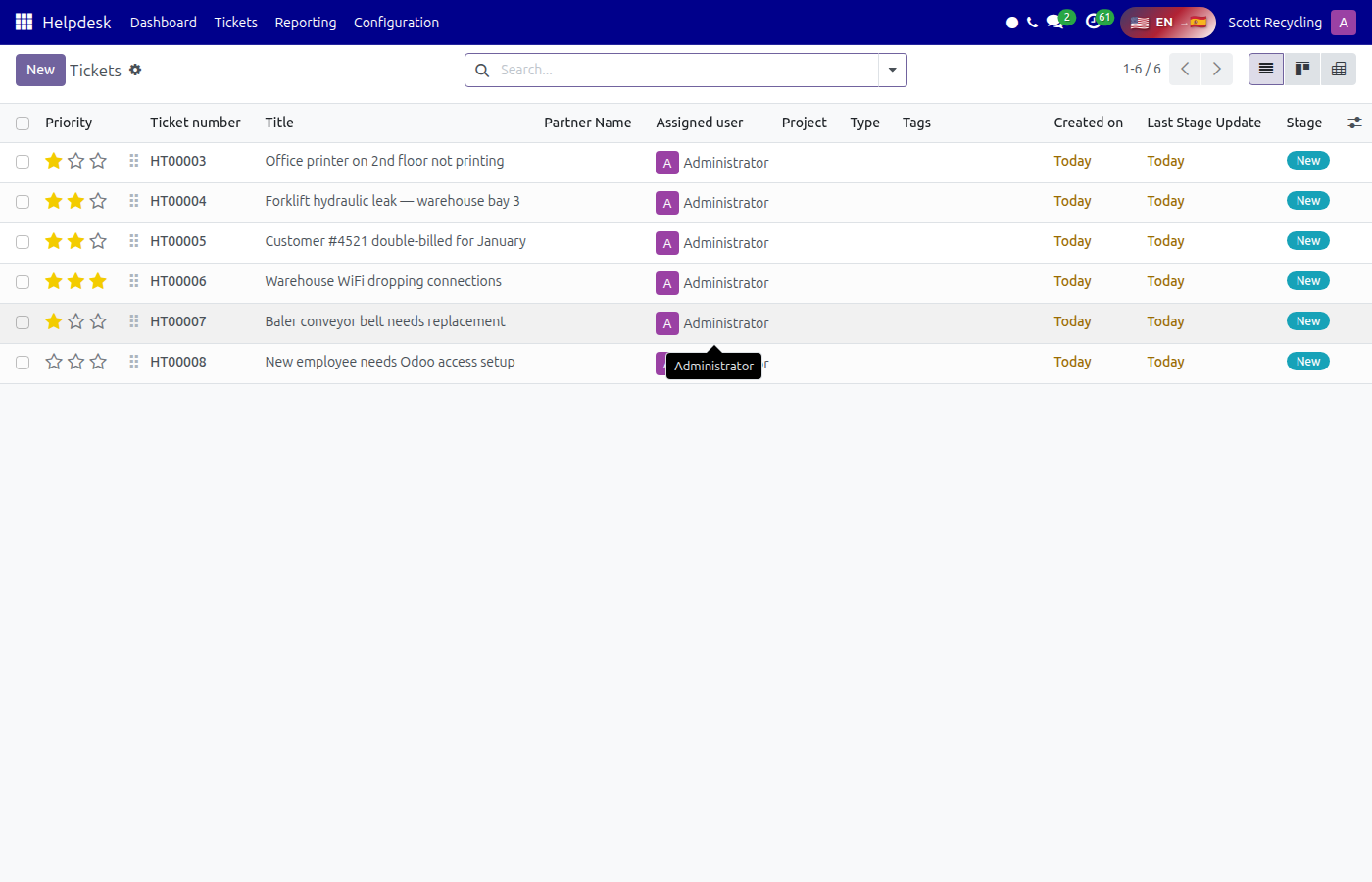
The list view shows all tickets in a table. Default columns include ticket number, title, team, assigned user, stage, and priority. Click any column header to sort.
Form View
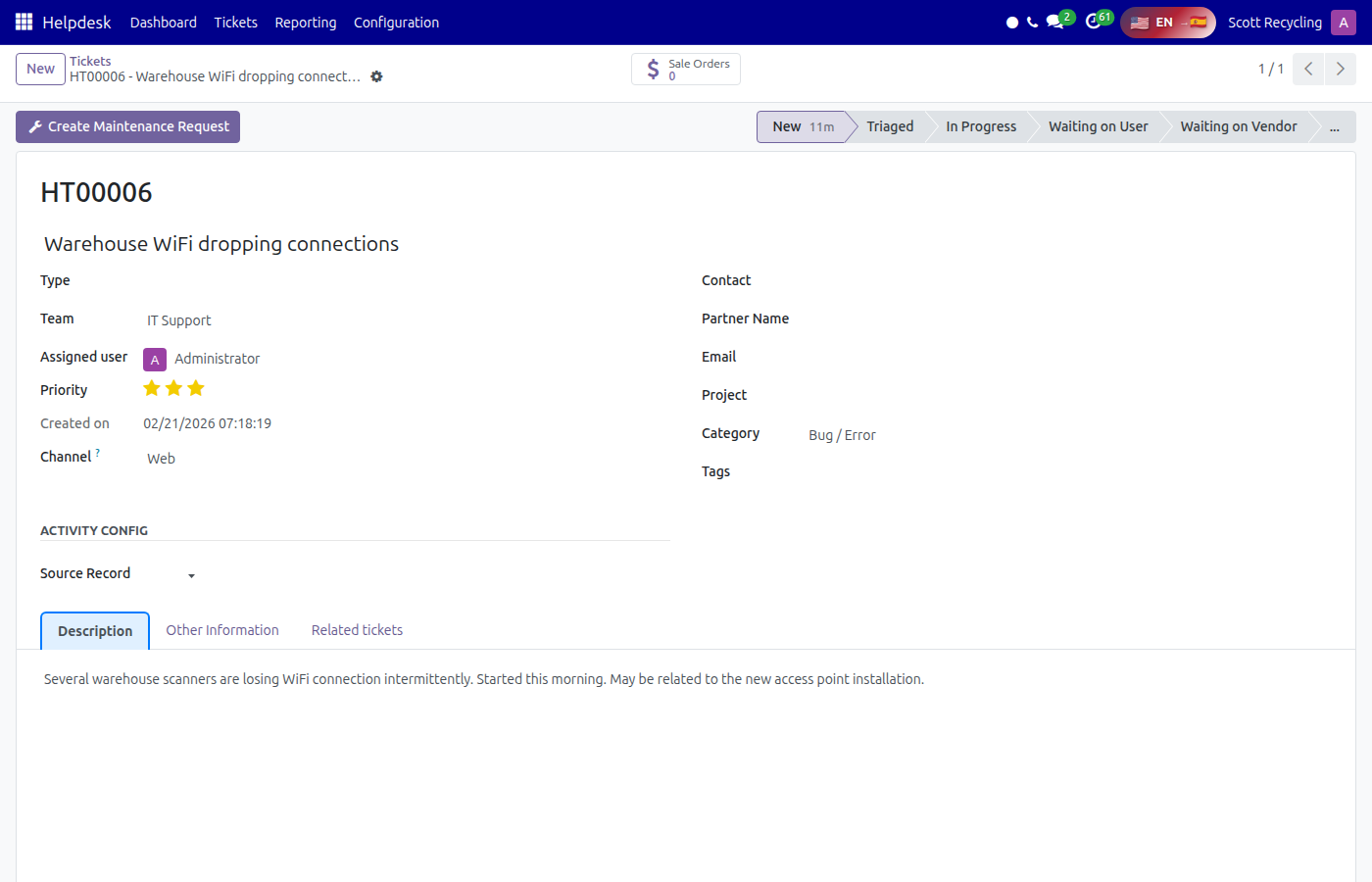
The form view shows every detail of a single ticket. The status bar at the top shows all stages — click any stage to move the ticket directly to it. The chatter at the bottom tracks all messages, stage changes, and activity.
Ticket Lifecycle
Every ticket moves through stages from creation to resolution:
| Stage | Meaning | Closed? |
|---|---|---|
| New | Just created, not yet picked up. Marked as "unattended" | No |
| In Progress | Someone is actively working on this ticket | No |
| Awaiting | Work is paused — waiting on a customer response, a part, or approval | No |
| Done | Resolved and closed. Sends a notification email to the contact | Yes |
| Cancelled | No longer needed — duplicate, or the request was withdrawn | Yes |
| Rejected | Reviewed and declined (e.g., out of scope, not a valid request) | Yes |
To change a ticket's stage:
- Form view: Click the stage name in the status bar at the top of the form
- Kanban view: Drag the ticket card to a different column
Assigning Tickets
Assign to Yourself
Open any unassigned ticket and click the Assign to me button. This sets you as the assigned user and records the assignment date.
Manual Assignment
Open the ticket form and set the Assigned User field to any team member. The dropdown only shows users who belong to the ticket's team.
Auto-Assignment
If enabled in Settings, new tickets are automatically assigned to the user who creates them (if they belong to the ticket's team). See the Admin Guide for auto-assignment configuration.
Search & Filters
Use the search bar at the top of any ticket list to find specific tickets:
Quick Filters
| Filter | What It Shows |
|---|---|
| My Tickets | Tickets assigned to you |
| Unassigned | Tickets with no assigned user |
| Open | All non-closed tickets |
| Unattended | Tickets still in the "New" stage |
| High Priority | Tickets with "Very High" priority |
Group By Options
| Group By | Use Case |
|---|---|
| Team | See workload distribution across teams |
| Stage | See how many tickets are in each stage |
| Assigned User | See who has the most tickets |
| Priority | See ticket breakdown by urgency |
| Category | See tickets organized by type |
| Channel | See where tickets are coming from |
You can combine filters and group-by for powerful views — for example, filter to "Open" tickets and group by "Team" to see each team's backlog.
Merging Tickets
When duplicate tickets are submitted for the same issue, you can merge them:
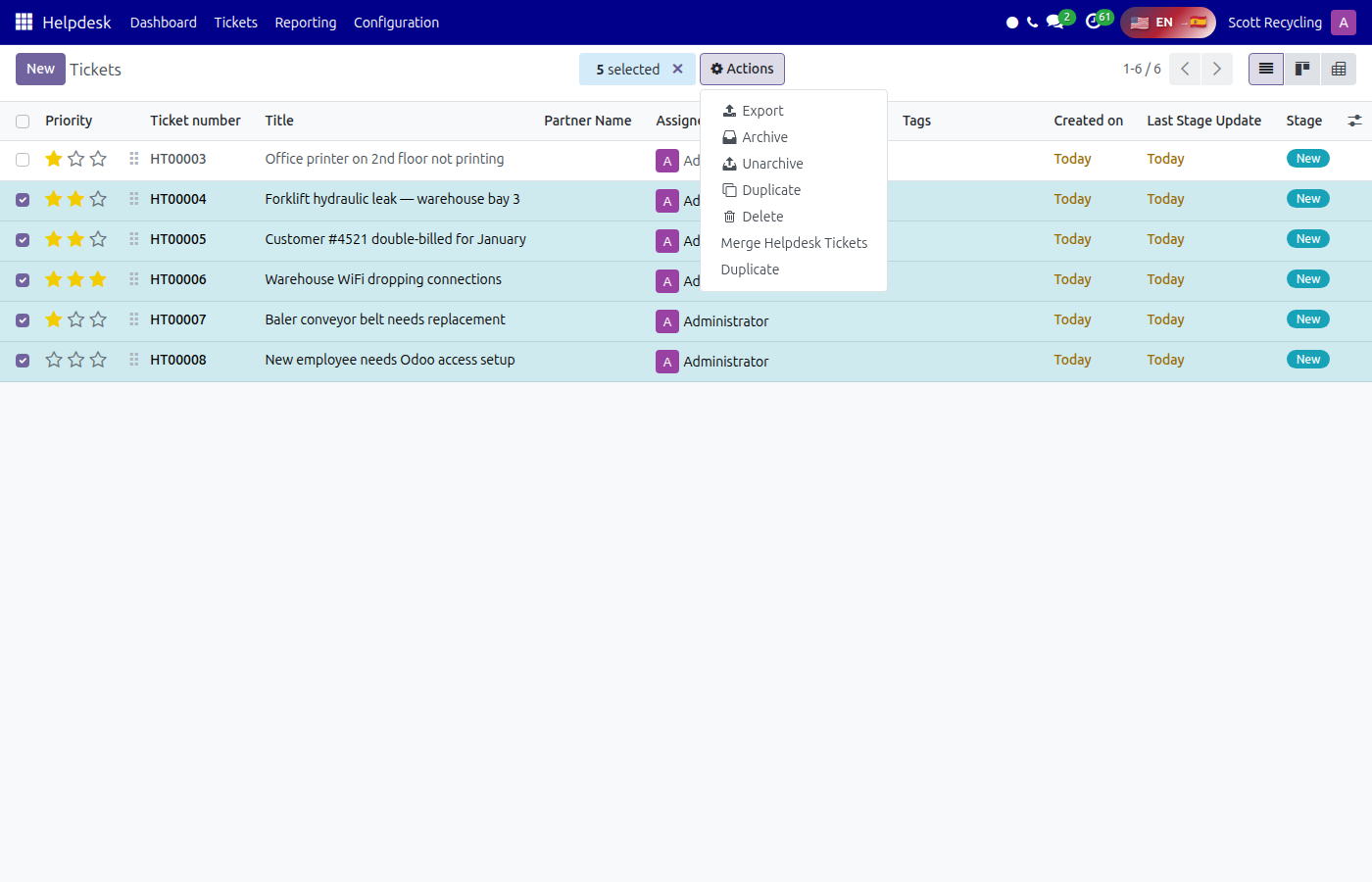
- Go to Helpdesk → Tickets → All Tickets (list view)
- Select the duplicate tickets using the checkboxes
- Click Action → Merge Tickets
- The merge wizard opens — choose which ticket to keep as the primary
- Confirm — the other tickets' messages and followers are merged into the primary ticket
When to Merge
Merge when two or more tickets describe the same problem. Don't merge tickets that are similar but for different contacts or different equipment.
Creating Maintenance Requests from Tickets
When a helpdesk ticket involves a physical equipment issue (e.g., "forklift hydraulic leak"), you can create a maintenance request directly from the ticket:
- Open the ticket
- Click the Create Maintenance Request button
- The wizard appears:
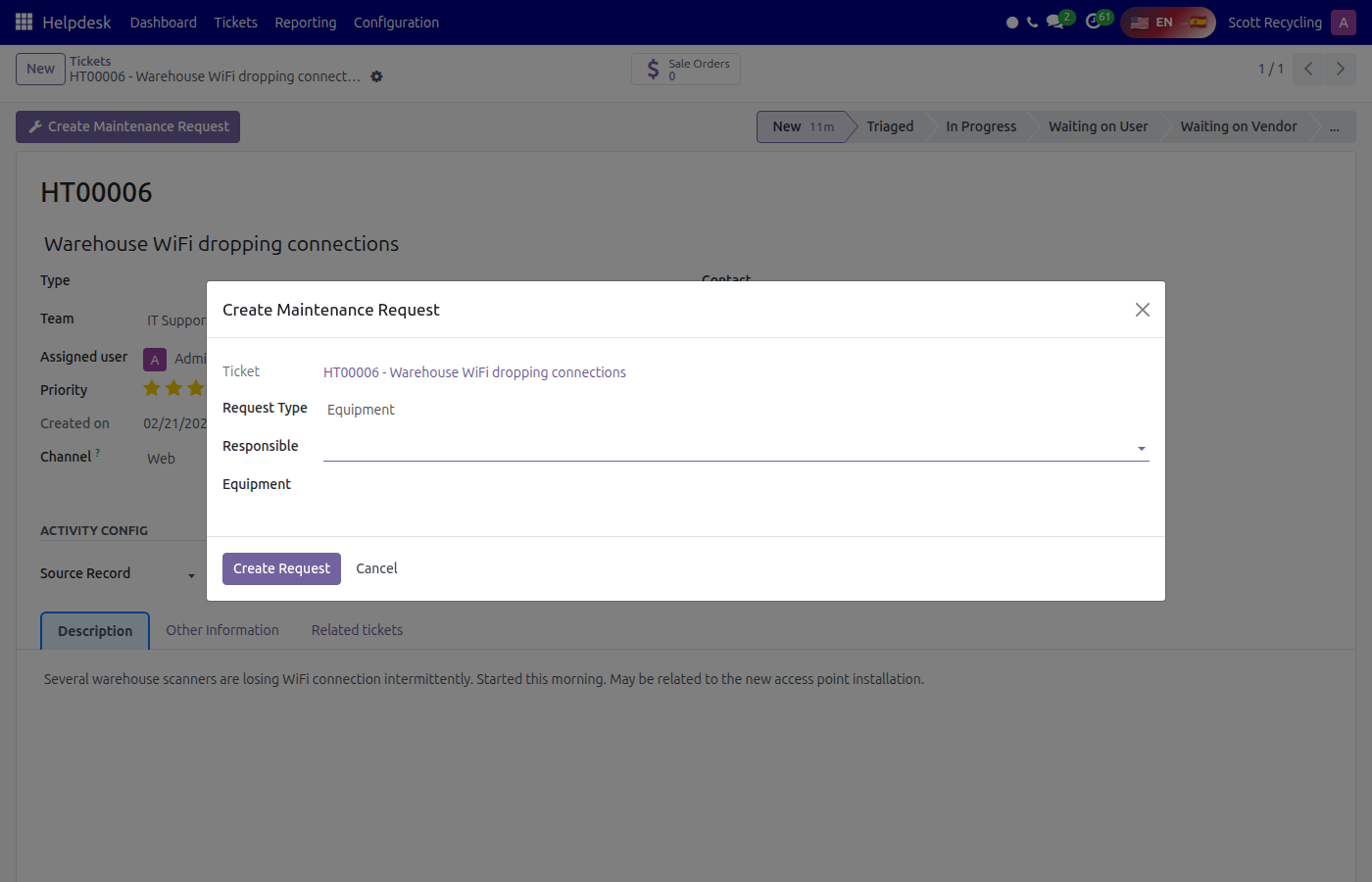
| Field | Description |
|---|---|
| Request Type | Equipment, Vehicle, or Facility |
| Responsible | Who will handle the maintenance work (defaults to ticket's assigned user) |
| Equipment | Select the equipment record from the Maintenance module |
- Click Create — a maintenance request is created with:
- The ticket's title and description copied over
- All followers and messages copied
- A link posted in the ticket's chatter
The ticket shows a Maintenance Requests smart button with a count of linked requests. Click it to view them.
Portal Access
Customers with portal access can view and manage their tickets at /my/ticket/:
- View all their submitted tickets
- See ticket status and stage
- Post messages and replies
- Close tickets (for stages configured with "Close from Portal")
Teams with Show in Portal enabled appear as options when customers create tickets through the portal.
Common Tasks Quick Reference
| Task | Where to Go | Steps |
|---|---|---|
| Submit a new ticket | Tickets → All Tickets → New | Fill in title, description, team, priority |
| Check your tickets | Tickets → My Tickets | View all tickets assigned to you |
| Pick up an unassigned ticket | Tickets → All Tickets → Filter: Unassigned | Open ticket, click "Assign to me" |
| Move a ticket forward | Open ticket → Status bar | Click the next stage (e.g., "In Progress") |
| Close a resolved ticket | Open ticket → Status bar | Click "Done" |
| Create a maintenance request | Open ticket → Create Maintenance Request | Fill in wizard, click Create |
| Merge duplicates | Tickets → List view → Select tickets | Action → Merge Tickets |
| Find tickets by team | Tickets → All Tickets → Group By: Team | Browse tickets organized by team |
Troubleshooting
| Issue | Cause | Fix |
|---|---|---|
| Can't see any tickets | Your security group only shows personal tickets | Ask a manager to upgrade you to "Team Tickets" or "User" group |
| Can't assign a user | The user isn't a member of the ticket's team | Add them to the team in Configuration → Teams, or change the ticket's team |
| Stage dropdown is empty | The team has no stages configured | Ask a manager to configure stages for the team |
| "Assign to me" doesn't appear | You're already assigned, or the ticket is closed | Check the Assigned User field and ticket stage |
| Tickets show as "Unattended" | Tickets are in the "New" stage | Move them to "In Progress" once someone starts working |
| Can't access Configuration menu | You don't have the Manager security group | Ask an admin for Helpdesk Manager access |
External Resources
- OCA Helpdesk Management (GitHub) — Source code and module documentation
- Helpdesk Admin Guide — Configuration reference for managers and admins