Attendance & Time Tracking
Last Updated: February 2026 Target Audience: All Employees, HR/Payroll Admins, Department Managers
The Attendance system handles clock-in/out, late detection, adjustment requests with two-tier approval, weekly hour reviews, and payroll reporting with Excel export. Employees interact through the kiosk and portal; HR admins and managers use the backend Workforce menu and payroll report dashboard.
How Clocking In & Out Works
Employees clock in and out using the attendance kiosk. The kiosk is accessible from the Odoo attendance module's kiosk mode.
Kiosk flow:
- Open the kiosk screen
- Select your name from the employee list
- Enter your PIN
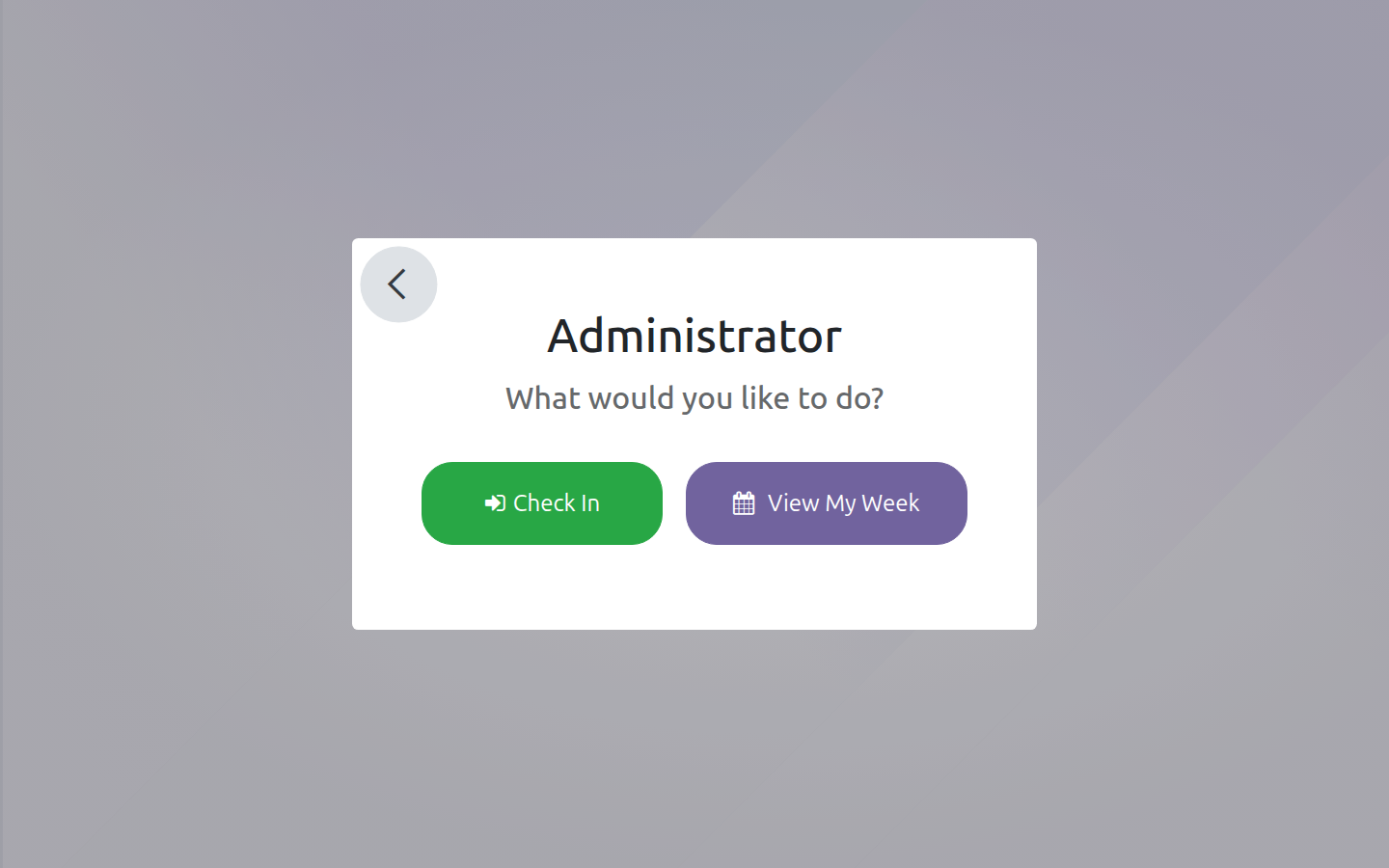
- The action chooser appears with two options:
- Check In / Check Out — records your attendance punch
- View My Week — opens your weekly attendance summary (see From the Kiosk)
Employees can also check in from the backend via Workforce → My Attendances.
One Open Punch at a Time
You cannot check in again while you already have an open check-in (no check-out). If you forgot to clock out from a previous day, the system's auto-checkout will close it automatically — see Auto-Checkout.
Viewing Your Attendance (Employee Portal)
Route: /view/emp_attendance
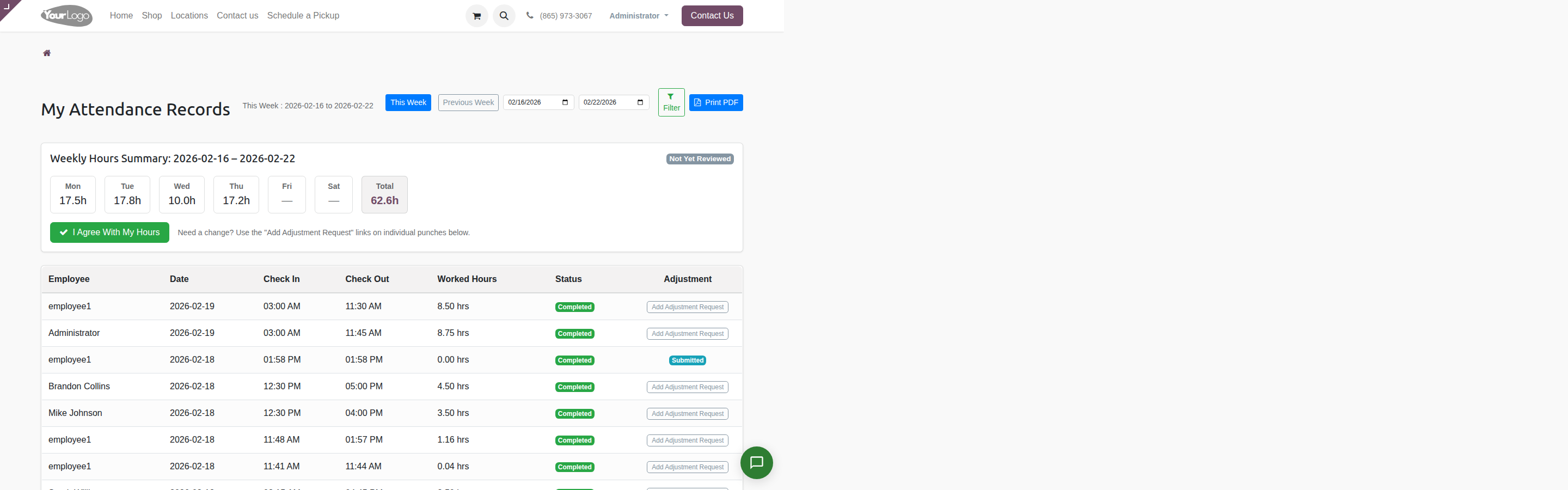
The employee portal shows your attendance records for the current week with navigation to previous weeks.
What You See
- Week navigation — "This Week" and "Previous Week" buttons, plus a custom date range filter
- Daily hours summary — Mon through Sat, showing hours per day and a weekly total
- Review status badge — Shows where your weekly review stands
- Attendance table — Individual punch records with adjustment links
- Print PDF — Download a PDF of your attendance records
Portal Table Columns
| Column | What It Shows |
|---|---|
| Employee | Your name |
| Date | The date of the punch (in your timezone) |
| Check In | Clock-in time (12-hour format) |
| Check Out | Clock-out time, or "Pending" badge if still clocked in |
| Worked Hours | Total hours for that punch |
| Status | "Completed" (green) or "Incomplete" (red) |
| Adjustment | "Add Adjustment Request" link, or "Submitted" badge if one is already pending |
Review Status Badges
| Badge | Meaning |
|---|---|
| Not Yet Reviewed (gray) | You haven't reviewed your hours yet |
| Agreed (green) | You clicked "I Agree With My Hours" — waiting for manager approval |
| Approved (blue) | Management has approved your hours |
| Rejected (red) | Management rejected your hours — check the reason |
Late Detection
The system automatically flags late arrivals based on each employee's work schedule.
How it works:
- When an employee checks in, the system looks up their work schedule for that day
- It finds the earliest scheduled start time
- A 5-minute grace period is added to the start time
- If check-in is after the grace period, the attendance is flagged as late
| Rule | Detail |
|---|---|
| Grace period | 5 minutes after scheduled start |
| Late flag | is_late boolean set on the attendance record |
| Late time | late_time field stores minutes late (after grace period) |
| Timezone | Calculated in the employee's configured timezone |
| No schedule | If no work schedule exists for the day, the check-in is not flagged |
Daily Late SMS
A cron job runs every weekday at 9:00 AM EST (14:00 UTC) and sends an SMS report listing all employees who were late that day. The SMS goes to the recipients configured in the sms_group_daily_late_attendance_report SMS group.
Weekend check-ins (Saturday/Sunday) are excluded from the late SMS.
Adjustment Requests
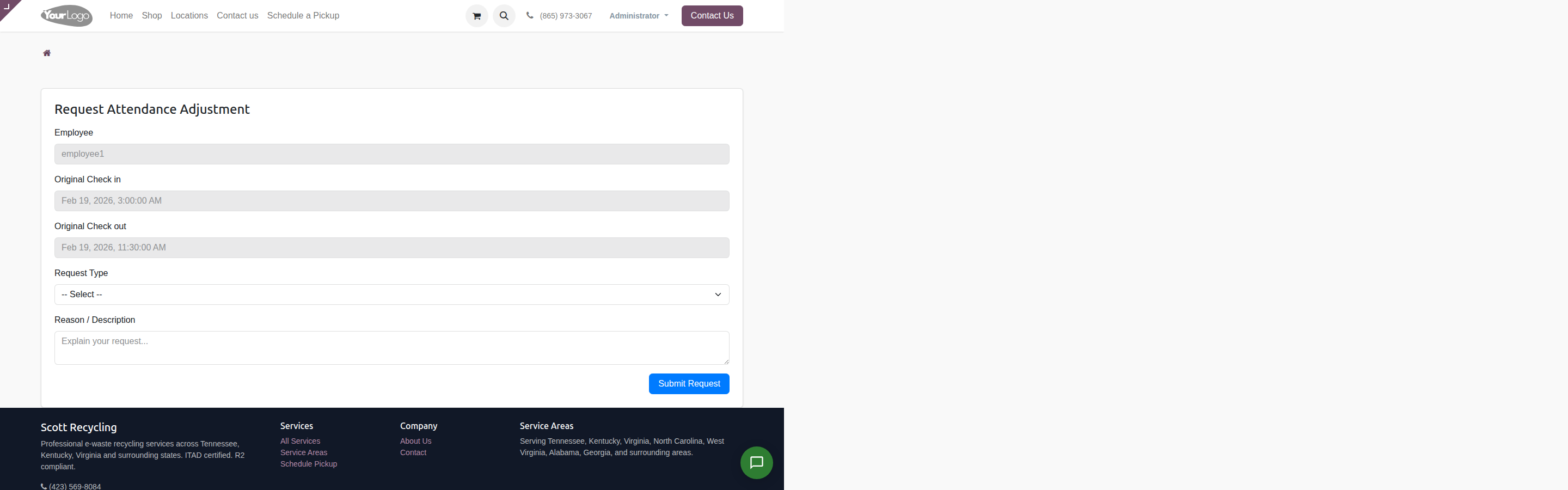
When an employee needs to correct a clock-in time, clock-out time, or log extra hours worked after checkout, they submit an adjustment request.
Route: /attendance/add_adjustment_request/<attendance_id>
Request Types
| Type | What It Does | Fields |
|---|---|---|
| Check In Adjustment | Changes the check-in time on the attendance record | New check-in time (HH:MM) |
| Check Out Adjustment | Changes the check-out time on the attendance record | New check-out time (HH:MM) |
| Extra Work After Checkout | Extends the check-out time by the specified hours | Extra hours (e.g., 2.5) |
How to Submit
- From the portal attendance table, click "Add Adjustment Request" on the relevant punch
- Select the request type
- Enter the corrected time or extra hours
- Write a reason/description (required)
- Click Submit Request
Also available from the kiosk week view — employees can request changes directly from the kiosk.
One Pending Request Per Attendance
You can only have one pending adjustment request per attendance record. If a request is already pending, submitted, or approved, the "Add Adjustment Request" link is replaced with a "Submitted" badge. If a previous request was rejected, you can submit a new one.
Weekly Review and "I Agree" Flow
Each week, every employee should review their hours and confirm they are correct.
How It Works
- A
weekly.attendancerecord is created for each employee, grouping all attendance punches for the week (Monday–Sunday) - These records are generated by a cron job that runs daily at 5:00 AM UTC (the code only creates records on Fridays)
- The employee reviews their hours in the portal or kiosk
- They click "I Agree With My Hours" to confirm
- Optionally, they can add notes before agreeing
- The weekly record moves from "New" to "Submitted" (Employee Agreed)

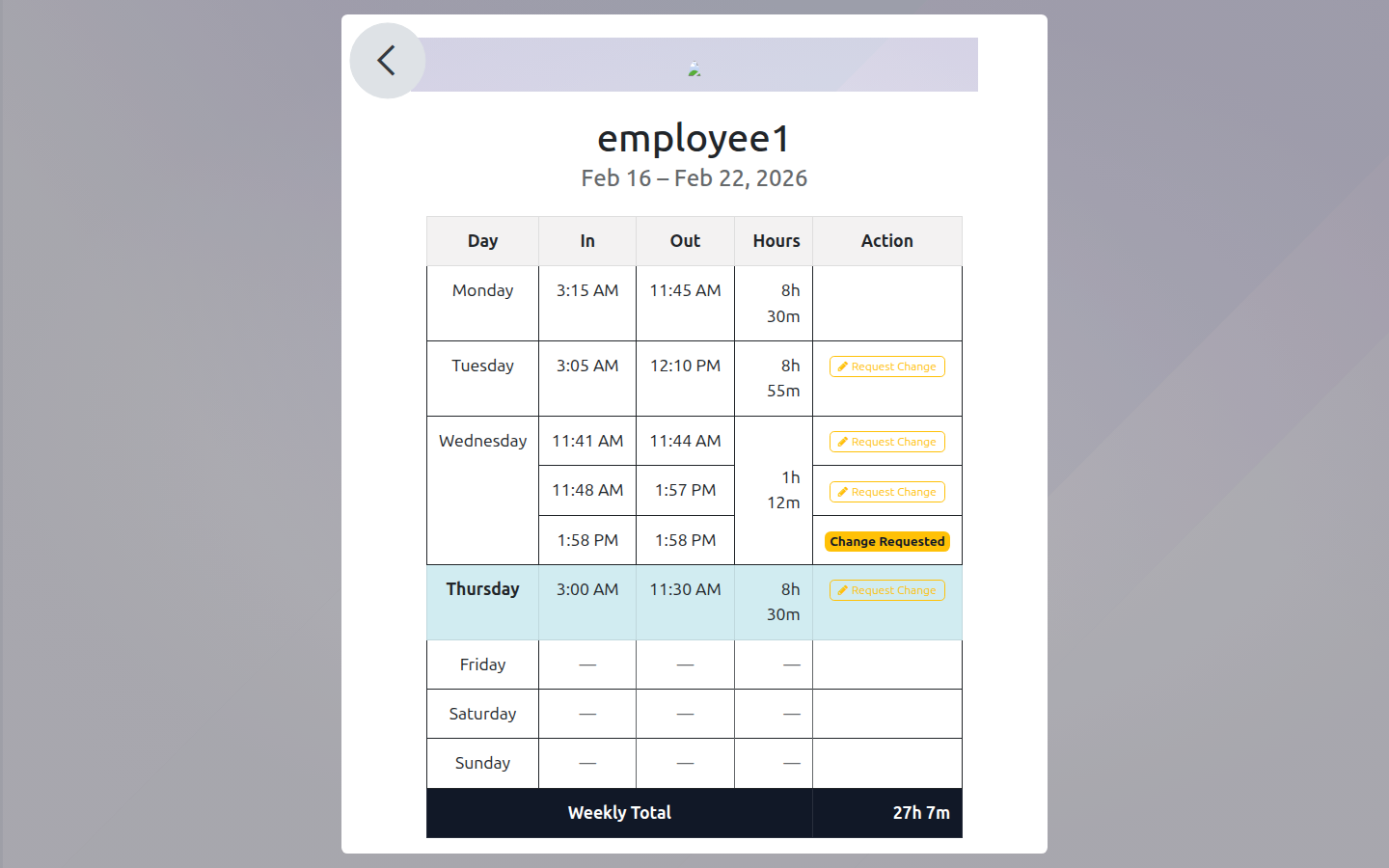
From the Kiosk
The kiosk "View My Week" screen also shows the weekly summary and an "I Agree" button. Employees can review and agree without needing to log into the portal.
State Flow
| State | Meaning |
|---|---|
| New | Weekly record created, employee has not reviewed |
| Submitted | Employee clicked "I Agree" |
| Partially Approved | One tier of approval completed (HR admin or department manager, but not both) |
| Fully Approved | Both HR admin and department manager have approved |
| Rejected | Rejected by HR admin or department manager (reason required) |
Auto-Checkout
OCA Module (Primary)
The hr_attendance_autoclose OCA module handles automatic closing of stale attendances on an hourly schedule.
Stale Check-In Override
If an employee checks in while still clocked in from a previous day, the system:
- Closes the previous attendance at end-of-day (11:59 PM)
- Sets the
auto_checkoutflag on that record - Sends the employee an email notification with a link to submit an adjustment request for the auto-closed record
The email includes a direct link to /attendance/add_adjustment_request/<id> so the employee can correct their checkout time.
Legacy Auto-Checkout Cron (Disabled)
The original cron_auto_checkout_logged_in_employees cron job is disabled. It was replaced by the OCA module for more reliable handling.
HR / Payroll Admin Guide
Menu Navigation
All attendance management is under the Workforce menu in the Odoo backend.
| Menu Item | What It Shows | Access |
|---|---|---|
| My Attendances | Your own attendance records | All employees |
| All Attendances | Every employee's attendance records | HR Attendance Manager |
| Pending | Attendance records without a check-out | HR Attendance Manager |
| Auto Checkout | Records that were auto-closed | HR Attendance Manager |
| Adjustment Requests | All adjustment requests (tree, form, kanban views) | HR Attendance Manager |
| Weekly Attendance | Weekly groupings with approve/reject buttons | HR Attendance Manager |
| Payroll Report | The payroll dashboard (redirects to /workforce/payroll-report) |
HR Attendance Manager |
Payroll Report Dashboard
Route: /workforce/payroll-report
The payroll report is the primary tool for HR admins and managers to review attendance for the week.
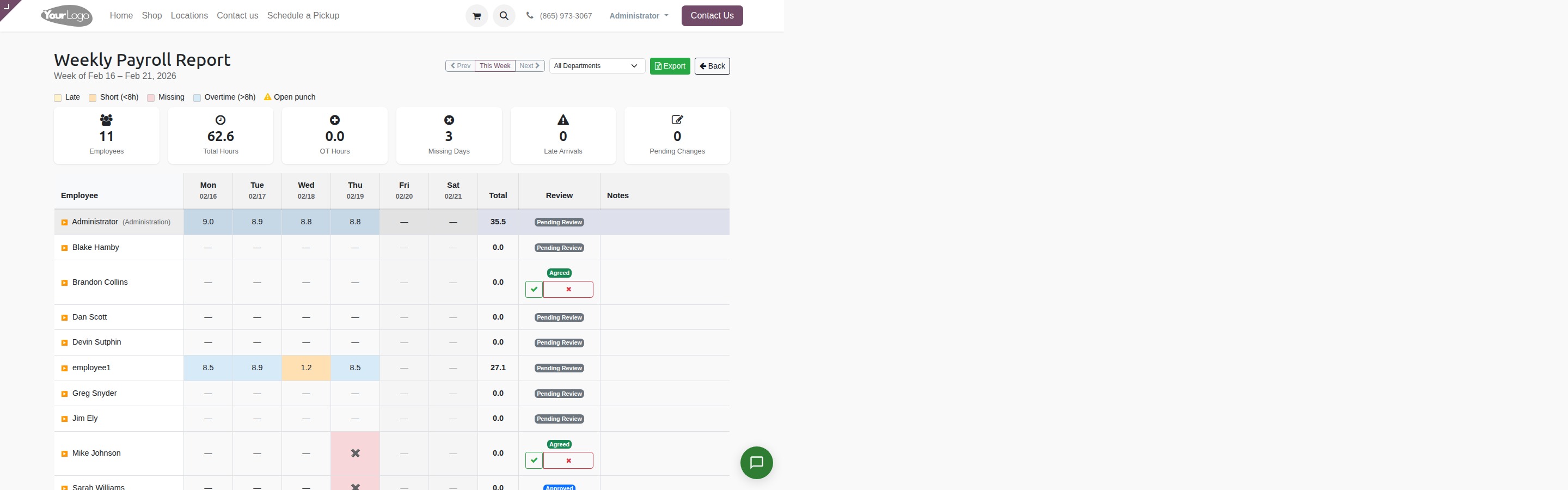
Header Controls
- Week navigation — Previous / This Week / Next buttons
- Department filter — Dropdown to filter by department
- Export button — Downloads an Excel file
- Back button — Returns to the Odoo backend
KPI Summary Cards
Six cards at the top of the report provide a quick overview of the week:

| Card | Color | What It Shows |
|---|---|---|
| Employees | Green | Total active employees in the filtered view |
| Total Hours | Light Blue | Sum of all worked hours for the week |
| OT Hours | Blue | Sum of weekly overtime (hours above 40 per employee) |
| Missing Days | Red | Count of days where a scheduled employee had no attendance |
| Late Arrivals | Yellow | Count of late check-ins for the week |
| Pending Changes | Orange | Number of pending adjustment requests (links to backend) |
Color-Coded Grid
Each cell in the grid represents one employee's hours for one day. Colors indicate status:
| Color | CSS Class | Meaning |
|---|---|---|
| Yellow | cell-late |
Employee was late that day |
| Orange | cell-short |
Worked less than 8 hours (short day) |
| Red | cell-missing |
No attendance recorded on a scheduled workday |
| Blue | cell-ot |
Worked more than 8 hours (daily overtime) |
| Gray | cell-future |
Future date (shows em-dash) |
| Warning icon | fa-exclamation-triangle |
Open punch (no check-out) |

Clicking an employee row expands it to show detailed punch times (check-in → check-out, hours, late/auto badges) for each day.
Review Status Badges
The "Review" column shows where each employee stands in the weekly review process:
| Badge | Meaning |
|---|---|
| Pending Review | Employee has not agreed to hours, no adjustment requests |
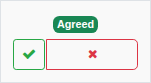
| Agreed | Employee clicked "I Agree" — shows approve/reject buttons |
| Change Requested | Employee has pending adjustment request(s) — links to backend |
| Approved | Weekly hours fully approved |
| Rejected | Weekly hours rejected |
Two-Tier Approval Workflow
Both weekly attendance records and adjustment requests use a two-tier approval system:
| Tier | Who | Field Set | Group Required |
|---|---|---|---|
| Tier 1: HR Admin | Any user in the HR Attendance Manager group | admin_approved_by_id |
hr_attendance.group_hr_attendance_manager |
| Tier 2: Department Manager | The employee's assigned attendance_manager_id |
approver_approved_by_id |
Must match employee.attendance_manager_id |
How approval progresses:
Submitted → (Tier 1 approves) → Partially Approved → (Tier 2 approves) → Fully Approved
Submitted → (Tier 2 approves) → Partially Approved → (Tier 1 approves) → Fully Approved
Either tier can approve first. When both have approved, the state moves to "Fully Approved."
Quick-Approve from Payroll Report
The payroll report has a one-click approve button that bypasses two-tier approval. When an HR admin clicks the approve button on the payroll report, it sets both admin_approved_by_id and approver_approved_by_id to the current user and immediately moves the record to "Fully Approved." Use this for routine approvals where the standard two-tier flow isn't needed.
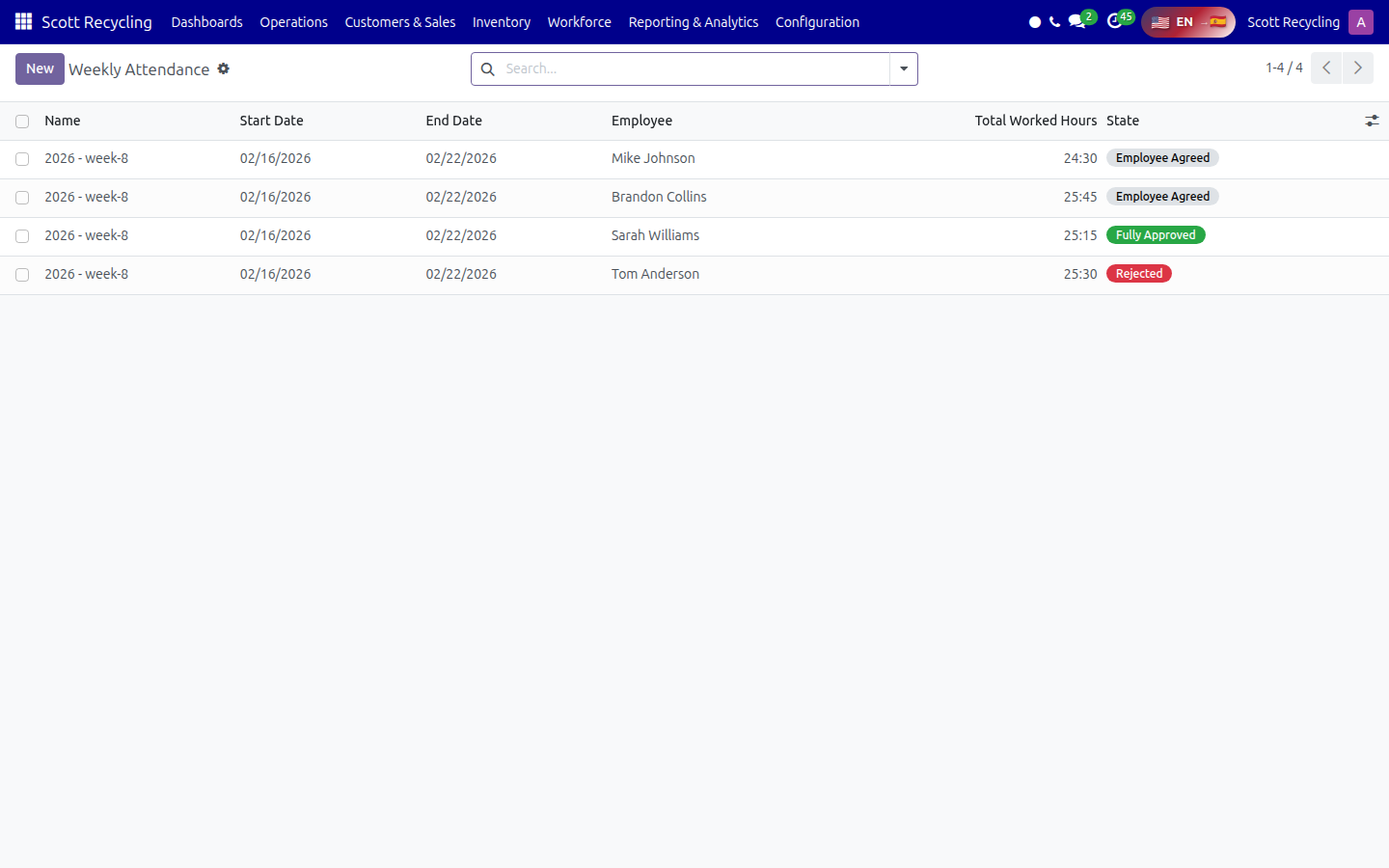
Weekly Attendance Approval
Backend: Workforce → Weekly Attendance
- Each row shows one employee's weekly record with state, total hours, and employee notes
- Approve and Reject buttons appear based on the record's state and the current user's role
- Rejecting requires a reason (opens a wizard dialog)
- When a weekly record is approved, all linked attendance records are also set to "Approved"
- When rejected, all linked attendance records are set to "Rejected"
Adjustment Request Approval
Backend: Workforce → Adjustment Requests (tree, form, and kanban views)
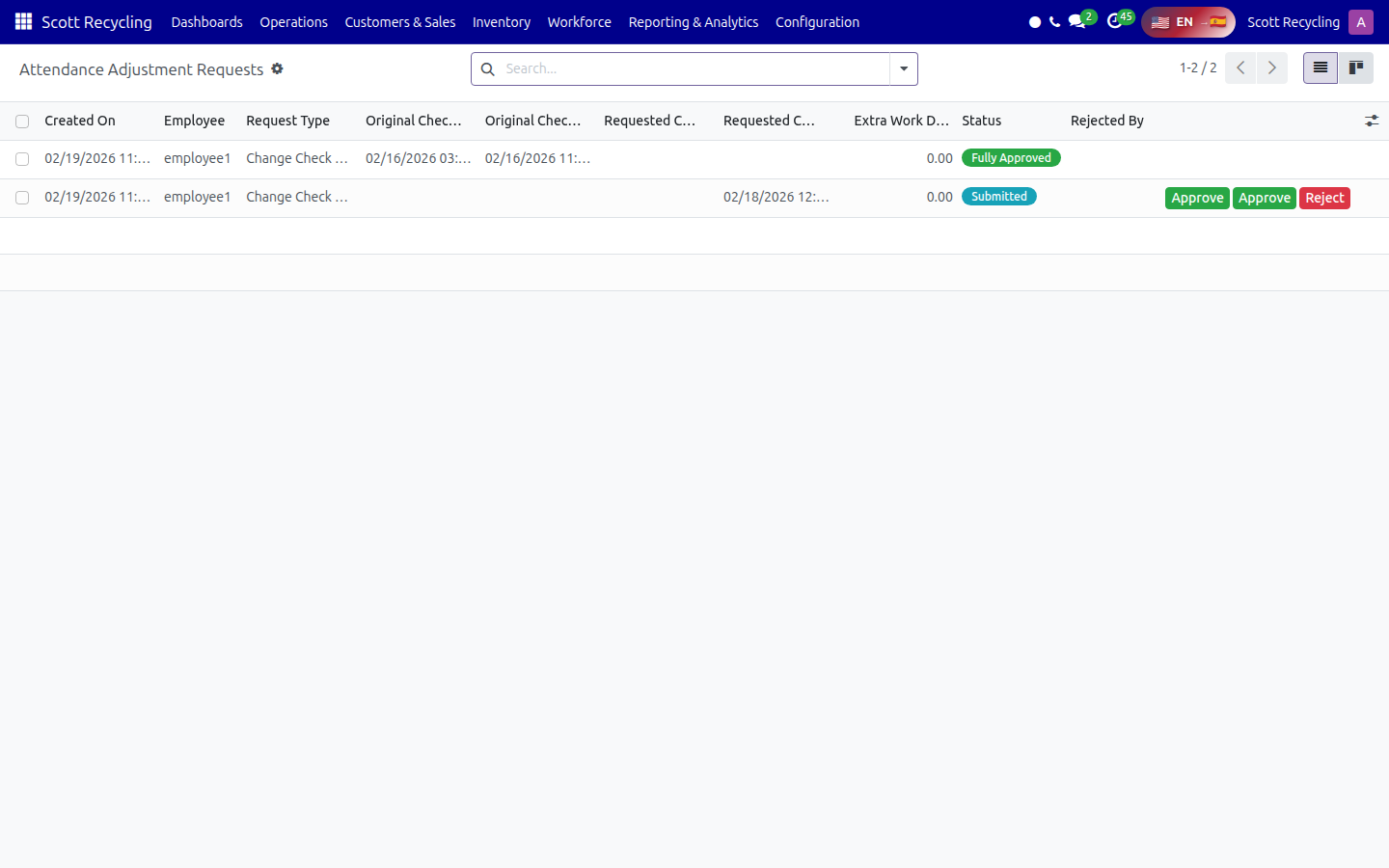
What happens when an adjustment is approved:
| Request Type | Effect |
|---|---|
| Check In Adjustment | The attendance record's check_in is updated to the requested time |
| Check Out Adjustment | The attendance record's check_out is updated to the requested time |
| Extra Work After Checkout | The attendance record's check_out is extended by the specified hours |
Email notifications are sent to the employee (and CC'd to the attendance manager) on both approval and rejection.
Excel Export
The Export button on the payroll report generates an Excel workbook with two sheets:
| Sheet | Content |
|---|---|
| Summary | Color-coded grid matching the on-screen report — employee rows, day columns, totals |
| Detail Punches | Every individual punch: Employee, Date, Check In, Check Out, Hours, Flags |
Filename format: Payroll_Report_YYYY-MM-DD_YYYY-MM-DD.xlsx
The Summary sheet uses the same color coding as the web grid (yellow for late, orange for short days, red for missing, blue for overtime).
Manager Guide
Department managers play a specific role in the attendance system:
- Department filter — On the payroll report, managers can filter to see only their department
- Two-tier approval — Managers serve as the Tier 2 approver when they are set as the employee's
attendance_manager_id - Approve button visibility — The approve button appears on the payroll report when an employee's weekly record is in "Submitted" or "Change Requested" state
Managers do not need to be in the HR Attendance Manager group. Their approval is based on being the employee's assigned attendance manager.
Attendance States Reference
Individual attendance records move through these states:
| State | Meaning |
|---|---|
| New | Record created, not yet submitted for review |
| Submit | Employee has submitted the attendance for review |
| Partially Approved | One tier of approval completed |
| Fully Approved | Both tiers approved — hours are finalized |
| Rejected | Rejected by an approver |
Cron Jobs & Automation
| Cron Job | Schedule | What It Does |
|---|---|---|
| Generate Weekly Attendance | Daily at 5:00 AM UTC (runs logic only on Fridays) | Creates weekly.attendance records grouping each employee's punches for the week |
| Daily Late Attendance SMS | Daily at 9:00 AM EST (14:00 UTC), weekdays only | Sends SMS listing all employees who were late today |
| Auto Checkout (Legacy) | Disabled | Previously closed stale check-ins nightly — replaced by OCA hr_attendance_autoclose |
| Update Pay Period | Disabled | Previously recalculated pay period flags on attendance records |
Tips & Troubleshooting
Forgot to clock out? The auto-checkout system will close your attendance at end of day. You'll receive an email with a link to submit an adjustment request to correct your actual checkout time.
Can't submit an adjustment request? Only one pending request is allowed per attendance record. If you already have a pending, submitted, or approved request, you'll see a "Submitted" badge instead of the request link. Wait for the current request to be processed, or contact HR.
Using the kiosk After entering your PIN, choose "View My Week" to see your hours, request changes, and agree to your weekly hours — all without logging into a browser.
Times look wrong? All times are displayed in the employee's configured timezone (defaults to US/Eastern). If your times appear offset, ask HR to verify your timezone setting in your employee record.
Weekly review shows "Not Yet Reviewed"? Weekly attendance records are generated on Fridays. If it's earlier in the week, the record may not exist yet. You can still click "I Agree With My Hours" from the portal and it will create the record automatically.