Multi-Channel eCommerce
Overview
The Multi-Channel eCommerce module lets you list processed inventory for sale across multiple platforms -- eBay, Amazon, Walmart, and the Scott Recycling website (/shop) -- from a single interface within Odoo. It handles listings, orders, analytics, repricing, and synchronization so that inventory levels stay consistent across all channels. When an item sells on one platform, it is automatically removed from the others.
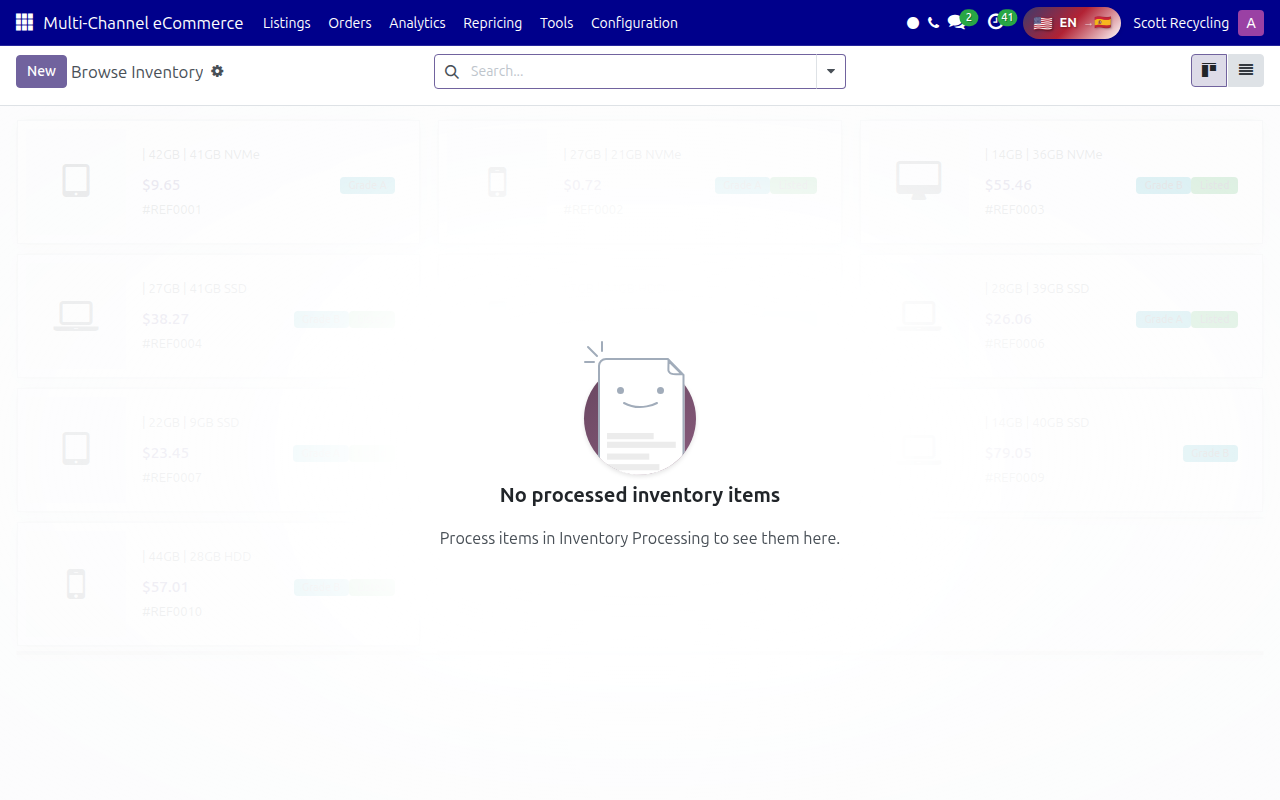 The Multi-Channel eCommerce main interface showing platform connections and listing management.
Items must be fully processed in Inventory Processing (with grade, specs, and photos) before they can be listed here.
Last Updated: February 2026 Target Audience: eBay Listers, Sales Staff, eBay/Sales Coordinators, eCommerce Managers
Browse Inventory
When you open Multi-Channel eCommerce, you see the Browse Inventory view showing items from Inventory Processing that are ready to list:
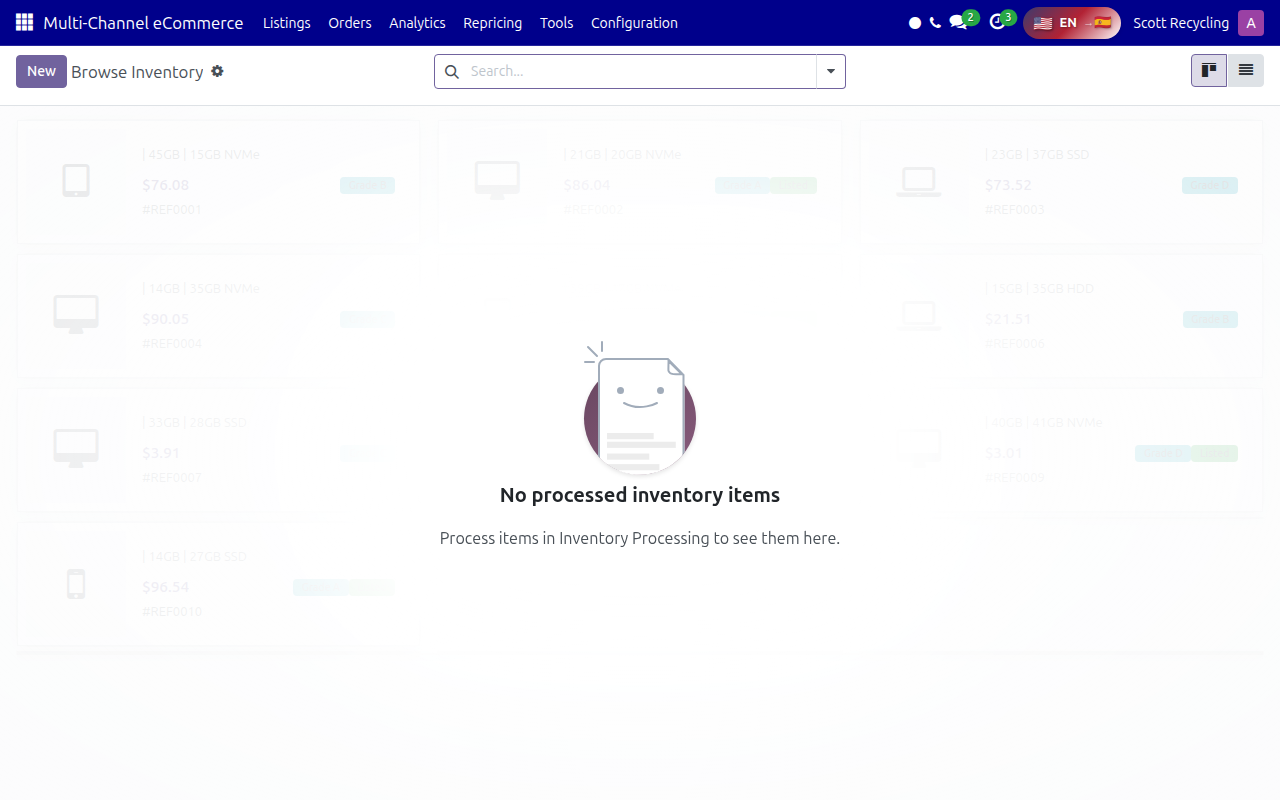
Items appear here automatically once they meet these criteria in Inventory Processing:
- Device has been graded (Grade A, B, or C -- Grade D and below are typically bulk/wholesale only)
- All required specs are filled in (manufacturer, model, CPU, RAM, HDD)
- Photos have been uploaded
- Device is not BIOS-locked
- Device is not already assigned to another sales order
The view shows product cards with key specs, pricing, and platform status indicators showing where the item is currently listed.
Top Menu Navigation
| Menu | What It Does |
|---|---|
| Listings | Manage active listings across all platforms -- view, edit, pause, or end listings |
| Orders | View and process orders from all channels in a unified queue |
| Analytics | Sales analytics: revenue by platform, best sellers, conversion rates, time-to-sell metrics |
| Repricing | Automated and manual price adjustments with floor/ceiling protection |
| Tools | Bulk operations (mass list, mass delist, mass reprice), import/export, sync utilities |
| Configuration | Platform API credentials, listing templates, sync intervals, shipping profiles |
Platform-Specific Listing Requirements
Each platform has different requirements for listings. Understanding these prevents rejected listings and ensures maximum visibility.
eBay
| Requirement | Details |
|---|---|
| Account type | Scott Recycling eBay seller account (managed by eCommerce team) |
| Listing formats | Fixed Price (preferred for most items) or Auction (for rare/high-demand items) |
| Category | Must match eBay's category tree -- use the category picker in the listing form |
| Item specifics | Brand, Model, Processor, RAM, Storage, Screen Size, Operating System -- all required for electronics |
| Photos | Minimum 3, recommended 6-12; first photo is the gallery image shown in search results |
| Description | HTML-formatted description with specs, condition notes, and included accessories |
| Condition | eBay condition codes: "Used" for Grade A/B, "Used - Good" for Grade B/C, "For Parts or Not Working" for Grade F |
| Returns | 30-day return policy is required for most categories |
| Shipping | Free shipping preferred (built into price); calculated shipping as alternative |
KPI targets: eBay Listers should create 64 listings/day or 100 listings/week. eBay Order Fulfillment staff should process 25 orders/day.
Amazon
| Requirement | Details |
|---|---|
| Account type | Amazon Professional seller account |
| ASIN matching | If the product already exists on Amazon, match to the existing ASIN; create a new listing only if no match exists |
| Condition | Amazon condition grades: "Used - Like New," "Used - Very Good," "Used - Good," "Used - Acceptable" |
| Photos | Must have white background for main image; additional lifestyle/detail photos allowed |
| Description | Bullet points for key features (5 max), detailed description below |
| FBA vs. FBM | Most Scott Recycling listings are Fulfilled by Merchant (FBM) -- we handle our own shipping |
Scott Recycling Website (/shop)
| Requirement | Details |
|---|---|
| Platform | Odoo Website builder with eCommerce module |
| Product page | Automatically generated from the inventory record |
| Photos | Uploaded through Inventory Processing; same photos used across all platforms |
| Pricing | Can differ from eBay/Amazon pricing (typically lower since no platform fees) |
| Checkout | Customer purchases through the website; order flows into Odoo sales pipeline |
Photography Best Practices
Good photos are the single biggest factor in sell-through rate. Follow these standards for every device:
Required Photos (Minimum 3)
| Photo | Description | What to Show |
|---|---|---|
| 1. Front/Open (Primary) | Laptop open at 90 degrees showing screen and keyboard; desktop front panel; phone screen | Clean screen powered on to desktop if possible; keyboard visible |
| 2. Back/Lid | Top of laptop lid closed; back panel of desktop; back of phone | Manufacturer logo visible; any scratches or dents visible honestly |
| 3. Ports/Sides | Side view showing all ports | All visible ports (USB, HDMI, Ethernet, etc.) clearly shown |
Recommended Additional Photos (6-12 Total)
| Photo | When to Include |
|---|---|
| Close-up of damage | If any cosmetic damage exists (scratches, dents, worn areas) -- always document honestly |
| Bottom | Show service tag/serial label, ventilation, rubber feet condition |
| Screen close-up | Show screen quality, any dead pixels or blemishes |
| Included accessories | If charger, stylus, or other accessories are included |
| Asset/serial tag | Close-up of the serial number label for buyer verification |
Photo Setup
- Background: Use a clean, neutral surface (white or light gray preferred). A large sheet of white poster board or a photo sweep works well.
- Lighting: Use consistent, diffused lighting. Avoid harsh shadows. Natural daylight near a window or two desk lamps on either side of the device work well.
- Angle: Shoot straight-on or at a slight downward angle. Avoid extreme angles that distort the device proportions.
- Focus: Ensure the photo is sharp and in focus. If using a phone camera, tap to focus on the device before shooting.
- Resolution: Minimum 1000x1000 pixels. eBay accepts up to 9000x9000 pixels.
Description Writing Guide
A well-written description increases buyer confidence and reduces return rates.
Structure
Every listing description should follow this format:
- Opening line -- Device name with key specs (e.g., "HP EliteBook 840 G6 -- Intel Core i5-8265U, 16GB RAM, 256GB SSD")
- Specifications table -- Organized list of all specs
- Condition notes -- Honest description of cosmetic and functional condition
- What is included -- Exactly what the buyer receives (device, charger, box, etc.)
- Data destruction notice -- "All data has been securely wiped per NIST 800-88 standards"
- Warranty/return info -- Return policy and any warranty offered
SEO Keywords
Include these terms naturally in your title and description to improve search visibility:
- Device type: laptop, desktop, workstation, ultrabook, business laptop
- Manufacturer + model: "HP EliteBook 840 G6", "Dell Latitude 5520"
- Key specs: "Intel Core i5", "16GB RAM", "256GB SSD", "14-inch"
- Condition terms: "refurbished", "tested", "certified", "professionally wiped"
- Use case: "business", "office", "remote work", "student"
Common Mistakes to Avoid
- Do not exaggerate condition -- "like new" for a Grade C device will result in returns
- Do not use all caps in titles (eBay penalizes this in search ranking)
- Do not copy descriptions from other sellers -- write original content
- Do not forget to mention what is NOT included (e.g., "No charger included" if charger is missing)
Pricing Strategy
Cost-Plus Pricing (Standard Method)
For most items, start with the device value from Inventory Processing and add margins:
| Grade | Typical Markup Over Device Value | Notes |
|---|---|---|
| A | 40-60% | Premium pricing for near-new devices |
| B | 25-40% | Standard margin for good-condition devices |
| C | 15-25% | Lower margin; competing on price |
| D | Cost + shipping | Minimal margin; goal is to move inventory |
Market-Rate Pricing
For high-value or unique items, check completed eBay listings (sold items) and Amazon prices for comparable devices:
- Search eBay "Sold Items" filter for the exact model with similar specs
- Average the last 5-10 sold prices
- Price within 5-10% of the average, adjusting for your device's specific condition
Platform-Specific Pricing
Account for platform fees when setting prices:
| Platform | Approximate Fees | Pricing Adjustment |
|---|---|---|
| eBay | ~13% (final value fee + payment processing) | Price 13% higher than your target net |
| Amazon | ~15% referral fee + per-item fee | Price 15% higher than your target net |
| Website | No platform fees (only payment processing ~3%) | Can offer lowest price here |
Seasonal Considerations
- Back-to-school (July-August): Increase prices 10-15% on student-friendly devices (lightweight laptops, Chromebooks)
- Q4 holiday season (November-December): Higher demand across all categories; maintain or increase pricing
- January-February: Post-holiday slowdown; consider discounting older inventory to clear space
- Tax season (February-April): Business buyers refresh equipment; good time for business-class devices
Inventory Sync Between Platforms
The system automatically synchronizes inventory across all connected platforms.
How Sync Works
- When an item is listed on multiple platforms, inventory count = 1 (each device is unique)
- When the item sells on any platform, the system automatically:
- Marks the item as sold in Odoo
- Removes or ends the listing on all other platforms
- Creates the sales order in Odoo
- Sync runs continuously (near real-time for eBay and Amazon, manual refresh available)
Manual Sync
If you suspect sync is out of date:
- Go to Configuration in the top menu
- Check the Last Sync timestamp for each platform
- Click Sync Now to force an immediate sync
- Review the sync log for any errors
Preventing Oversells
- Always allow the system to handle delisting -- do not manually end listings on the platform after a sale; the system handles this
- If you manually add or remove inventory on a platform outside of Odoo, run a manual sync immediately to reconcile
- If an oversell occurs (item sold on two platforms simultaneously), see the Troubleshooting section below
Order Fulfillment Workflow
When an item sells on any platform, follow this process to fulfill the order:
Step 1: Review the Order
- Go to Orders in the top menu
- New orders appear at the top with the source platform, customer details, and item information
- Verify the item is physically in stock and matches the listing
- Confirm the order in Odoo
Step 2: Pack the Item
- Locate the physical device in the warehouse using the location code from the inventory record
- Verify the serial number matches the order
- Include the correct power adapter and any listed accessories
- Pack securely with appropriate padding (bubble wrap, foam inserts, or crumpled paper)
- For laptops, place a foam sheet between the keyboard and screen before closing the lid
Step 3: Create Shipping Container
- Navigate to the Shipping module
- Create a new container linked to the sales order
- Scan the item's serial number to add it to the container
- Verify the weight
Step 4: Ship and Update
- Purchase shipping label through the carrier (or use Odoo's integrated shipping if configured)
- Enter the Carrier and Tracking Number in the shipping container record
- Mark the container as Shipped
- The tracking number automatically syncs back to the selling platform
- The customer receives a shipping confirmation with tracking
KPI target: eBay Order Fulfillment staff should process 25 orders/day.
eBay/Sales Coordinator Targets
| Metric | Target |
|---|---|
| New listings per week | 20 |
| Orders processed per day | 5 |
Common Tasks
Listing an Item
- Open Multi-Channel eCommerce
- Find the item in Browse Inventory (use search or filters)
- Click the item to open the listing form
- Set pricing for each platform (eBay $, Amazon $, Website $) -- use the pricing strategy above
- Add photos -- upload from your computer or select from previously uploaded images
- Write the description -- follow the description writing guide above
- Select categories -- choose the correct category for each platform
- Select platforms -- check which platforms to list on (eBay, Amazon, Website)
- Click Publish -- the listing is created on all selected platforms
Processing an Order
- Go to Orders in the top menu
- Find the new order (sorted by newest first)
- Review the order details: platform, customer, item, price, shipping address
- Click Confirm to accept the order
- Follow the Order Fulfillment Workflow above to pack and ship
- Mark as Shipped with the tracking number -- tracking syncs to the platform automatically
Repricing Items
- Go to Repricing in the top menu
- Select items to reprice (individually or in bulk)
- Set new prices per platform
- Set Floor Price (minimum acceptable price) and Ceiling Price (maximum) for automated repricing rules
- Save -- prices update on all active listings
Checking Sales Analytics
- Go to Analytics in the top menu
- Revenue by platform -- compare total sales across eBay, Amazon, and Website
- Best sellers -- identify which device models and categories sell fastest
- Time to sell -- see average days-to-sell by category and grade
- Conversion rate -- listings viewed vs. listings sold
- Use these insights to adjust pricing, focus photography effort on high-value items, and decide which platforms to prioritize
Tips
Process items fully before listing
Items must be completely processed in Inventory Processing -- grade assigned, all specs entered, photos uploaded, BIOS unlocked -- before they appear in Browse Inventory. If an item is not showing up, check its status in Inventory Processing.
Check sync status regularly
If a listing is not appearing on a platform, go to Configuration and check the sync status for that platform. A red indicator means the connection is down. Contact IT if the connection has been down for more than an hour.
List on multiple platforms for maximum exposure
The same item can be listed on eBay, Amazon, and the website simultaneously. The system handles inventory sync automatically, so there is no risk of overselling under normal circumstances.
Use the repricing tools for stale inventory
If an item has been listed for more than 30 days without selling, consider using the repricing tools to lower the price. Stale inventory ties up warehouse space and capital.
Troubleshooting
Issue: Listing rejected by platform
Symptom: You publish a listing but it does not appear on the target platform, or you receive an error message from eBay/Amazon. Cause: The listing may violate platform policies (missing required item specifics, prohibited item category, incorrect condition code) or the platform API credentials may have expired. Fix: 1. Check the error message in the listing record -- it usually specifies what is missing or incorrect 2. For eBay: ensure all required Item Specifics are filled in (Brand, Model, Processor Type, RAM Size, Storage Type, Screen Size, Operating System) 3. For Amazon: ensure you matched the correct ASIN or included all required fields for a new listing 4. If the error mentions authentication, go to Configuration and re-authenticate the platform connection 5. Fix the issue and re-publish the listing
Issue: Oversold inventory (item sold on two platforms)
Symptom: The same item shows as sold on two different platforms, but only one physical device exists. Cause: A rare sync timing issue where two buyers purchased the item on different platforms within the sync window before the system could delist it. Fix: 1. Fulfill the order that was placed first (check timestamps) 2. Contact the second buyer through the platform's messaging system and explain that the item is no longer available 3. Cancel the second order on the platform with reason "Out of stock" 4. On eBay, this may affect your seller metrics -- contact eBay seller support if needed to request removal of the defect 5. To prevent future oversells, check that sync is running and not stalled (Configuration → Sync Status)
Issue: Item appears in Inventory Processing but not in Browse Inventory
Symptom: A device is fully processed in Inventory Processing but does not show up in the Multi-Channel eCommerce Browse Inventory view. Cause: The item is missing one or more required fields, is BIOS-locked, has already been assigned to a sales order, or has a grade that is excluded from the eCommerce listing pool. Fix: 1. Open the item in Inventory Processing and check: Is the grade set? Are manufacturer, model, CPU, RAM, and HDD all filled in? Are photos uploaded? Is BIOS Lock set to No? 2. Check if the item is already linked to a sales order (it would show in the order linkage fields) 3. If all fields are complete, check whether the grade is configured to appear in Browse Inventory (Grade D and below may be excluded by default) 4. If everything looks correct, try refreshing the Browse Inventory view or running a manual sync
Issue: Customer return/refund request
Symptom: A customer contacts Scott Recycling or files a return through the platform, requesting a refund or replacement. Cause: Item not as described, arrived damaged, DOA (dead on arrival), or buyer remorse. Fix: 1. Review the return request on the platform (eBay Resolution Center, Amazon Return Request) 2. Check the original listing description and photos against the customer's complaint 3. If the item was accurately described and the issue is buyer remorse, follow the platform's return policy (30-day returns on eBay) 4. If the item was damaged in shipping, file a shipping claim with the carrier and issue a refund to the customer 5. If the item was not as described (our error), accept the return, issue a refund, and update the listing process to prevent recurrence 6. When the returned item arrives, re-process it through Inventory Processing, re-grade, and re-list if still viable
Issue: Photos not uploading or appearing blurry on platform
Symptom: Photos fail to upload during listing creation, or they appear low-quality on the platform listing page. Cause: Image file is too large (over platform limits), too small (under minimum resolution), wrong format, or the upload timed out. Fix: 1. Check image dimensions: minimum 1000x1000 pixels, maximum 9000x9000 pixels for eBay 2. Use JPEG or PNG format only 3. Keep file size under 12MB per image 4. If upload times out, try again on a stronger network connection or reduce the image file size 5. If photos appear blurry, re-take them following the photography guidelines above
Questions? Contact your supervisor or refer to the Getting Started guide.