Contacts
Overview
The Contacts module is Odoo's central database for all people and companies your business interacts with — customers, vendors, employees, and other partners. It stores addresses, phone numbers, email addresses, and categorization tags. Nearly every other Odoo module references contacts for linking records to the right person or organization.
Last Updated: February 2026 Target Audience: All Employees
How We Use It at Scott Recycling
Contacts is the most heavily extended module at Scott Recycling. The native res.partner model has been customized by at least six SR modules: sr_management, sr_management_fixes, sr_scheduling, sr_pickup_blast, sr_prospect_automation, and sr_dashboards. This means the contact form you see in Odoo has far more fields than a standard Odoo installation.
Key custom fields on every customer contact include call cycle settings (how often the customer should be called), queue booleans (in_queue_a, in_queue_b, in_queue_c, in_queue_d) that control which call queue the customer appears in, pickup history (last pickup date, average days between pickups, total weight), priority stars (0-3 based on yearly volume), and DM dates for tracking direct mail campaigns. These fields drive the automated queue assignment system that places customers into the right call queue each day.
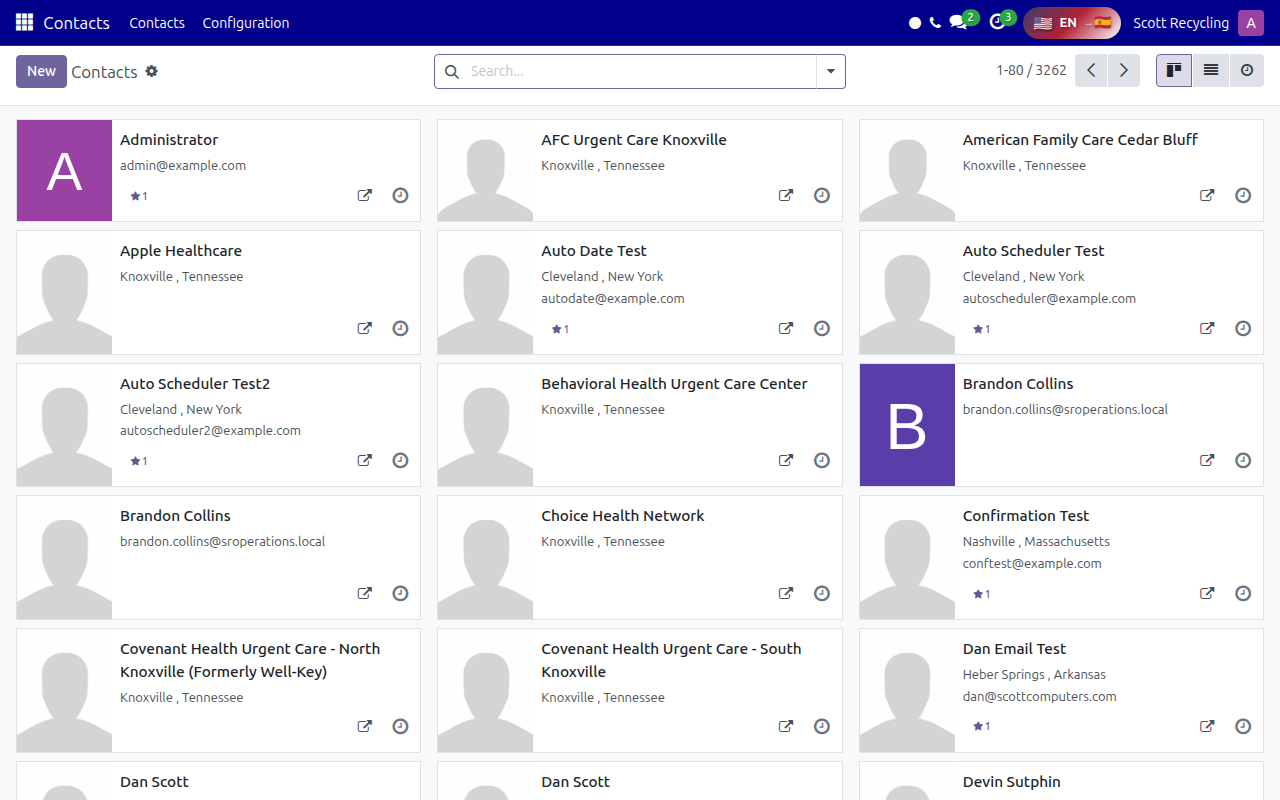 The contacts list view showing customer records with custom Scott Recycling fields.
Because every SR module touches contacts, changes to the contact model must be made carefully. If you notice unexpected behavior on a customer record — fields missing, buttons not working, or queue placement errors — report it to your supervisor. The queue boolean system in particular has strict rules about how customers enter and leave queues, and manual edits to those fields can cause problems.
Learning Resources
Official Training
| Resource | Type | Duration | Link |
|---|---|---|---|
| Odoo 17 Contacts Overview | Video | ~15 min | YouTube Search |
| Odoo 17 Contact Management | Video | ~20 min | YouTube Search |
| Odoo 17 Customer Tags and Categories | Video | ~10 min | YouTube Search |
Recommended Reading
Quick Reference
| Task | Where to Find It |
|---|---|
| View all contacts | Contacts > Contacts |
| Search for a customer | Contacts > search bar or Ctrl+K |
| Create a new contact | Contacts > New |
| Add a child contact (location/person) | Open a company contact > Contacts & Addresses tab > Add |
| View a customer's pickup history | Open the contact > Pickup History tab (SR custom) |
| Check which queue a customer is in | Open the contact > look for Queue A/B/C/D boolean fields |
| See a customer's call cycle | Open the contact > Call Cycle field (SR custom) |
| Filter by customer tag | Contacts > Filters > Tags |
| Export contacts | Contacts > select records > Action > Export |
| Merge duplicate contacts | Select duplicates > Action > Merge Contacts |
Tips
Do not manually edit queue booleans
The in_queue_a, in_queue_b, in_queue_c, and in_queue_d fields are managed automatically by the queue assignment system. Manually toggling them can cause customers to appear in the wrong queue or disappear from queues entirely. Use the proper action buttons instead.
Use the smart buttons
At the top of each contact record, you'll see smart buttons showing related records — pickups, sales orders, invoices, and more. Click them to jump directly to that customer's history instead of searching separately.
Company vs. Individual
Odoo distinguishes between company contacts and individual contacts. At SR, most customers are companies. Individual people at those companies are added as child contacts under the company record.
Need more help? Check the FAQ & Troubleshooting page or contact your supervisor.