Instant Truck Report
Last Updated: February 2026 Target Audience: Dispatchers, Logistics Managers
The Instant Truck Report shows route schedules with expandable pickup-level details including arrival times, delays, and status badges.
Navigation: Scott Recycling > Reporting & Analytics > Operations > Instant Truck Report
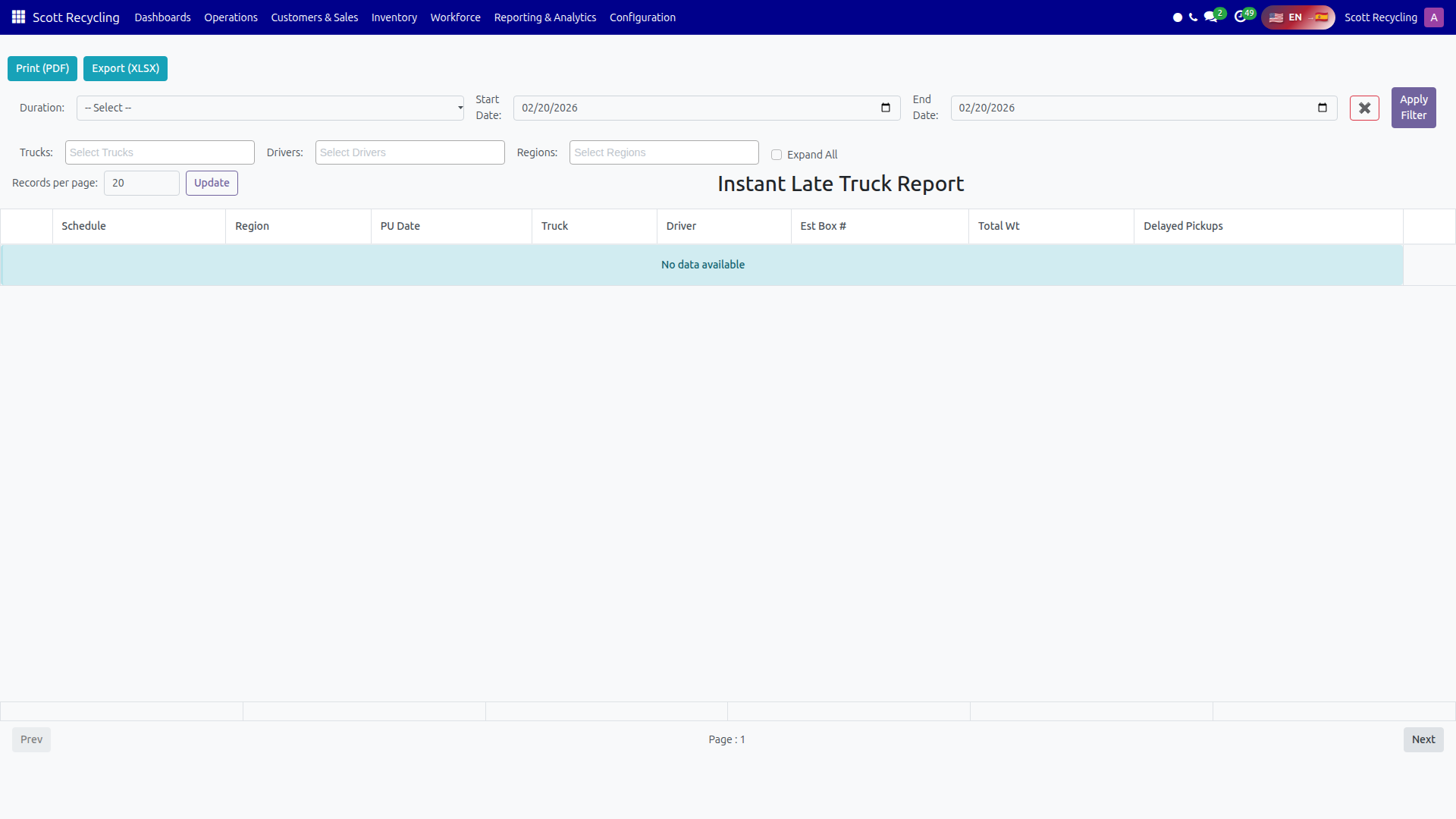
Filters
| Filter | Type | Description |
|---|---|---|
| Duration | Dropdown | 7 Days, 1 Month, 3 Months, 6 Months, 1 Year |
| Start Date | Date picker | Custom start date |
| End Date | Date picker | Custom end date |
| Truck | Multi-select | Filter by one or more trucks |
| Driver | Multi-select | Filter by one or more drivers |
| Region | Multi-select | Filter by one or more regions |
- Set your desired filters.
- Click Apply Filter.
Route-Level View
The main table shows one row per route schedule:
| Column | Description |
|---|---|
| Schedule | Schedule identifier (links to the schedule form) |
| Date | Route date |
| Truck | Assigned vehicle |
| Driver | Assigned driver |
| Region | Route region |
| Pickups | Number of pickups on this route |
| Late | Count of late/delayed pickups |
Click the expand arrow on any row to see pickup-level details.
Expanded Pickup Details
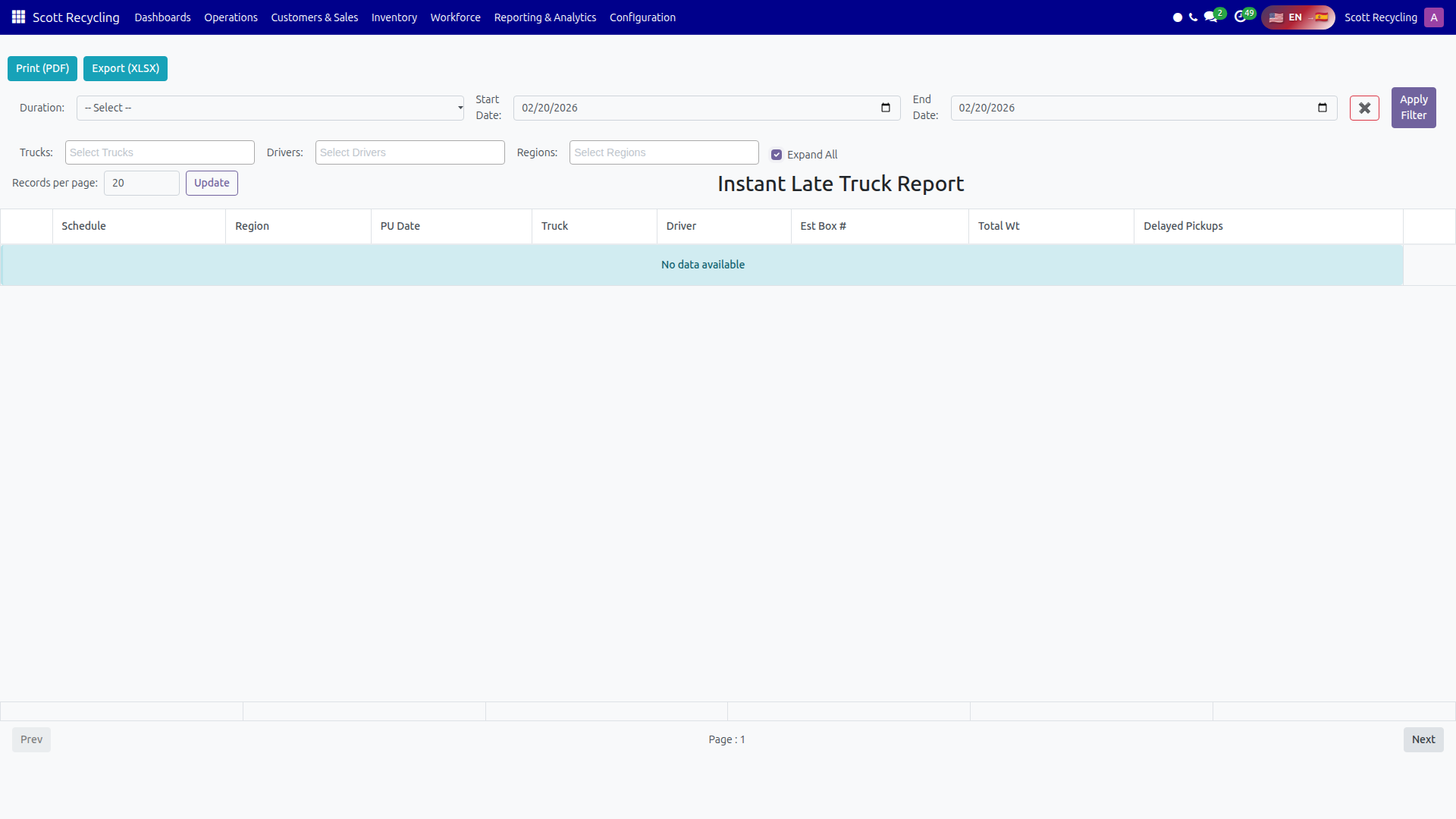
When you expand a route row, a sub-table shows each pickup on that route:
| Column | Description |
|---|---|
| Pickup # | Pickup ID (links to the pickup form) |
| Customer | Customer name |
| Scheduled Arrival | Expected arrival time |
| Actual Arrival | Actual arrival time |
| Delay | Time difference if late (displayed as a duration) |
| Status | Badge showing pickup status |
Info
An Expand All toggle at the top of the table lets you expand or collapse all routes at once.
Export Options
| Button | Format | Details |
|---|---|---|
| Print (PDF) | Full report with route and pickup details | |
| Export (XLSX) | Excel | Spreadsheet with route summary and pickup breakdown |
Common Tasks
Check today's route performance
- Set the date range to today.
- Click Apply Filter.
- Look at the Late column for routes with delays.
- Expand those routes to see which pickups were late and by how much.
Review a specific driver's history
- Select the driver in the Driver filter.
- Set an appropriate date range.
- Click Apply Filter.
- Review late pickup counts across their routes.
Export for logistics review
- Set filters for the period and trucks you want to analyze.
- Click Export (XLSX).
- The spreadsheet includes both the route summary and pickup-level detail.
Troubleshooting
| Issue | Solution |
|---|---|
| No data appears | Check that schedules exist for the selected date range, truck, and region combination. |
| Delay column is empty | Actual arrival times may not have been recorded for those pickups. |
| Driver filter is empty | Only drivers assigned to the driver or tractor trailer driver groups appear in the filter. |
| Schedule link opens a blank form | You may not have access to the truck schedule model. Contact your admin. |