General Sales
Overview
The General Sales module manages non-computer items for sale -- electronics (non-computer), clothing/PPE, vehicles, raw materials, tools, furniture, and office supplies. These are items that do not go through the Inventory Processing pipeline (which is for laptops, desktops, phones, tablets, and other computing devices). Items are listed with per-channel pricing for eBay, Amazon, and the Scott Recycling store, and tracked through the complete sales lifecycle from intake to sold.
Last Updated: February 2026 Target Audience: Sales Staff, Listing Managers, eBay/Sales Coordinators
Sales Workflow End-to-End
Every general sale item follows this lifecycle:
Detailed Workflow Steps
| Step | Who Does It | What Happens |
|---|---|---|
| 1. Item acquired | Warehouse / Receiving | Item arrives from a pickup, donation, or purchase. Could be anything: monitors, printers, UPS units, furniture, PPE, scrap metal, vehicle parts, tools. |
| 2. Entered into system | Sales Staff | Item is added to General Sales with category, description, brand, condition, and ID/serial if applicable. Status: Ready to List. |
| 3. Photos taken | Sales Staff / Lister | Device photographed following photo standards (minimum 3 photos: front, back, detail). Photos uploaded to the item record. |
| 4. Pricing set | Sales Staff / Coordinator | eBay $, Amazon $, and Store $ prices set based on market research and pricing strategy. |
| 5. Listed | eBay Lister / Sales Staff | Status changed to Listed. Item posted to one or more sales channels. Listing template used for consistent formatting. |
| 6. Sold | System / Sales Staff | When the item sells, the sold channel and sold price are recorded. Status: Sold. |
| 7. Fulfilled | Shipping / Sales Staff | Item is packed, shipping label created, and shipped to the buyer. For in-store sales, item is handed to the customer. |
General Sale Items List
When you open General Sales, you see all items with their status, pricing, and sales channel info:
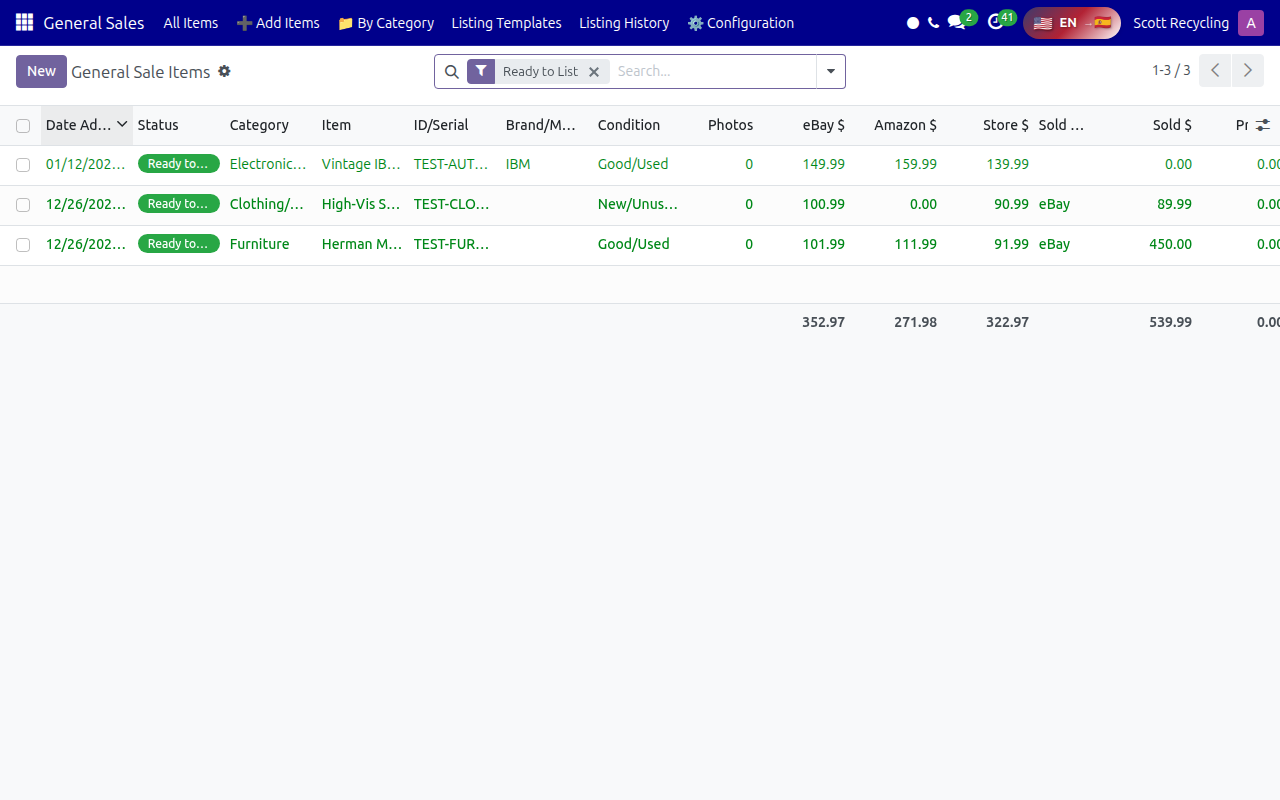
Columns
| Column | Description |
|---|---|
| Date Added | When the item was entered into the system |
| Status | Current lifecycle status (Ready to List, Listed, Sold, Archived) |
| Category | Item type -- determines which listing template applies |
| Item | Free-text item description |
| ID/Serial | Tracking identifier (serial number, asset tag, or internally assigned ID) |
| Brand/Manufacturer | Brand name (if applicable -- not all items have a brand) |
| Condition | Assessed condition: New/Unused, Good/Used, Fair, Poor, For Parts |
| Photos | Number of photos attached to the record |
| eBay $ | eBay listing price |
| Amazon $ | Amazon listing price |
| Store $ | In-store / website price |
| Sold Channel | Where the item sold (eBay, Amazon, Store, Wholesale, Other) |
| Sold $ | Final sale price |
Item Categories
| Category | Examples | Typical Sales Channel |
|---|---|---|
| Electronics (Non-Computer) | Monitors, printers, UPS units, networking equipment, cables, peripherals, TVs | eBay, Amazon |
| Clothing/PPE | Safety vests, hard hats, gloves, uniforms, safety glasses | Store, eBay |
| Vehicle/Truck | Truck parts, vehicle accessories, retired fleet vehicles | eBay, Store, Direct |
| Raw Materials/Scrap | Copper wire, aluminum scrap, steel, circuit boards (items not tracked in Weighted Receiving) | Wholesale, Direct |
| Tools/Equipment | Hand tools, power tools, warehouse equipment, pallet jacks, carts | eBay, Store |
| Office Supplies | Desks, chairs, shelving, filing cabinets, office accessories | Store, eBay |
| Furniture | Warehouse furniture, office furniture, display cases | Store, Direct |
| Other/Miscellaneous | Anything that does not fit the above categories | Varies |
Listing Templates
Click Listing Templates in the top menu to manage reusable templates by category:
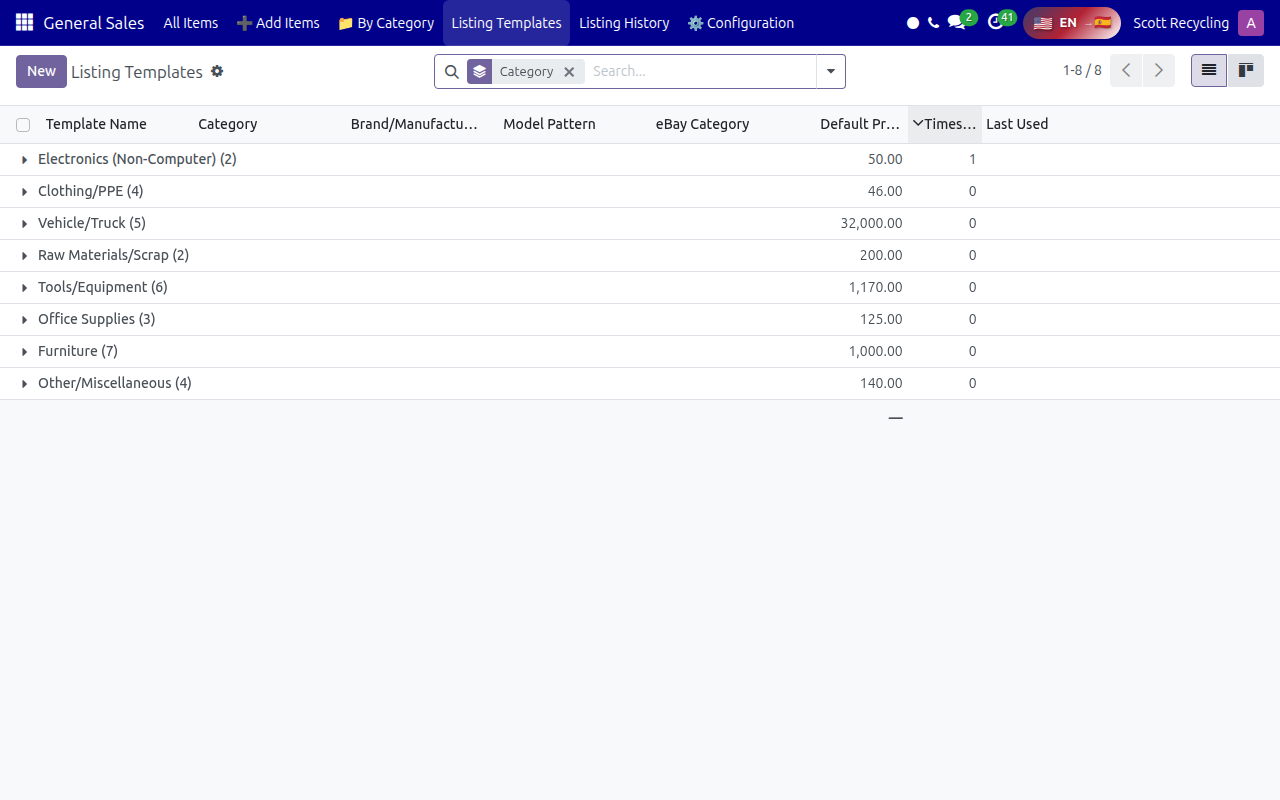
What Templates Define
| Template Element | Description |
|---|---|
| Default pricing | Pre-set eBay, Amazon, and Store prices that auto-fill (can be overridden per item) |
| eBay category | The correct eBay category for this type of item |
| Description template | Boilerplate description text with placeholders for item-specific details |
| Condition mapping | Maps your internal condition assessment to the platform's condition codes |
| Shipping profile | Default shipping method and cost estimate for this item type |
Using Templates
- When adding a new item, select the Category first
- The system applies the matching template, pre-filling pricing and description
- Edit the pre-filled fields to match the specific item
- Templates save time and ensure consistency across listings
Pricing Strategy
Setting Prices for Each Channel
Each item has three price fields because platform fees differ:
| Channel | Fee Structure | How to Price |
|---|---|---|
| eBay | ~13% total fees (final value + payment) | Highest price of the three -- fees are baked in |
| Amazon | ~15% referral fee + per-item | Highest or equal to eBay |
| Store | ~3% payment processing only | Lowest price -- can offer best deal since no platform fees |
Bulk / Wholesale Pricing
For bulk or wholesale buyers (scrap dealers, resellers, liquidators):
| Scenario | Pricing Approach |
|---|---|
| Single bulk item (e.g., pallet of mixed electronics) | Price based on total weight + material composition. Get quotes from 2-3 buyers if possible. |
| Lot of similar items (e.g., 50 monitors) | Price per unit at 30-50% below individual retail, with a minimum lot size |
| Raw materials / scrap | Price per pound based on current commodity rates (check market daily for copper, aluminum, steel) |
| Regular wholesale customer | Negotiate standing rates per category -- log these in the customer's Odoo contact record |
Price Negotiation Within the System
When a buyer makes an offer or negotiates:
- Open the item record in General Sales
- If the offer is acceptable, update the Sold $ field to the negotiated price
- Record the negotiation outcome in the item's notes (e.g., "Buyer offered $150, accepted at $175")
- Change the Sold Channel to the appropriate channel
- Update the status to Sold
For eBay Best Offer negotiations, handle them directly through eBay's offer system, then update the General Sales record to match.
Know your floor price
Before listing, calculate the minimum acceptable price: acquisition cost + processing time + shipping materials. Never sell below this floor unless a manager approves it for inventory clearance.
Top Menu Navigation
| Menu | What It Shows |
|---|---|
| All Items | Full list of all general sale items across all statuses |
| Add Items | Quick-entry form to add new items -- optimized for speed |
| By Category | Items grouped by category -- useful for batch listing |
| Listing Templates | Reusable templates by category with default pricing and descriptions |
| Listing History | Historical record of all past listings, including sold items and archived entries |
| Configuration | Categories, condition definitions, and module settings (manager access) |
Common Tasks
Adding a New Item
- Open General Sales
- Click Add Items in the top menu (or the New button)
- Select the Category (Electronics, Furniture, etc.) -- the matching template loads automatically
- Enter the item description -- be specific (e.g., "HP LaserJet Pro M404n Printer" not just "Printer")
- Enter the Brand/Manufacturer if applicable
- Enter the ID/Serial if the item has one (serial number, asset tag, or assign an internal ID)
- Assess and set the Condition:
- New/Unused -- still in original packaging or clearly never used
- Good/Used -- fully functional, normal cosmetic wear
- Fair -- functional but noticeable cosmetic issues or minor functional limitations
- Poor -- significant cosmetic or functional issues; sold as-is
- For Parts -- not fully functional; value is in the components
- Set pricing for each channel (eBay $, Amazon $, Store $)
- Take and upload photos (minimum 3: front, back, detail)
- Click Save -- status is set to Ready to List
Listing an Item
- Open the item from All Items (filter by status = "Ready to List" for efficiency)
- Review pricing, photos, and description
- If listing on eBay: verify the eBay category is correct, check that all required item specifics are filled in
- Change the status to Listed
- Select the target sales channel(s)
- The item is posted to the platform
Recording a Sale
- Open the sold item from All Items
- Set the Sold Channel -- where the item actually sold (eBay, Amazon, Store, Wholesale, Other)
- Enter the Sold $ amount -- the actual amount received
- Update the status to Sold
- Save
- Proceed to fulfillment: pack the item and ship it through the Shipping module, or hand it to the customer for in-store sales
Batch Listing by Category
- Go to By Category in the top menu
- Click into the category you want to list (e.g., Electronics)
- Review all items in "Ready to List" status
- Use the list view to quickly update pricing across multiple items
- Select multiple items and use the batch action to change status to "Listed"
Connecting to Training
For detailed sales techniques, negotiation strategies, and platform-specific procedures:
- Sales Fundamentals Training -- core sales processes, customer communication, pricing philosophy
- Sales Sandbox Workflow -- hands-on practice in the training environment
KPI Targets
| Role | Target |
|---|---|
| eBay/Sales Coordinator | 20 new listings/week, 5 orders processed/day |
| eBay Lister | 64 listings/day or 100/week |
| eBay Order Fulfillment | 25 orders/day |
Tips
Use templates for consistency
Always select the category first when adding items. The template pre-fills pricing and description formatting, which saves time and ensures all listings look professional and consistent.
Photos sell items
Items with 6+ clear photos sell significantly faster than items with 1-2 photos. Take the extra two minutes to photograph from multiple angles. Document any damage honestly -- this reduces returns.
Check listing history before re-listing
Before re-listing an unsold item, check the Listing History to see previous listing prices and duration. If it did not sell at the original price after 30+ days, consider reducing the price by 10-15%.
Group similar items for batch processing
Use the By Category view to work on similar items together. This is more efficient than switching between different item types, especially when setting prices (you can compare across similar items easily).
Troubleshooting
Issue: Item does not appear in the correct category
Symptom: You added an item but it does not show up when filtering by the expected category, or it appears under the wrong category. Cause: The wrong category was selected during item creation, or the item was saved before the category was set. Fix: 1. Open the item from All Items (remove all filters first) 2. Change the Category field to the correct category 3. Save -- the item now appears under the correct category grouping 4. If the listing template needs to update (pricing, description), you may need to re-apply the template or manually adjust
Issue: Listing template does not auto-fill pricing
Symptom: You select a category but the eBay $, Amazon $, and Store $ fields remain blank. Cause: The listing template for that category does not have default pricing set, or no template exists for that category. Fix: 1. Check Listing Templates to see if a template exists for the selected category 2. If no template exists, create one (requires manager or coordinator access) 3. If a template exists but has no pricing, update the template's default prices 4. For the current item, enter pricing manually
Issue: Photos not saving or appearing as broken images
Symptom: You upload photos but they do not appear on the item record, or they show as broken image icons. Cause: The file format may not be supported, the file may be too large, or the upload did not complete. Fix: 1. Use JPEG or PNG format only 2. Keep file size under 10MB per image 3. Try uploading one photo at a time instead of batch upload 4. If the problem persists, try a different browser or clear your browser cache 5. Contact IT if uploads consistently fail
Issue: Sold item still showing as Listed on the platform
Symptom: You marked an item as Sold in General Sales, but the listing is still active on eBay/Amazon. Cause: General Sales does not automatically delist from platforms (unlike Multi-Channel eCommerce, which has automatic sync). Platform listings for General Sales items are managed manually. Fix: 1. Log into the platform directly (eBay, Amazon) 2. Find the listing and end it manually 3. For eBay: go to My eBay > Selling > Active > find the listing > End Item 4. For Amazon: go to Inventory > Manage Inventory > find the listing > Change to Inactive 5. Always end platform listings the same day you record the sale in General Sales
Issue: Cannot determine the correct price for an unusual item
Symptom: You have an item that does not match any listing template and you are unsure how to price it. Cause: The item is unique, rare, or outside the usual categories that Scott Recycling handles. Fix: 1. Search eBay "Sold Items" for the same or similar item to see recent sale prices 2. Search Amazon for the item to see current asking prices 3. If no comparable sales exist, estimate based on: original retail price (if known), current condition, and demand (is anyone searching for this?) 4. When in doubt, price higher initially -- you can always reduce later, but you cannot recover margin after selling too low 5. For high-value items (over $500), consult with the eBay/Sales Coordinator or a manager before listing
Questions? Contact your supervisor or refer to the Getting Started guide.