Mass Email from Filter
Overview
The Mass Email from Filter module (sr_mass_email_from_filter) provides a quick wizard to create mass emails directly from filtered contacts. Instead of manually building a mailing list, you select a saved contact filter or pick contacts manually, and the system creates the mailing list and email for you. This is the simpler alternative to the full Pickup Blast for non-pickup emails.
Last Updated: February 2026 Target Audience: CSRs, Marketing
Navigation
Open the wizard from Email Marketing → Mass Email from Filter.
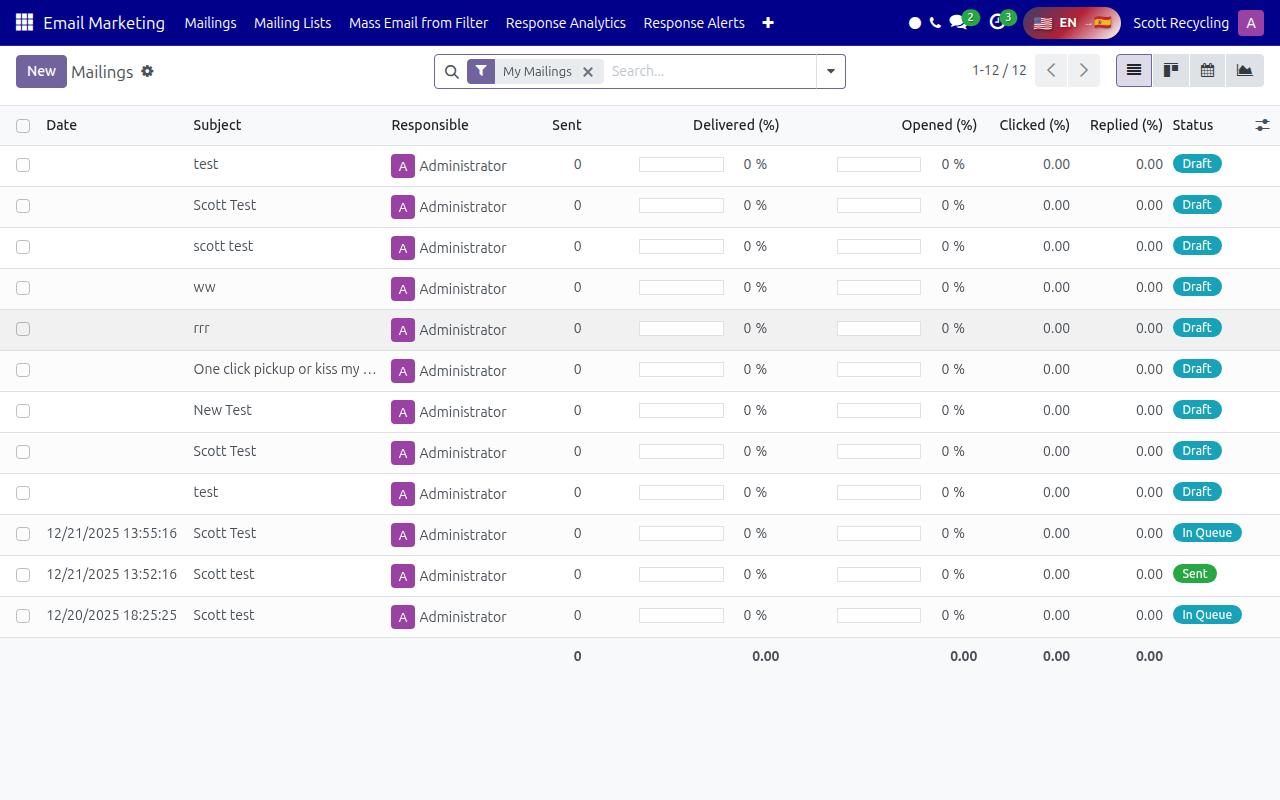 Email Marketing — mailings list showing status (Draft, In Queue, Sent) and delivery metrics
The Wizard
The wizard has two sections: recipient selection (left) and mailing options (right).
Wizard Fields
| Field | Description |
|---|---|
| Selection Method | Choose "Use Saved Filter" or "Manually Select Contacts" |
| Saved Filter | Dropdown of filters saved on the Contacts list view (only shown when using a filter) |
| Contacts | Multi-select field to pick individual contacts (only shown when using manual selection) |
| Number of Contacts | Live count of contacts with email addresses matching your selection |
| Action | "Create Mass Mailing" (recommended) or "Create Mailing List Only" |
| Mailing List Name | Optional name for the mailing list (auto-generated if left blank) |
| Email Subject | Subject line for the mass email |
How It Works
The wizard handles the behind-the-scenes work of creating mailing infrastructure:
- Evaluates your filter or selection to find all matching contacts with email addresses
- Creates a mailing list from those contacts (new mailing contacts are created, existing ones are linked)
- Optionally creates the mass mailing record with your subject line, ready to edit and send
- Redirects you to the mailing editor (if creating a mailing) or the mailing list (if creating a list only)
Contacts without email addresses are automatically skipped, and you see a count of how many were skipped.
Common Tasks
Sending a Quick Mass Email from a Filter
- Navigate to Email Marketing → Mass Email from Filter
- Set Selection Method to "Use Saved Filter"
- Select your filter from the Saved Filter dropdown
- Verify the Number of Contacts looks correct
- Set Action to "Create Mass Mailing"
- Enter an Email Subject
- Click Create
- You are redirected to the mailing editor — compose your email body
- Click Send when ready
Creating a Mailing List from a Filter
- Navigate to Email Marketing → Mass Email from Filter
- Select your filter or manually pick contacts
- Set Action to "Create Mailing List Only"
- Optionally enter a Mailing List Name
- Click Create
- The mailing list is created and you are redirected to view it
- Use the list later for any mailing campaign
Tips
Save frequently used filters in Contacts
Before using this wizard, save your commonly used contact filters in the Contacts list view. They will appear in the Saved Filter dropdown for quick reuse.
Check the contact count before sending
Always verify the Number of Contacts matches your expectations. If the count seems too high or too low, your filter may need adjustment.
Use this for non-pickup emails
For emails that need pickup response buttons, use the Pickup Blast instead. This wizard is best for newsletters, announcements, and general communications.
Questions? Contact your supervisor or refer to the Getting Started guide.