Inventory Processing
Overview
The Inventory Processing module is the core warehouse system where all received devices -- laptops, desktops, phones, tablets, monitors, servers, printers, and networking equipment -- are tracked from receiving through processing, grading, and eventual sale or recycling. Every reusable device that enters Scott Recycling's warehouse passes through this module. It captures detailed specifications, assigns condition grades, calculates device values, and feeds into downstream modules (Shipping, Multi-Channel eCommerce, General Sales).
Last Updated: February 2026 Target Audience: Warehouse Techs, Processing Staff, QA Techs, Inventory Specialists, Managers
The Inventory List
When you open Inventory Processing, you see the main list of all processed items:
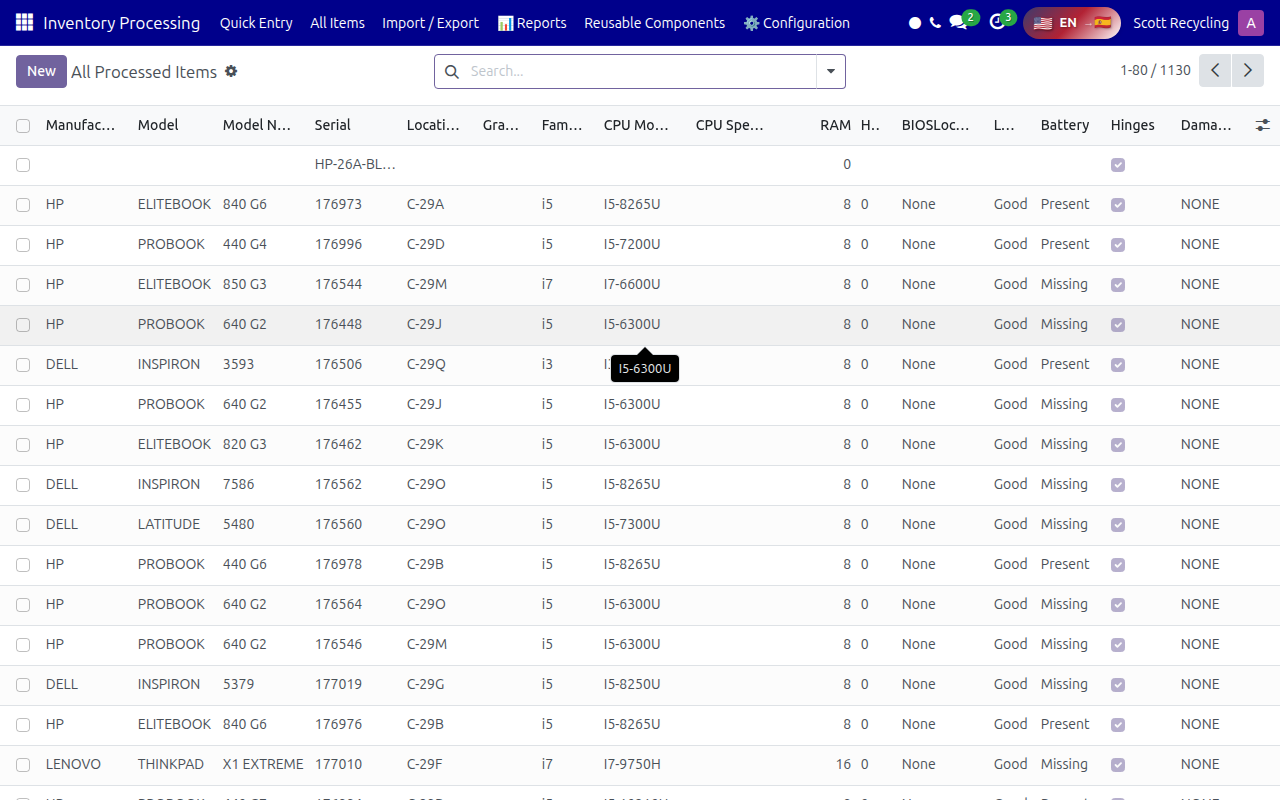
Columns
| Column | Description |
|---|---|
| Manufacturer | Device brand (HP, Dell, Lenovo, Apple, Acer, ASUS, etc.) |
| Model | Product line name (EliteBook, ProBook, Inspiron, ThinkPad, Latitude, etc.) |
| Model Number | Specific model identifier (840 G6, 640 G2, 5570, T480, etc.) |
| Serial | Unique serial number -- the primary tracking identifier for every device |
| Location | Warehouse location code (e.g., C-29A, C-29B, D-12, Shelf-3) |
| Grade | Device condition grade assigned during processing (see Grading System below) |
| Family | Product family grouping for batch processing and reporting |
| CPU Model | Processor category (i5, i7, i3, Ryzen 5, etc.) |
| CPU Speed | Full CPU identifier (i5-8265U, i7-9750H, Ryzen 5 3600, etc.) |
| RAM | Installed memory in GB |
| HDD | Storage drive size and type (256GB SSD, 500GB HDD, etc.) |
| BIOS Lock | Whether the BIOS is password-protected (Yes/No) -- BIOS-locked devices cannot be resold until unlocked |
| LCD | Screen condition assessment |
| Battery | Battery status (Good, Fair, Poor, Missing, N/A for desktops) |
| Hinges | Laptop hinge condition (Good, Loose, Broken, Missing, N/A for desktops) |
| Damage | Free-text field for physical damage notes |
The counter in the top-right (e.g., "1-80 / 1130") shows how many total items match your current filter. If you see fewer items than expected, check whether a filter is active.
Item Detail View
Click any row to open the full item record:
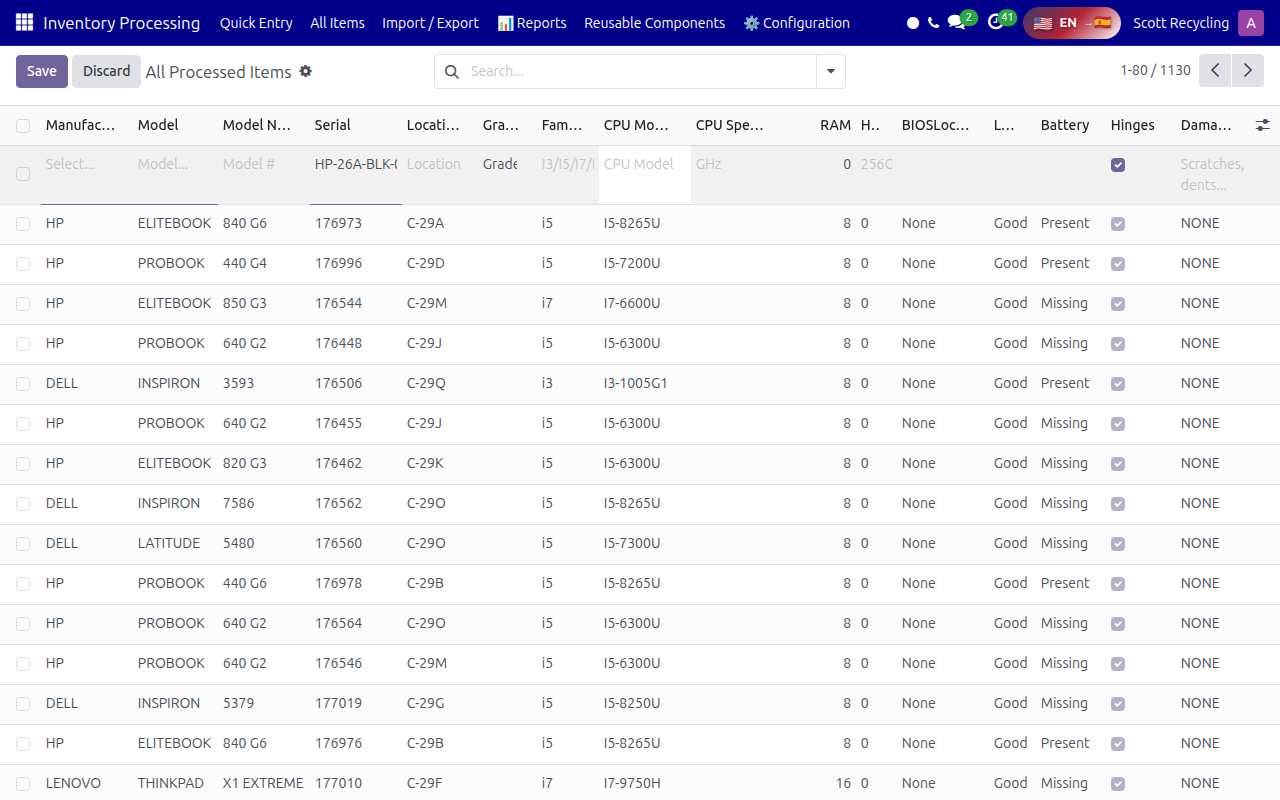
The detail form shows all specifications, condition notes, and processing history for the device. From here you can:
- Update any specification fields (CPU, RAM, HDD, etc.)
- Change the device grade
- Add or edit damage notes
- View the processing history and audit trail
- Link the device to a sales order
- Print a barcode label
Grading System
Every device receives a Grade during processing that determines its resale path and pricing tier. Grades are assigned based on the overall condition of the device -- cosmetics, functionality, and completeness.
Grade Definitions
| Grade | Label | Description | Typical Resale Path |
|---|---|---|---|
| A | Excellent | Device is fully functional with minimal cosmetic wear. Screen is clean with no scratches or dead pixels. Keyboard and trackpad work perfectly. Battery holds a normal charge. Hinges are tight. No dents, cracks, or significant scratches. Looks nearly new. | eBay/Amazon individual listing at premium price |
| B | Good | Device is fully functional with moderate cosmetic wear. May have light scratches on the lid or palm rest, minor screen blemishes (no dead pixels), or slight keyboard shine. Battery holds a reasonable charge. Hinges are solid. All ports work. | eBay/Amazon individual listing at standard price |
| C | Fair | Device is functional but has noticeable cosmetic issues. May have visible scratches, small dents, worn keyboard keys, a battery that holds reduced charge, or minor screen imperfections (light scratches, slight backlight bleed). All core functions work. | Bulk/wholesale sale, budget eBay listing |
| D | Poor | Device has significant cosmetic or functional issues but is still usable. May have cracked bezels, missing keycaps, battery that barely holds charge or is missing, loose hinges, noticeable screen defects, or cosmetic damage that affects appearance but not core function. | Bulk/wholesale sale at discount, parts harvest candidate |
| F | Non-Functional / Parts | Device has a major functional failure (does not boot, no display output, severe physical damage) or is missing critical components. Not viable for resale as a complete unit. | Parts harvesting (RAM, CPU, HDD, screen), recycling |
| R | Recycling Only | Device is too old, too damaged, or too low-spec to have any resale or parts value. Destined for material recycling. | Disassembly line, weight-based recycling |
Grading Decision Guide
When grading a device, evaluate these factors in order:
- Does it power on and boot? If no -- Grade F or R
- Are all major components present? (battery, HDD, RAM, screen, keyboard) If missing critical parts -- Grade D or F
- Does the screen have defects? Dead pixels, cracks, severe scratches push toward C or D
- How are the hinges? Loose or broken hinges on laptops push toward C or D
- What is the battery health? Poor battery pushes toward C; missing battery pushes toward D
- Cosmetic condition? Light wear = A/B; moderate wear = B/C; heavy wear = C/D
- Is the BIOS locked? BIOS-locked devices that cannot be unlocked are typically Grade F until resolved
When in doubt, grade down
It is better to grade a device conservatively and upgrade it later than to over-grade and have a customer complaint. A device graded B that turns out to be C creates returns. A device graded C that turns out to be B can be re-graded and re-priced.
Device Identification Guide
Correctly identifying a device's manufacturer, model, and model number is essential for accurate pricing and listing.
Where to Find Model Information
| Location | What You Will Find | Devices |
|---|---|---|
| Bottom label | Model number, serial number, part number, regulatory info | Laptops, tablets |
| Back panel | Model number, serial number | Desktops, monitors, printers |
| BIOS/UEFI screen | Exact model, serial, CPU, RAM, sometimes original build date | All devices that power on |
| Battery compartment | Model number (on older laptops where the battery is removable) | Older laptops |
| Inside the lid | Serial number sticker (some HP and Dell models) | Laptops |
| System Information | Full hardware details (run msinfo32 on Windows or check About This Mac) |
Devices that boot to OS |
Identifying from Serial Numbers
Serial number formats can help identify the manufacturer:
| Manufacturer | Serial Number Pattern | Example |
|---|---|---|
| Dell | Alphanumeric, 7 characters (Service Tag) | 5HG9X23 |
| HP | Alphanumeric, 10 characters, often starts with letters | 5CG8234KJN |
| Lenovo | Alphanumeric, varies; Machine Type is 4 digits + letter combo | PF1ABCDE, MT 20L5 |
| Apple | Alphanumeric, 10-12 characters | C02X1234HPQR |
| ASUS | Alphanumeric, typically starts with letters | J4N0CV123456 |
Use Dell and Lenovo support sites for lookup
Enter a Dell Service Tag at dell.com/support or a Lenovo serial at pcsupport.lenovo.com to instantly identify the full model, original specs, and warranty status. This is the fastest way to identify unknown Dell and Lenovo devices.
What to Do with Unknown or Undocumented Devices
If you encounter a device you cannot identify:
- Check the BIOS -- power on and enter BIOS setup (usually F2, F10, or Del key at boot) to find the model and serial
- Search the serial number on the manufacturer's support website
- Look for FCC ID on the regulatory label -- search the FCC ID at fcc.gov/oet/ea/fccid to find the device
- Check physical characteristics -- screen size, port layout, and design cues often narrow down the model family
- If still unidentified, enter what you know (manufacturer if visible, "Unknown Model"), set the location, and flag it for a lead or manager to investigate
- Do not guess -- an incorrect model assignment leads to wrong pricing and incorrect listings
Condition Assessment Details
Battery Health Assessment
| Rating | Criteria | How to Determine |
|---|---|---|
| Good | Battery holds 80%+ of original capacity; charges and discharges normally | Run battery report (Windows: powercfg /batteryreport) or check cycle count on Mac; battery lasts 2+ hours under light use |
| Fair | Battery holds 50-79% of original capacity; still usable but reduced life | Battery lasts 1-2 hours under light use; may show "Consider replacing" warnings |
| Poor | Battery holds under 50% capacity or has charging issues | Battery dies quickly (under 1 hour), intermittent charging, swelling visible |
| Missing | No battery installed in the device | Battery slot is empty |
| N/A | Device does not use a battery | Desktops, monitors, printers |
LCD Screen Assessment
| Condition | What to Look For |
|---|---|
| Good | No dead pixels, no scratches visible during normal use, uniform backlight, no discoloration |
| Minor Issues | 1-3 dead pixels not in the center, very light surface scratches only visible at angles, slight backlight bleed in corners |
| Moderate Issues | 4+ dead pixels, scratches visible during normal use, noticeable backlight bleed, slight discoloration in areas |
| Major Issues | Lines on screen, large clusters of dead pixels, cracks in the LCD panel (not just the glass), severe discoloration, flickering |
| Non-Functional | Screen does not display at all, or displays garbled/distorted content consistently |
Testing procedure: Power on the device and display a solid white background (open a blank document maximized), then a solid black background (turn off all lights and look for backlight bleed). Check for dead pixels on the white screen. Run through red, green, and blue solid screens if a dead pixel tool is available.
Hinge Assessment (Laptops Only)
| Condition | Criteria |
|---|---|
| Good | Hinges hold the screen at any angle without wobbling; open and close smoothly with moderate resistance |
| Loose | Screen wobbles or does not hold position at certain angles; hinges work but feel weak |
| Broken | Hinge mechanism is cracked, separated from the chassis, or screen flops freely; may see cracked plastic around hinge area |
| Missing | Hinge hardware is absent (rare -- usually from incomplete devices) |
Cosmetic Grading Scale
| Level | Description | Examples |
|---|---|---|
| Minimal wear | Device looks nearly new; only very faint marks visible under direct light | Light fingerprints, microscopic surface marks |
| Light wear | Small scratches or marks visible but do not affect usability or first impression | 1-2 small scratches on lid, slight wear on palm rest edges |
| Moderate wear | Clearly visible cosmetic wear; device looks used but not abused | Multiple scratches on lid, worn keyboard legends, scuff marks on corners |
| Heavy wear | Significant cosmetic damage that affects appearance | Deep scratches, dents, cracked bezels, missing rubber feet, sticker residue, discoloration |
| Severe damage | Device looks damaged; structural issues may be present | Cracked chassis, broken ports, large dents affecting internal components |
Top Menu Navigation
| Menu | What It Shows |
|---|---|
| Quick Entry | Fast form for entering new items during receiving -- optimized for speed |
| All Items | Full list of all processed inventory with search and filters |
| Import / Export | Bulk import/export tools for inventory data (CSV, Excel) |
| Reports | Inventory analytics, processing throughput, value reports |
| Reusable Components | Harvested parts: RAM modules, hard drives, CPUs, batteries, screens |
| Configuration | Master data: Manufacturers, models, CPUs, form factors, storage sizes, pricing tables |
Common Tasks
Processing a New Device (Quick Entry)
This is the primary workflow for receiving and processing devices. Target: Inventory Specialists should process 60 devices/day; QA Techs should process 50 devices/day.
- Open Inventory Processing
- Click Quick Entry in the top menu
- Scan or type the Serial Number -- if the serial already exists in the system, the existing record opens (prevents duplicates)
- Select the Manufacturer from the dropdown (HP, Dell, Lenovo, etc.)
- Select the Model -- the dropdown filters based on the selected manufacturer
- Enter the Model Number if known (e.g., 840 G6)
- Enter the specs:
- CPU Speed -- the full CPU identifier (e.g., i5-8265U); the CPU Model category (i5, i7) auto-fills
- RAM -- total installed memory in GB
- HDD -- storage size and type (e.g., 256GB SSD, 500GB HDD)
- Assess and set the Grade based on the grading system above
- Record condition details:
- Battery -- Good, Fair, Poor, or Missing
- Hinges -- Good, Loose, Broken, or Missing (laptops only)
- LCD -- note any screen issues
- BIOS Lock -- Yes or No; if Yes, the device cannot be resold until unlocked
- Damage -- free text for any physical damage notes
- Set the Location code (the warehouse shelf/bin where the device will be stored)
- Click Save and move to the next device
Finding a Specific Item
- Open the All Items view
- Use the Search bar at the top
- Type any of: serial number, model number, manufacturer name, or location code
- Press Enter -- the list filters to matching items
- Click the item to open its detail record
Filtering the Inventory
Use the filter and group-by dropdowns to narrow the list:
- By Location -- see items in a specific warehouse section (useful for physical inventory counts)
- By Manufacturer -- filter to one brand (useful for bulk pricing of same-manufacturer devices)
- By Grade -- show only Grade A, Grade B, etc. (useful for building sales lists by quality tier)
- By Status -- filter by processing status to see what needs work
- By BIOS Lock -- find all BIOS-locked devices that need attention
- By CPU Model -- filter by i5, i7, etc. for batch pricing
Updating an Item's Grade
- Open the item from the All Items list
- Review the current grade and condition notes
- Change the Grade field to the new grade
- Update the relevant condition fields (Battery, Hinges, LCD, Damage) to match
- Add a note in the Damage field explaining why the grade changed if it is a downgrade
- Click Save
- The device value recalculates automatically based on the new grade
Harvesting Reusable Components
When a device is Grade F or R and will not be resold as a complete unit, harvest usable parts:
- Open the device record
- Note the RAM, CPU Speed, and HDD specifications
- Navigate to Reusable Components from the top menu
- Create entries for each harvested component (RAM module, CPU, hard drive, battery if still good)
- Link the components back to the source device's serial number for traceability
- Update the source device record to reflect that components have been harvested
Configuration (Managers)
Access Configuration from the top menu to manage master data used throughout the processing workflow:
| Setting | What It Controls |
|---|---|
| Manufacturers | List of device brands -- add new brands here when a new manufacturer is encountered |
| Device Models | Known models with default specs -- pre-populating specs speeds up Quick Entry |
| CPU Models | CPU types and their categories (i3, i5, i7, Ryzen, etc.) |
| Form Factors | Device form factor definitions (Laptop, Desktop, Tower, All-in-One, Mini PC, Tablet, etc.) |
| Storage Capacities | Standard storage sizes for dropdown consistency |
| Products | Product records linked to sales -- these map inventory items to saleable products |
| Memory Pricing | RAM pricing by type (DDR3, DDR4, DDR5) and capacity -- used for component valuation |
| CPU Pricing | CPU pricing by model and generation -- used for component and device valuation |
| Hard Drive Pricing | HDD/SSD pricing by capacity and type -- used for component and device valuation |
Pricing tables are used to automatically calculate device values during processing. When market prices change, update these tables to keep valuations current.
KPI Targets
| Role | Daily Target |
|---|---|
| Laptop Tech | 20 laptops/day, 64 total devices, 15 cleaned laptops |
| Desktop Tech | 10 desktops/day |
| Hard Drive Operator | 100 drives/day, 160 CPUs, 160 memory modules |
| QA Tech | 50 devices/day |
| Inventory Specialist | 60 devices/day |
| Materials Handler | 100 devices/day |
Tips
Use the serial number as your starting point
The fastest way to find any device is to scan or paste its serial number into the search bar. Every device in the system has a unique serial, and the search bar checks all fields.
Check the item count
The "1-80 / 1130" counter in the top-right tells you how many items match your current filter. If you are seeing fewer items than expected, check whether a filter is active by looking at the filter bar below the search box.
Set up default specs for common models
Managers can pre-populate default specs (CPU, RAM, HDD) for common models in Configuration. When a processor selects that model during Quick Entry, the specs auto-fill, saving time and reducing data entry errors.
Grade before storing
Always complete the grade assessment before placing the device on a shelf. Un-graded devices in storage create bottlenecks later when sales staff need to list them.
Troubleshooting
Issue: Device serial number already exists in the system
Symptom: You enter a serial number during Quick Entry and the system opens an existing record instead of creating a new one, or shows a duplicate warning. Cause: The device was already entered -- either during a previous receiving session, or the serial number was entered for a different device by mistake. Fix: 1. Check the existing record -- does it match the physical device you are holding? (same manufacturer, model, specs) 2. If it matches, the device was already processed. Update the record if any information has changed. 3. If it does NOT match, the serial was likely entered incorrectly on one of the records. Compare the physical serial label to both records, correct the wrong one, and then enter the new device.
Issue: Barcode scan does not register or enters wrong characters
Symptom: Scanning a barcode label produces no input, garbled characters, or the wrong serial number. Cause: The barcode label may be damaged, the scanner may need recalibration, or the cursor may not be in the correct field. Fix: 1. Ensure your cursor is in the Serial Number field before scanning 2. Clean the barcode label -- dirt, smudges, or wrinkles can prevent reading 3. Try scanning at a different angle or distance 4. If the scanner consistently reads wrong characters, it may need recalibration -- contact IT 5. As a workaround, type the serial number manually
Issue: Device does not appear in any manufacturer's model list
Symptom: You select a manufacturer but the model you need is not in the dropdown. Cause: The model has not been added to the Configuration master data yet. This happens with new or uncommon device models. Fix: 1. Double-check the manufacturer is correct (some brands have sub-brands -- e.g., HP vs. HP Inc., Dell vs. Alienware) 2. If the model genuinely does not exist, you have two options: - Select the closest available model and note the correct model in the Damage/Notes field, then flag for a manager to add the model to Configuration - Ask a manager to add the model to Configuration → Device Models immediately, then select it 3. Do not leave the model blank -- always enter the best available information
Issue: BIOS is locked and device cannot be processed
Symptom: Device boots to a BIOS password prompt or the BIOS settings are inaccessible, preventing you from verifying specs or resetting the device. Cause: The previous owner set a BIOS password and it was not removed before the device was sent for recycling. Fix: 1. Set the BIOS Lock field to Yes on the device record 2. Grade the device as F (Non-Functional / Parts) until the lock is resolved 3. Check if the manufacturer offers a BIOS unlock service (Dell and HP both provide this with proof of ownership) 4. For Dell devices, the Service Tag can be used to request a master password from Dell support 5. Escalate to IT or a manager for further BIOS unlock procedures 6. Once unlocked, update the BIOS Lock field to No and re-grade the device
Issue: Grade dispute between processing tech and QA
Symptom: QA reviews a device and disagrees with the grade assigned during initial processing. Cause: Grading involves judgment calls. Different technicians may assess cosmetic wear or minor functional issues differently. Fix: 1. QA takes precedence -- the QA grade is the final grade 2. QA tech should update the grade and add a note explaining the change (e.g., "Downgraded from B to C: screen scratches more visible under direct light than initially assessed") 3. If the disagreement is about grading standards rather than a specific device, escalate to a manager to clarify the criteria for the team 4. Consistent grading discrepancies between the same techs should be addressed in team training
Issue: Device will not power on during processing
Symptom: You press the power button and the device does not respond at all -- no lights, no fan spin, no screen activity. Cause: Dead battery (if laptop), no power adapter connected, faulty power adapter, or hardware failure. Fix: 1. For laptops: connect the correct power adapter and try again; a completely dead battery may prevent boot even on AC power on some models -- try removing the battery and booting on AC only 2. Try a known-good power adapter of the same type 3. Check the power port for damage (bent pins, debris) 4. If the device still will not power on with verified good power, grade it as F (Non-Functional / Parts) and note "Does not power on" in the Damage field 5. Move the device to the parts/recycling area
Questions? Contact your supervisor or refer to the Getting Started guide.